Top Things to do on Hawaii’s Big Island with your 10 year-olds and under.

We visited the big island of Hawaii last year, and my younger brother recently asked for advice on the must sees, so I thought I’d share my thoughts for a broader audience.

Our two kids were 8 and 10 at the time, so that prevented us from doing a few things – mainly the adventurous ziplines on offer amongst the waterfalls and ravines – which I was dead keen to try! We also found that one week wasn’t quite enough: a bit more time, in particular to explore more of the rain-soaked Eastern side of the island, would have been great. Since we stayed (as most people do) on the sunny and dry West side, on the day we ventured over to Hilo by the time we had got all the way around there we didn’t have as much time to explore as we would have liked.

With that brief background, here are our highlights:

1. Stargazing at the Mauna Kea Visitor Center

2. Snorkeling at Kahaluu Beach and Captain Cook Memorial

3. Volcanoes National Park

4. Hike into Green Sand Beach

5. Pu’uhonua o Honaunau National Historical Park

6. Manta Ray Swim

Stargazing at the Mauna Kea Visitor Center

I put this one first because it takes a bit of effort from a timing perspective, but is absolutely worth it. Every day, the volunteers at the visitor center on the slopes of Mauna Kea set out a bunch of telescopes as the sun starts to set, and then wait for the mist to dissipate to reveal the amazing vista that is the Milky Way. After a bit of time to take a look through the decent-sized telescopes which have been pointed at various stars and planets, one of the volunteers then proceeds to walk everyone through (with the help of a handy laser pointer) some of the constellations and other highlights of our galaxy. This might sound a bit dull, but let me tell you it is anything but, and when you realize that what you thought were wispy remnants of cloud are actually clouds of stars, you will know you’ve never before experienced what our ancestors could see in the sky almost every night.

Just make sure you take warm clothes, as it is really chilly up there.

Rather than stop at the visitor center, quite a few people continued to drive up to the top of the mountain. But we didn’t feel like we needed to do that.

Snorkeling at Kahaluu Beach and Captain Cook Memorial

We weren’t too sure how realistic it would be to take the kids snorkeling much, but Kahaluu Beach was a perfect safe introduction for the kids (and us!), has a wide array of fish, and in the end was the only place we saw a sea turtle while snorkeling. We went a few times, since it was the closest beach to where we were staying (at the Kona Coast Resort).

Once we had the hang of snorkeling there, we wanted to try somewhere else, and being Australian we were intrigued to see the Captain Cook Memorial, which we heard was also a good snorkeling option. There are tour operators that go around there by boat, and guided canoe trips are also on offer, but we decided to hike down, which was an experience in itself. The top of the trail-head is very hidden, but it is actually where it’s shown on Google Maps, in between other properties that butt right up to the road. The route itself starts down between tall cane plantations which have no qualms about growing into the trail itself. After a km or so of that, it opens up into the lava flow terrain so typical of the Western island with raw rocks intermingled with vegetation that is starting to re-establish itself. This is where it gets pretty hot, and why it is suggested to do this early in the day if you can. We actually did it around lunch time which was fine on the way down, but very warm on the way back. Take everything you need (plenty of water, snorkels, food) since there are no supplies at the beach. Once you’ve found your way to the memorial you can jump into the water with your snorkel and flippers and experience the steep coral drop off and crystal clear waters off. There are quite a few tour groups that wind up here as well, but it didn’t really feel crowded out in the water.

One thing that didn’t work too well: the cheap disposable underwater camera we picked up at the supermarket. My advice: Either get a proper waterproof digital camera, or don’t bother.

Volcanoes National Park

There’s not too much to say here. It’s a typical US national park with excellent brochures, signposting, car access to the trails and visitor center. Oh, and there’s a live volcano in the middle. The walk through the main sulphur-fuming self-guided walk not far from the main visitor center is worth it, as is the crater rim museum. The scale of the main crater is pretty amazing. The lava tunnel is also kind of cool. Be prepared to get wet. It was raining on and off the entire time we were there, which given it is in the transition zone towards the wet East side of the island I assume is to be expected.

Hike into Green Sand Beach

Drive down towards Ka Lae and continue around to the left (East) instead of actually going to South Point and you will end up at a somewhat dishevelled parking area. Here the drivers of various pick-ups, 4 wheel drive multi-seat golf carts and various other modes of transport will offer to take you along the 4 kilometers or so of rutted trails to the remarkable Green Sand Beach. You are not allowed to drive yourself the remaining distance, (and your rental car agreement certainly would not let you do so in any case) but we weren’t alone in opting to walk instead. This offers opportunities to see dolphins playing in the sea as you wander around the several small coastal headlands along the route, or in places where you opt for the more direct route, to remark over the meter deep trails winding across the sandy terrain that have been made by the many tourist transportments.

Once at Green Sand Beach, the sand is, well, surprisngly green, caused by the high content of volcanic olivine in the rock. You can swim in the sheltered bay formed in the volcanic caldera if you wish (although be prepared for the possibility of an uncomfortable sand-chafing walk back if you do), or just lie down and remark on the formations around the cove. A sea turtle did make an appearance off shore while we were here, but there were too many people around for it to want to come in close.

Pu’uhonua o Honaunau National Historical Park

This immaculately maintained historical park imparts a real sense of native Hawaiian life from only a few hundred years ago. The self-guided tour takes you around a number of points in the open air beach-frontage terrain that comprised the royal grounds for a Hawaiian chief of time gone past including several replicas of original dwellings and other structures. There is also a long beach nearby set up with tables where you can have your picnic lunch. No snorkeling is permitted in the park, but Hanaunau Bay which is just to the North has a popular drop-in point called Two Step from which you can snorkel around a large sheltered bay teeming with fish.

Manta Ray Swim

Although a bit pricey, and not guaranteed to deliver results, the chance of a close encounter with these amazing and majestic creatures seemed too good to pass up. The mantas (not sting rays, they don’t have stingers!) learned several years ago that the lights from some of the beachfront hotels attract plankton, and they started gathering to feast on in it. Now enterprising boat operators will take you into the water and use bright lights in the water to (hopefully) attract the same. In the hour or so we spent hanging onto a pontoon in the water, we saw a couple of mantas gliding past on the sea floor only about 5 meters away. And it would have been incredible if they had swooped up towards up while scooping up their evening meal. Sadly, there wasn’t much plankton around the night we went (you can actually see these bright blue tiny creatures wriggling about in the water) so we didn’t get to experience that, but that shouldn’t stop you from trying! We found a smaller operator that just took us four out – and apparently they have a very high success rate – but no-one, including the bigger operators, were having any luck that night.
How to watch iView on your Asus Google Nexus 7 tablet running Android 4.1

I bought a Nexus 7 a while back, and was very disappointed to discover that Flash is no longer being developed for Android 4.1 and that therefore I couldn’t use the ABC’s excellent iView service to catch up missed TV episodes.


Here’s the cleanest workaround, that gets an official version of the flash player onto your tablet (albeit one that isn’t officially supported on Android 4.1) and also ensures that sound works (the problem I had with an earlier version).

Step 1: On your computer, download the latest official .apk for Android 4.x from the Adobe developer support site: http://helpx.adobe.com/flash-player/kb/archived-flash-player-versions.html. I used 11.1.115.20

Step 2: On your Nexus 7 , enable installation of apps from sources other than the Play Store (Settings > Security) – this is for step 5

Step 3: From the Play Store, Install AirDroid on your Nexus 7, and run it. While you are at it, install the Firefox browser.

Step 4: On your computer, go to web.airdroid.com, and enter the security code displayed on your Nexus 7

Step 5: Click on Apps, then Install App, and browse to the .apk downloaded in Step 1. Click Install when prompted on your Nexus 7

Step 6: Open Firefox, and browse to abc.net.au/iview

Step 7: Click on the tap to launch icon when it appears

Step 8: Enjoy the wonders of iView on your Nexus 7!


On Stand-ups

As a product owner, I love stand-ups.  I love discovering what information I need to provide to help team members make progress on a user story. I love the way they help team members quickly discover issues that will prevent them meeting the conditions for satisfaction. I love the way they act as a catalyst for the team to work together to solve problems. I love the way it gives less experienced members of the team exposure to what senior developers are doing, and the opportunity to shine in their own right. And I especially love hearing about where development is up to – knowing that it means come sprint review we’ll have exciting new functionality to review as a team.

But I have to admit – not everyone else on the team loves them.

Some team members are skeptical of the value they bring. They say they are an interruption to their coding flow. Or that they are just unhelpful status updates. Or that they aren’t being used the way the scrum process intends them to be used.

I think that sometimes these criticisms are completely fair. No team is perfect. No stand-up is perfect. But I also think even a bad stand-up is better than no stand-up.

To be clear, here’s what I think makes a good daily stand-up meeting:

  • Transparent: The items on the sprint backlog are visible to everyone so participants can understand what’s left to do
  • Focused: Story-centered review of progress towards completion, so team stays focused on actual sprint goals
  • Predictable: Same time every day so everyone can easily plan around it
  • Short: Identifies any issues and resolves them in follow-on break-out sessions so those not involved can get back to work quickly
  • Inclusive: Whole team is present so everyone knows what is happening and can learn

Done well, stand-ups are a powerful and I think essential catalyst to ensure the team achieves it’s potential for cranking out amazing software at an impressive pace. Done poorly, I think they can still achieve some of the important “so’s…” in this list.

But writing this down makes me realize there are some things we could certainly be doing better at. Here’s how I’d rate our current scorecard.

Predictable: We are good at this. Stand-ups are at 10AM every day. Most people are on time, most days. 9/10

Short: I have heard about teams that have daily 1 hour “stand-ups” – ours usually go for 5 to 10 minutes, never more than 15 minutes. This feels about right to me. 9/10

Inclusive: All local team members are present, but remote team members are left out. We have tried including remote team members before, but now we have separate daily scrums for them with key local team members. It’s a compromise, but I think we get a pass mark here. 6.5/10

Transparent: We have a largeish monitor displaying the Jira sprint backlog – but I think in practice this is one area where we fall down. No-one except the one or two people standing right next to the monitor can read it at all. And I think this discourages participation. This is a fail that I think we have to fix. 4/10

Focused: I think our problems here stem from our sprint planning process. In the last couple of sprints (we are currently fairly early in what we expect to be a major release), we haven’t always had the courage to write down our sprint aims as end-to-end pieces of user-targeted functionality with clearly demonstrable conditions for satisfaction. In other words we have had a lot of tasks on the backlog – as opposed to user stories. By their nature many of these tasks have been the province of individual developers. So rather than feeling like several people are pulling towards, say, “publishing a blog post so others can read it”, it feels like we’ve got  individuals on the hook to get the “Publish button to save the contents of the edit control to the server”. The result is that it is all too easy for the daily stand-up – which keeps the overall sprint objectives top of mind for the team – to easily lose focus of the bigger picture. Still, we aren’t universally bad in this area, so I’d give us 6/10 on this.

For those who like to keep score, I make this 34.5/50 on my super-scientific measures. So, it feels like we’ve got some work to do.

Next time I’ll talk about the sprint planning process, probably the most challenging part of a scrum-inspired development cycle. There’s lots of challenges in planning – but I think the biggest one is deciding on and describing the slices of functionality that actually make sense to try to deliver in a 2-week (or whatever length you have) sprint.

Signing up for Amazon’s Affiliate Program

A very quick post on this one. It is remarkably simple. At least if you already have an amazon.com account, which I did.

Once you’ve confirmed the address you want to associate with your affiliate account, you then answer a few multiple choice questions on the nature of the referring web-site and the content it contains, agree to the terms of their affiliate agreement, and you are done (pending approval in 1 to 3 days).

You can choose to be paid with Amazon.com credit, direct credit to a US bank account, or via check. Minimum amount is $10, or $100 for physical checks with a $15 processing fee.

The only thing left to do is to start inserting their “specially formatted URLs” when linking to products on amazon.com, and this site will become part of the global spiderweb of Internet commerce!

Building a decent mini desktop for my 6 year old son – for under $500 – software included – Part 4 – Assembly

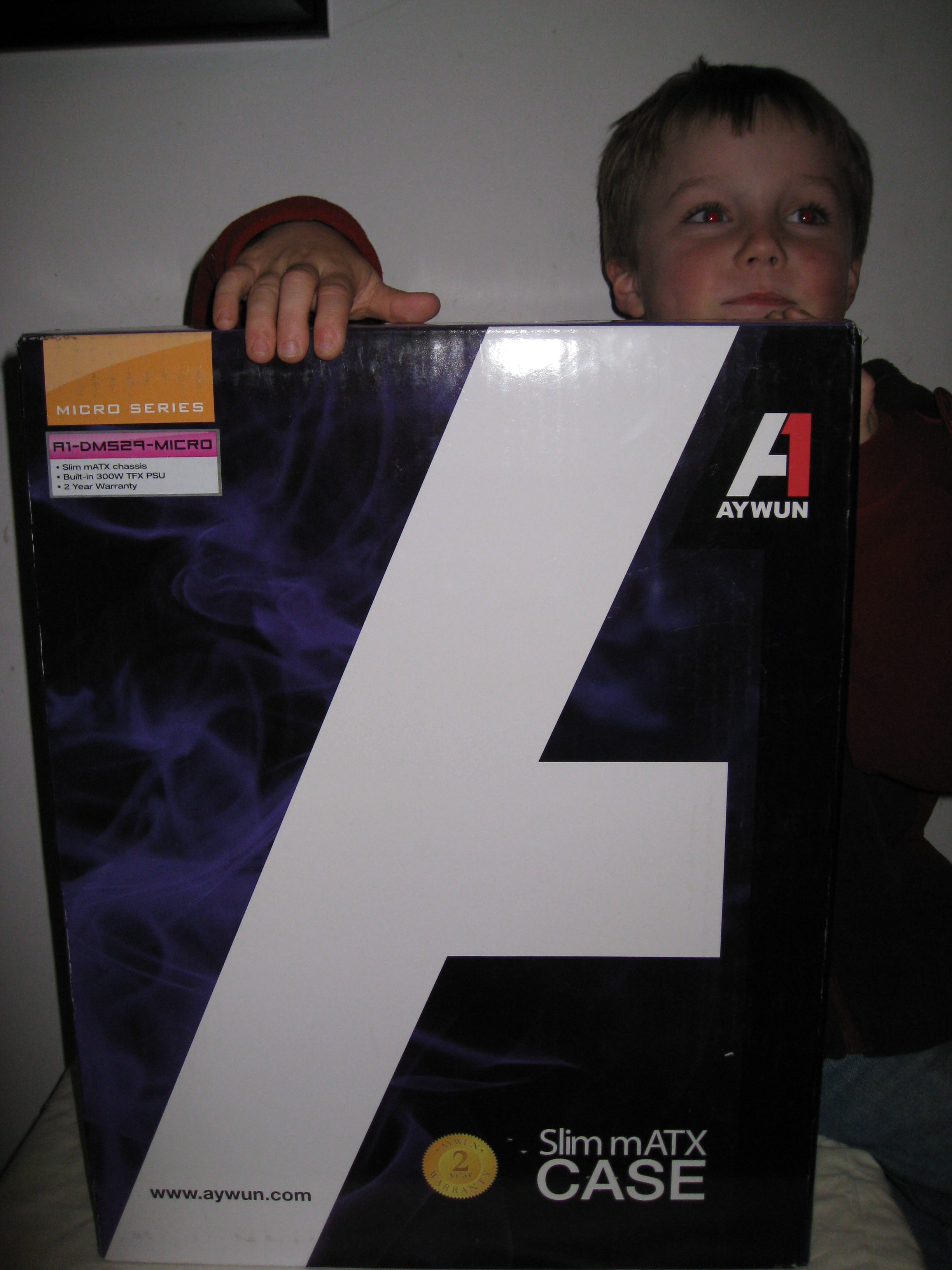
For some reason I was expecting the Aywun case  to come in a plain cardboard box. But the presentation was the kind of thing you’d expect to see in a retail store. I guess the logo tells me  how to pronounce Aywun: as A-1. I was thinking AY-wuhn in my head, with the emphasis on the first syllable.

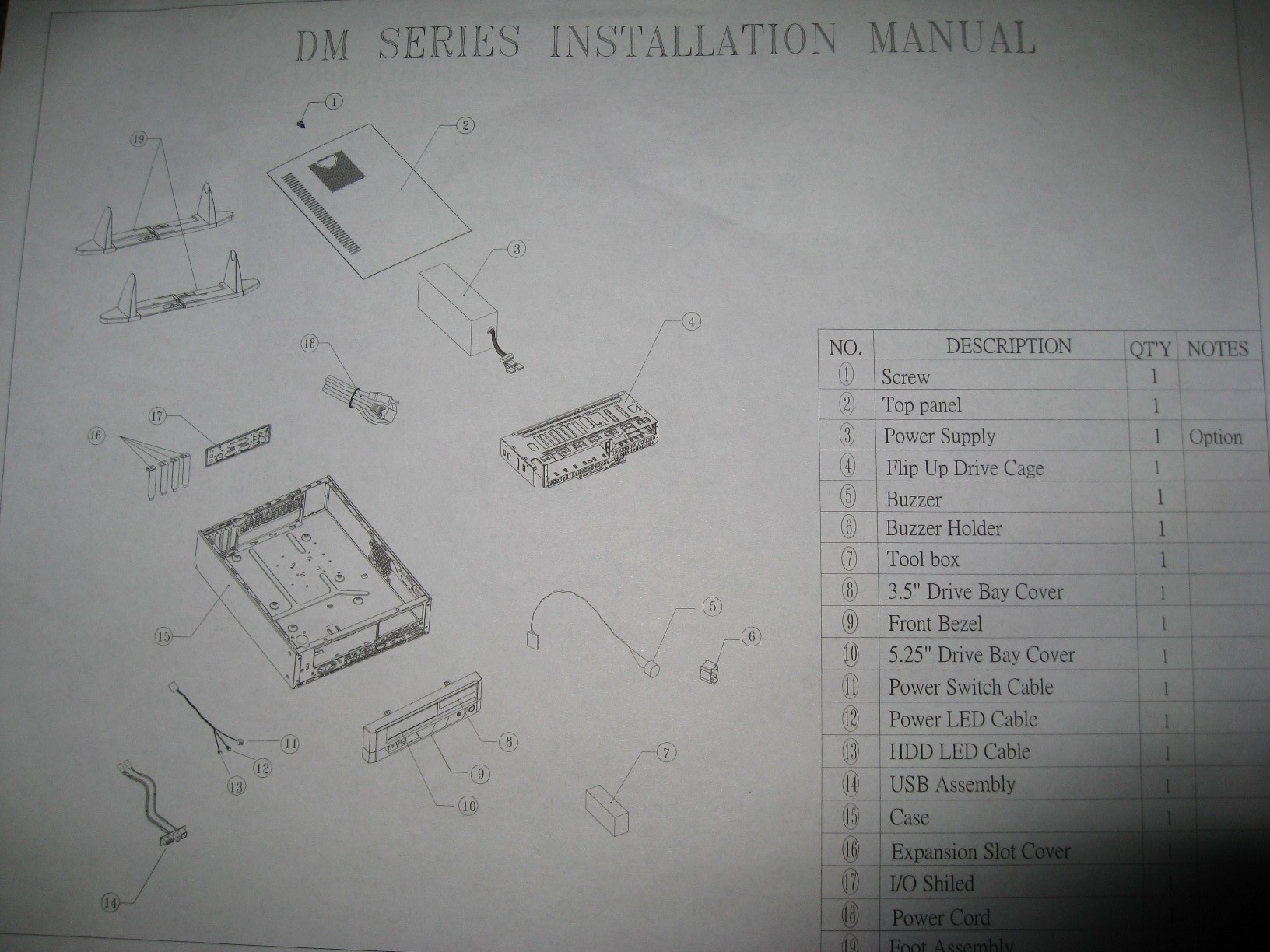
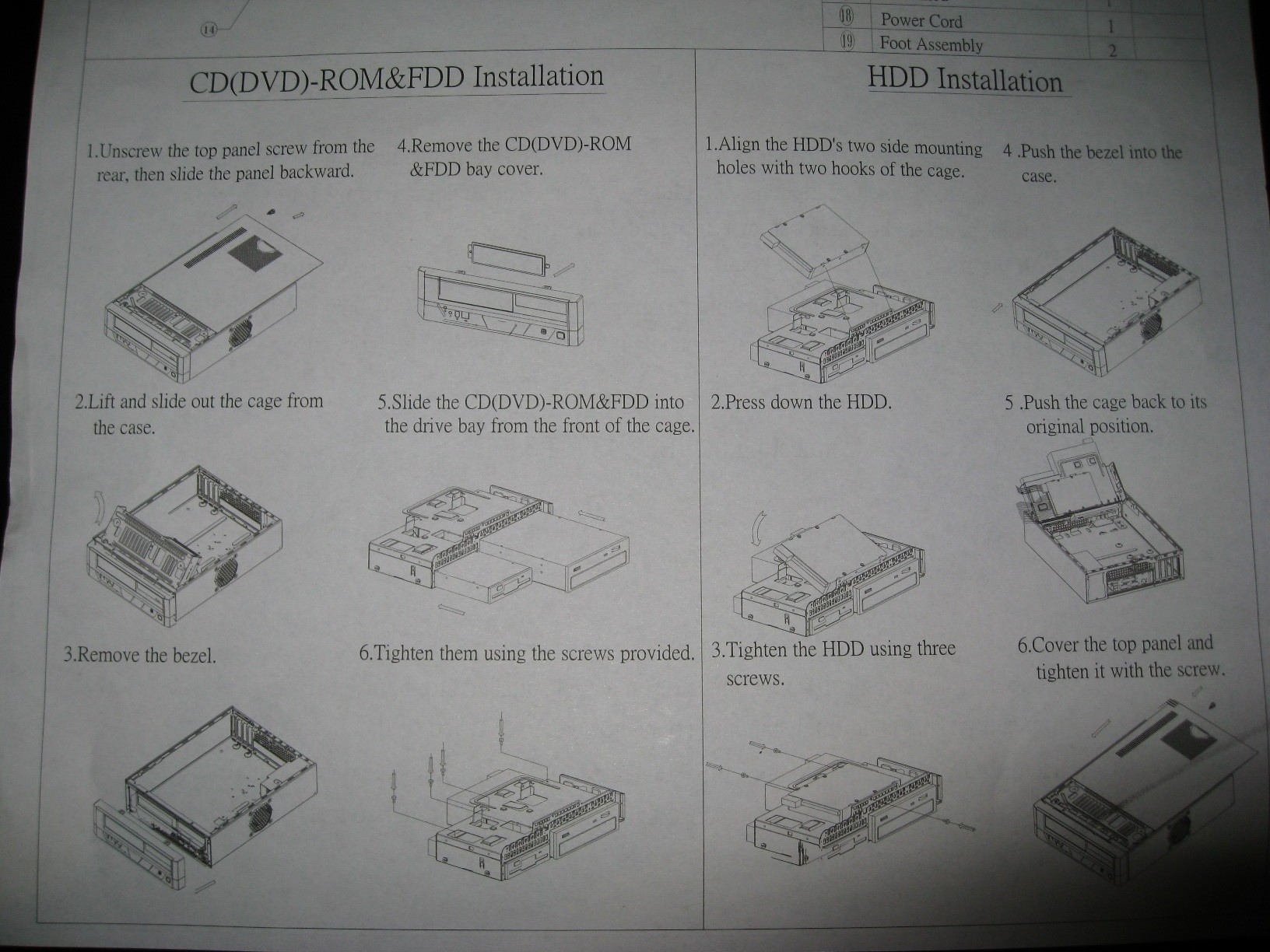
A single double-sided printed piece of paper fell out when we pulled the case out of the box. These are the only instructions. It remains to be seen whether they’ll be enough, but from the look of the internals, it should be hard to go too wrong. The first side has  the exploded parts diagram, and instructions for installing the optical and hard-disk drives into the removable cage. The second side has the information on connecting the front USB, Audio and firewire ports (IEEE1394) to the motherboard. We don’t have firewire on our ASTech motherboard.


We clocked on for the actual build at about 3:40pm on Saturday afternoon.

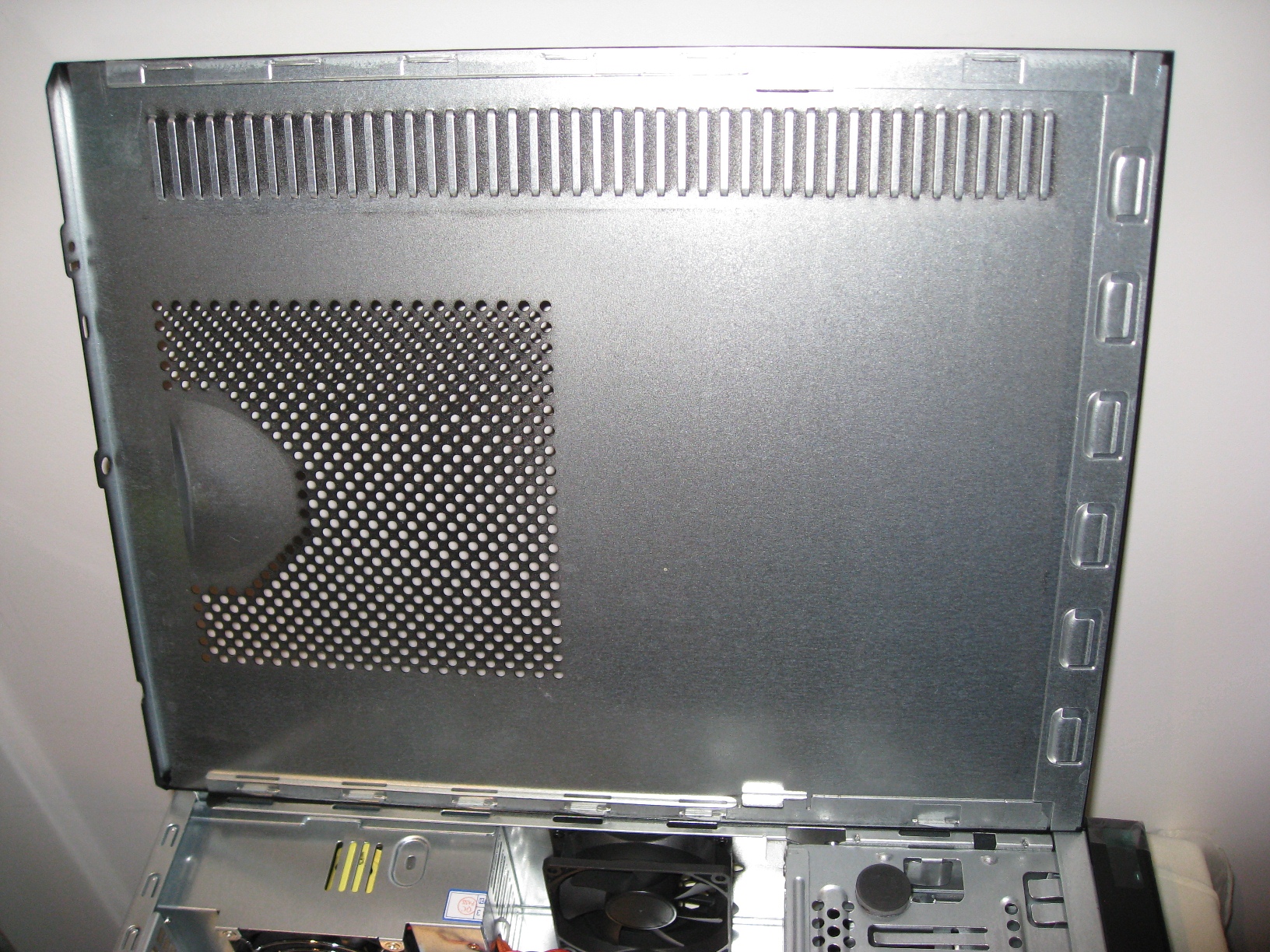
After Mr F removed the single side panel screw with his fingers, I slid the stiff panel along a centimetre or so, and removed it to reveal the box of parts and a power cable. The parts include two plastic feet for standing the case upright, four stick-on rubber feet, 11 motherboard mounting screws, 4 drive mounting screws, and two long screws with only a bit thread on the end which I didn’t recognize.


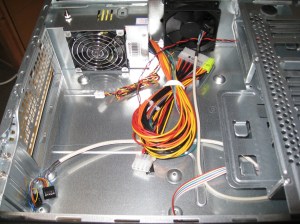
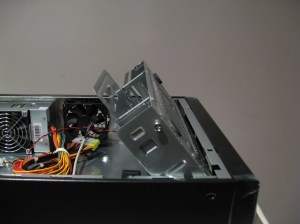
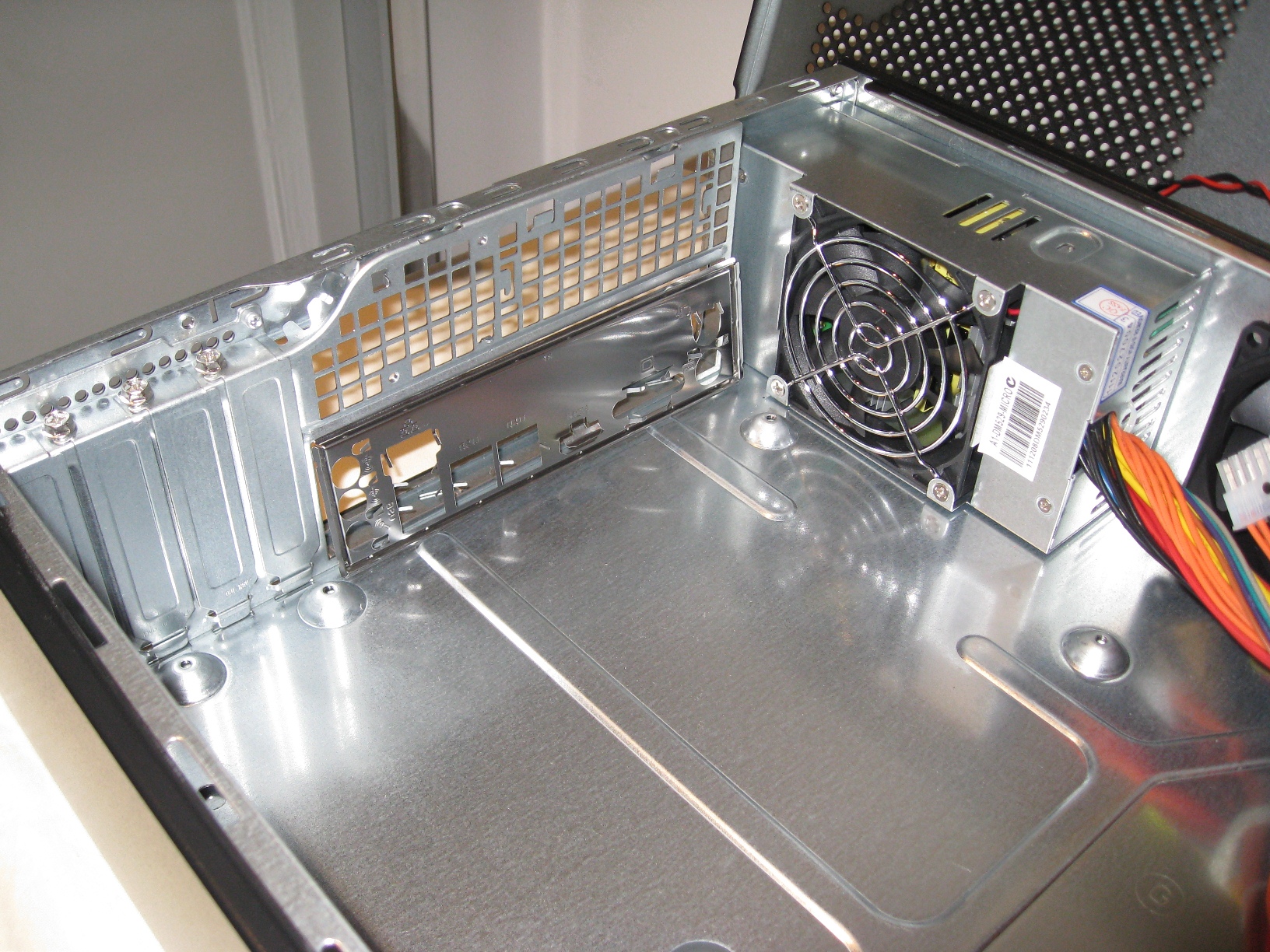
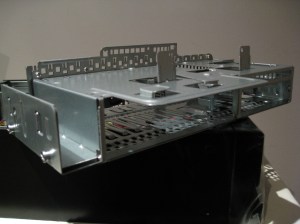
Inside the case itself looks nice and clear with plenty of space around the motherboard mounting area. Some routing flanges were keeping the front panel wires nicely tidy, with enough play to allow it to be removed. The drive cage tilts up easily by pulling on the protruding handle, to allow the DVD and HDD installations to be easily followed, and can be pulled completely out to give plenty of space for routing wires to the front of the case.

Build Step 1: The Motherboard

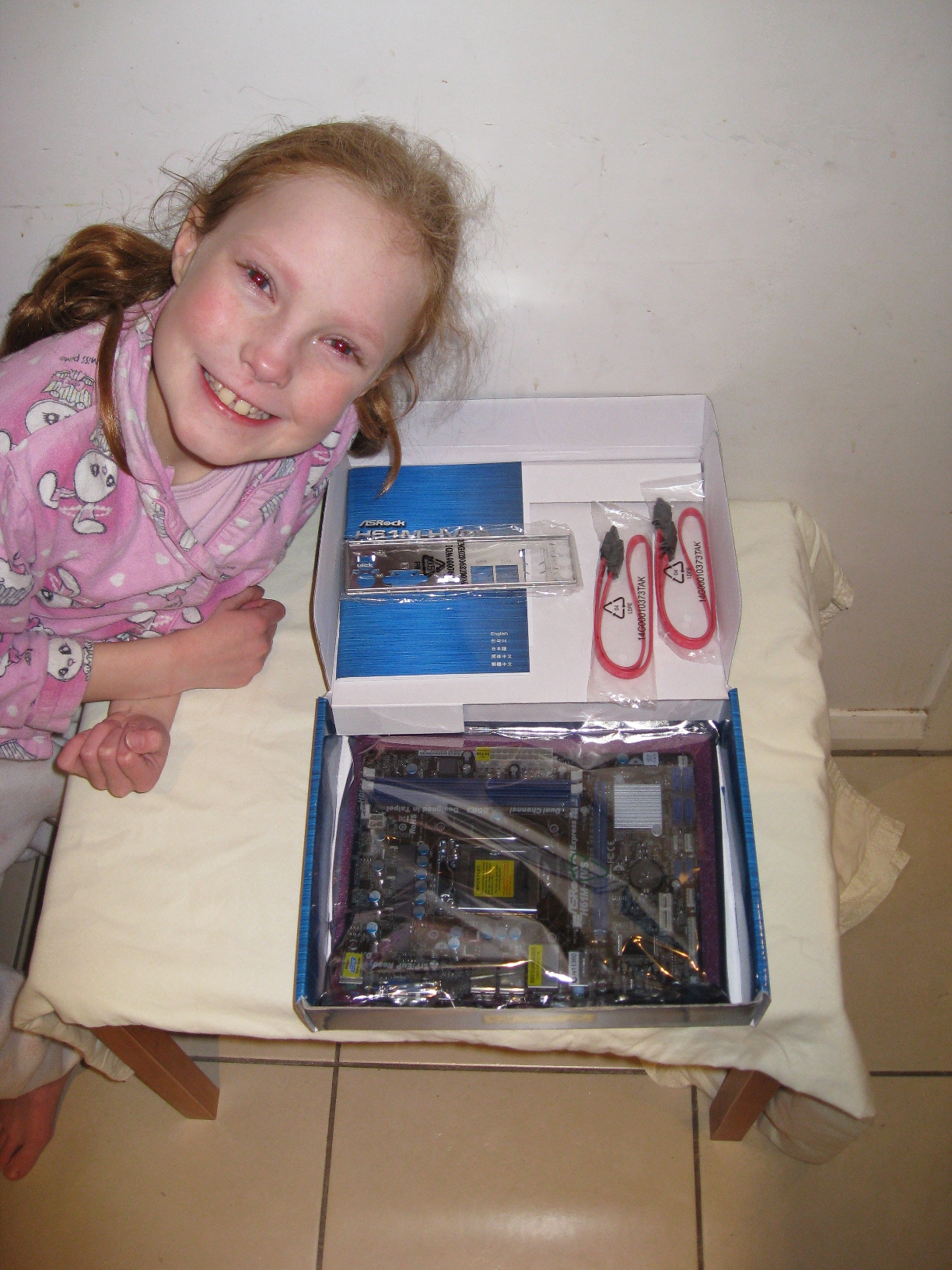
The motherboard box just contained the motherboard itself, the motherboard port plate, two red SATA data cables, and a short but easy to understand manual.


First step: put the port plate into the case. This required some strong adult fingers to help get it to snap in on along all the edges. The key thing was to make sure that the text descriptions of each port were legible from outside the case – I don’t think it would have snapped in the other way around, but I wasn’t keen to try. Also made sure the port holes were aligned to the bottom of the case – where the motherboard will be.

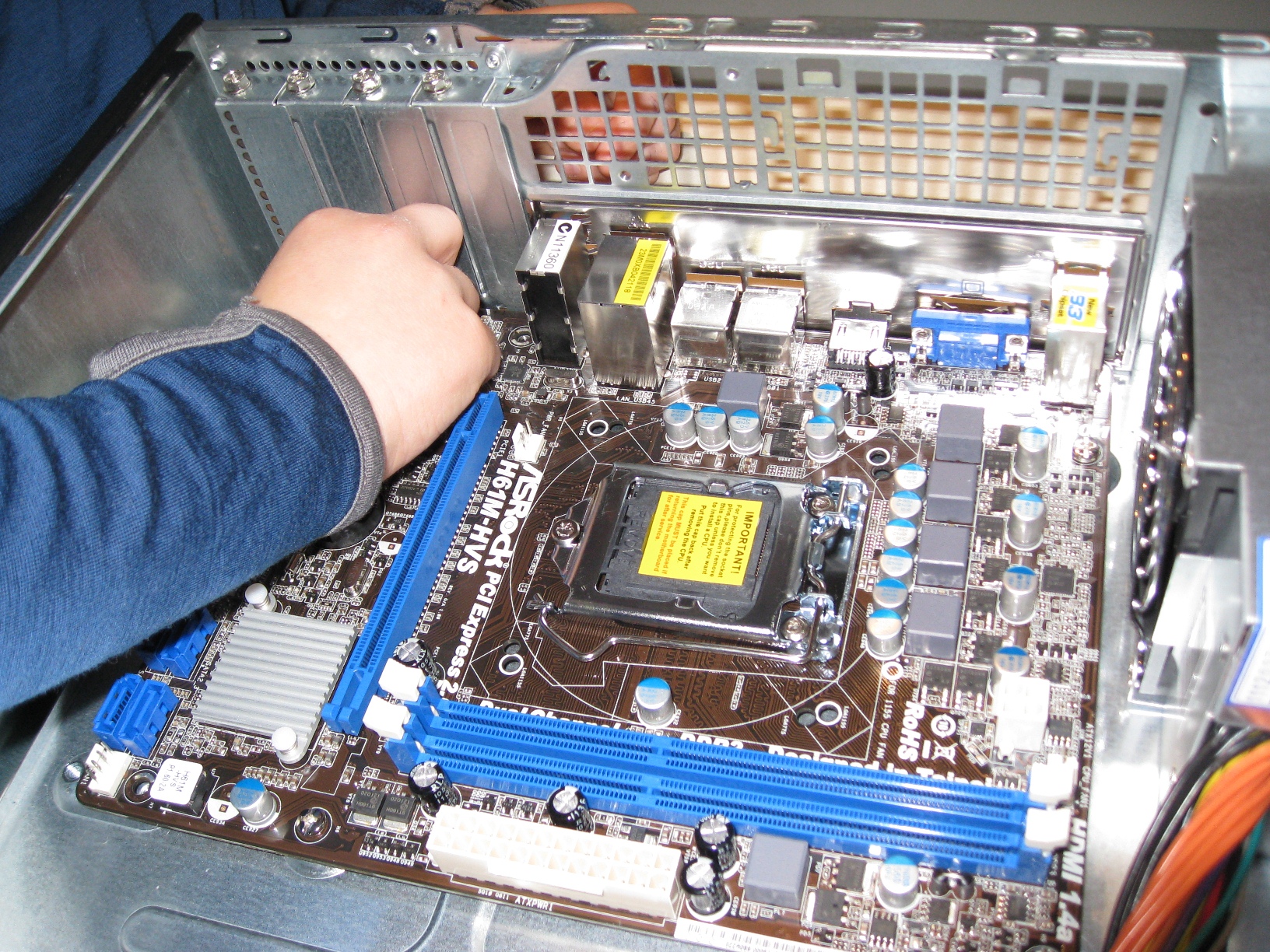
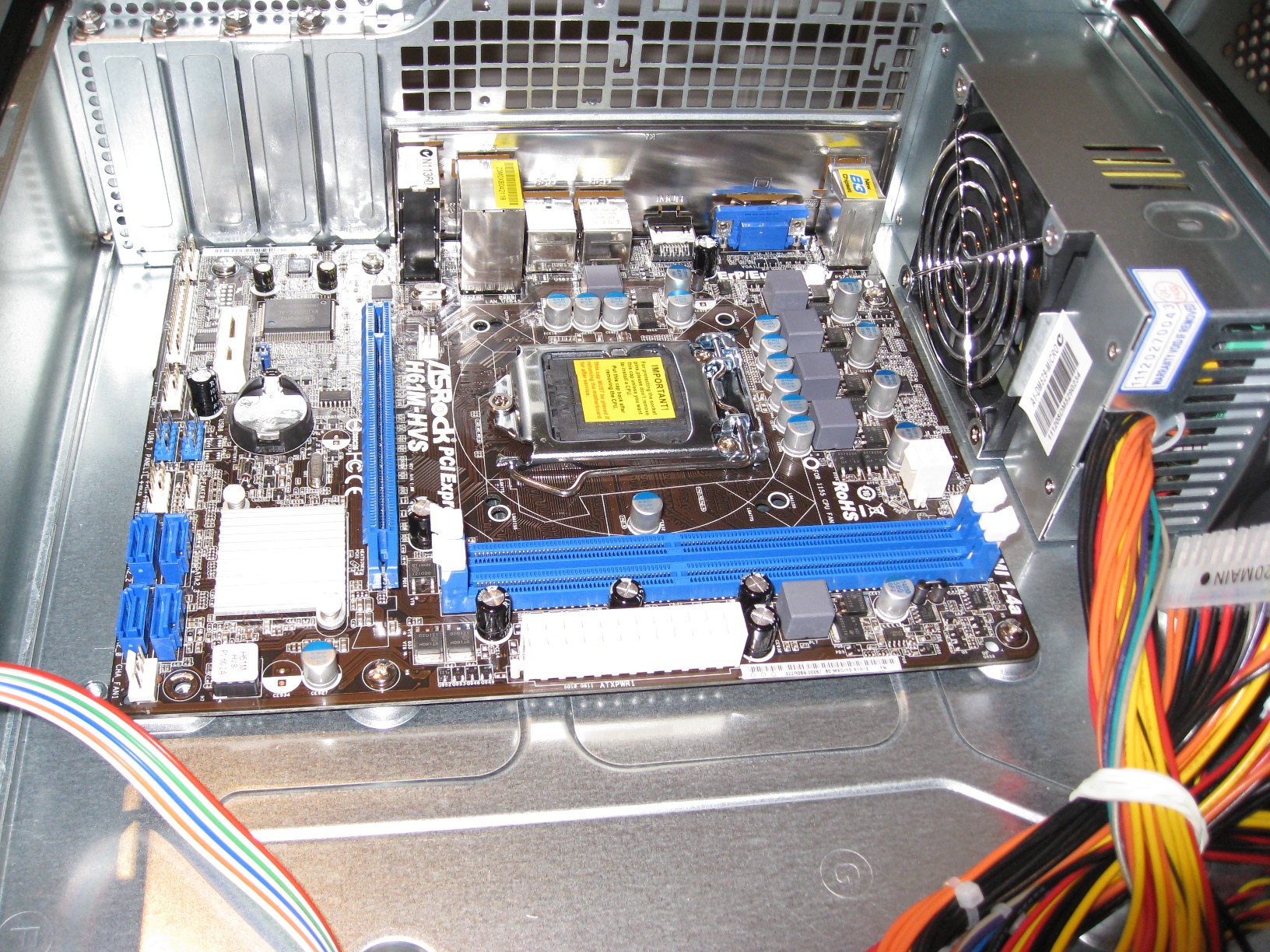
Second step, carefully lower the motherboard into position (we both helped with this part, too!) There are several springy metal slivers sticking out the back of the plate that meant I had to push the motherboard into position, while junior finger-tightened the screws into position.

 
We actually ended up doing this twice with the five screws. The first time one of the sticking out bits of metal actually slid into the HDMI port, which I wasn’t keen on – so I removed the screws and realigned the motherboard so this was no longer the case.

I don’t have a plastic tipped screw-driver (I assume such things exist) and I was a bit worried about the possibility of screw-driver slippage gouging the board, so after the finger-tightening I used a regular Phillips screw-driver to carefully tighten the motherboard screws.

Build Step 2: The CPU

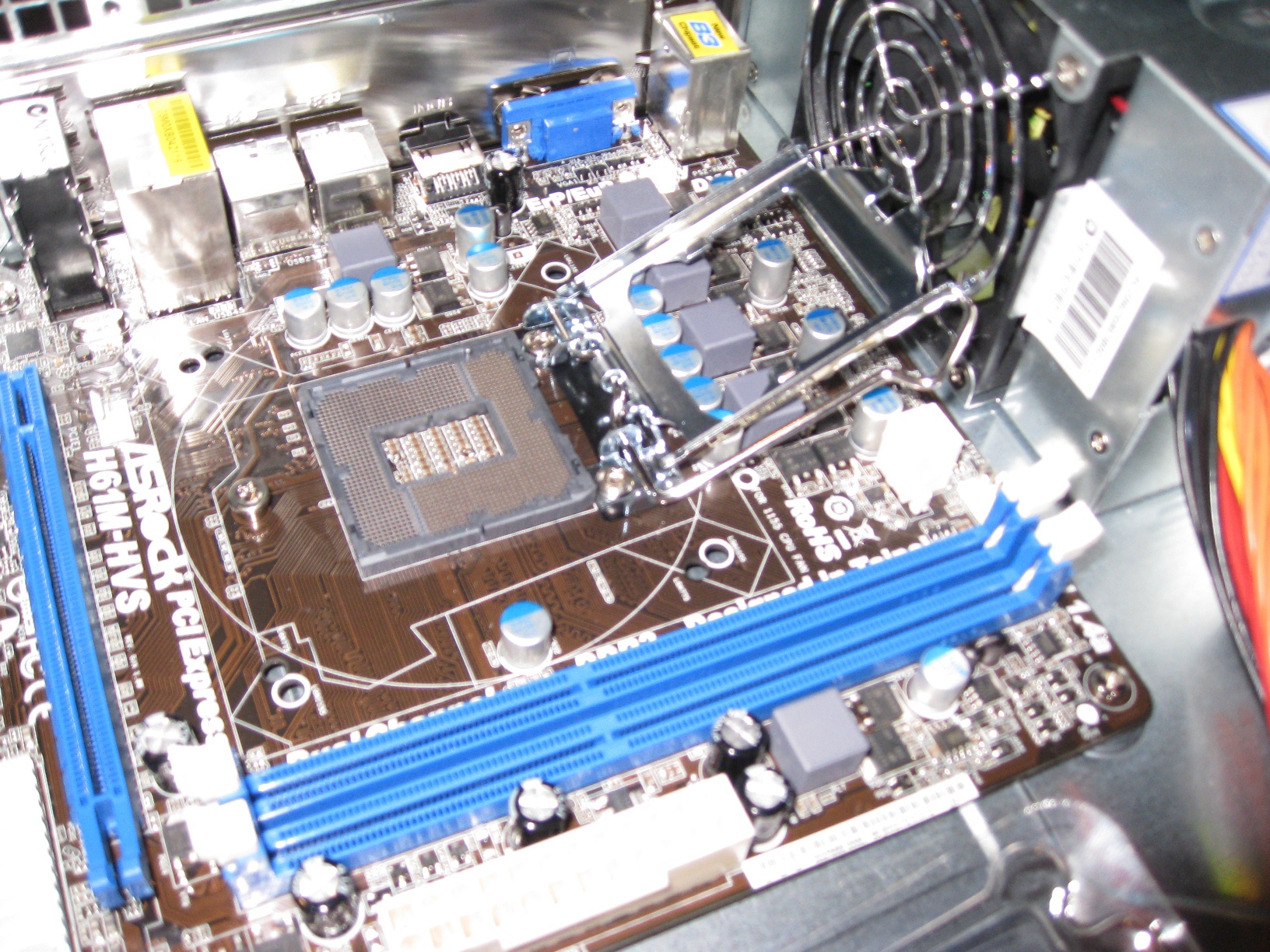
Both the Intel box and the motherboard included instructions on how to install the CPU – but I have to say I’m completely flabbergasted at how idiot-proof this is. Sure, if you spilled your drink in the socket while doing a build, you could screw it up – but even that might be recoverable!

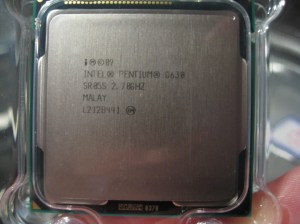
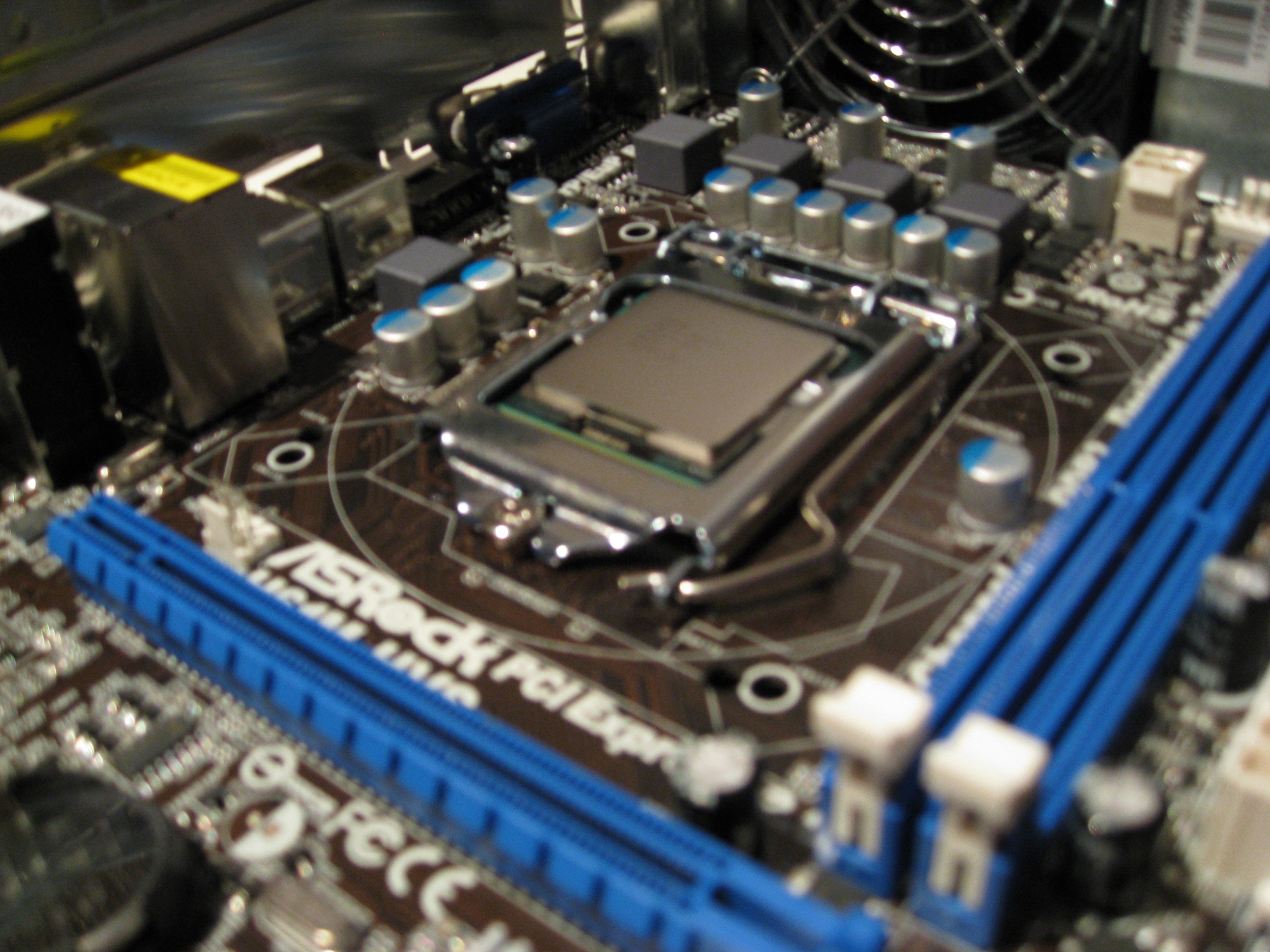
Looks like the CPU itself was made in Malaysia (apologies for the focus). It was a bit difficult to release the spring on the socket, so I did that part, but Mr F. carefully removed the CPU from it’s plastic cover, and managed to seat it into the slot perfectly. Of course it was even harder to push the spring-latch down again, so I had to do that too.


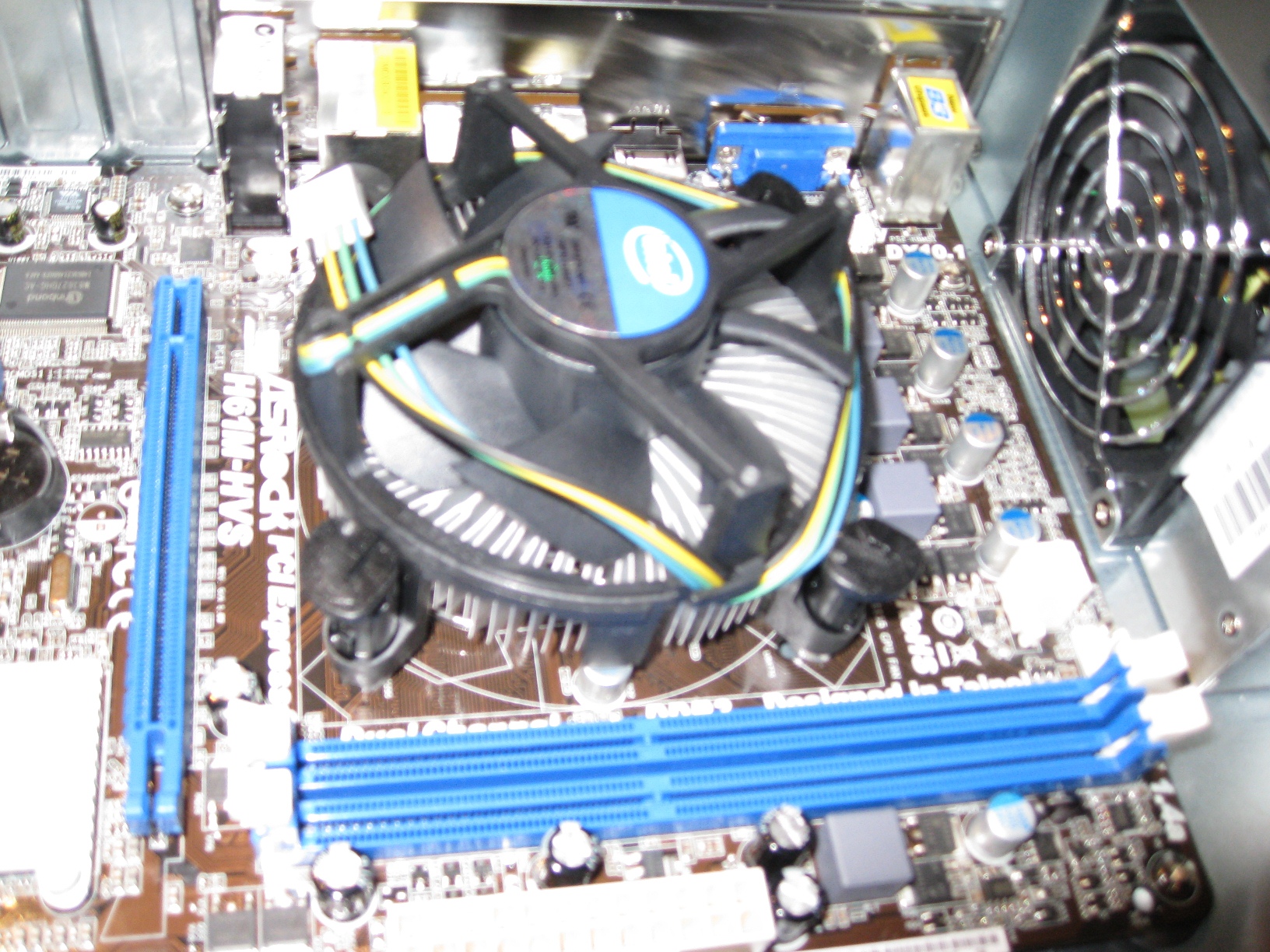
I noted that the fan assembly came with a bit of heat transfer material on the bottom – so I warned to keep fingers away from that…but dropping it onto the motherboard over the CPU and pushing gently on each of the four corners makes it snap into place incredibly easily. A remarkably simple and elegant piece of engineering considering the complex piece of silicon it is keeping cool underneath.


Build Step 3: Wireless Card and Memory

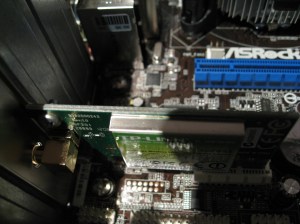
The regular sized card adapter was screwed on very tightly. It took a strong wrist to undo the two screws. Unscrewing the antenna was also necessary to remove it. Attaching the low profile adapter was simply a matter of screwing the two small screws back on, and finger-screwing the antenna back on as well. The card then slotted nicely into the single regular PCI slot (not the PCI x16 one), which has a much longer contact strip.
After pushing back the two white levers at the end of memory slot closest to the CPU, the single memory DIMM also seated properly with a firm push.

Build Step 4: Drive installation

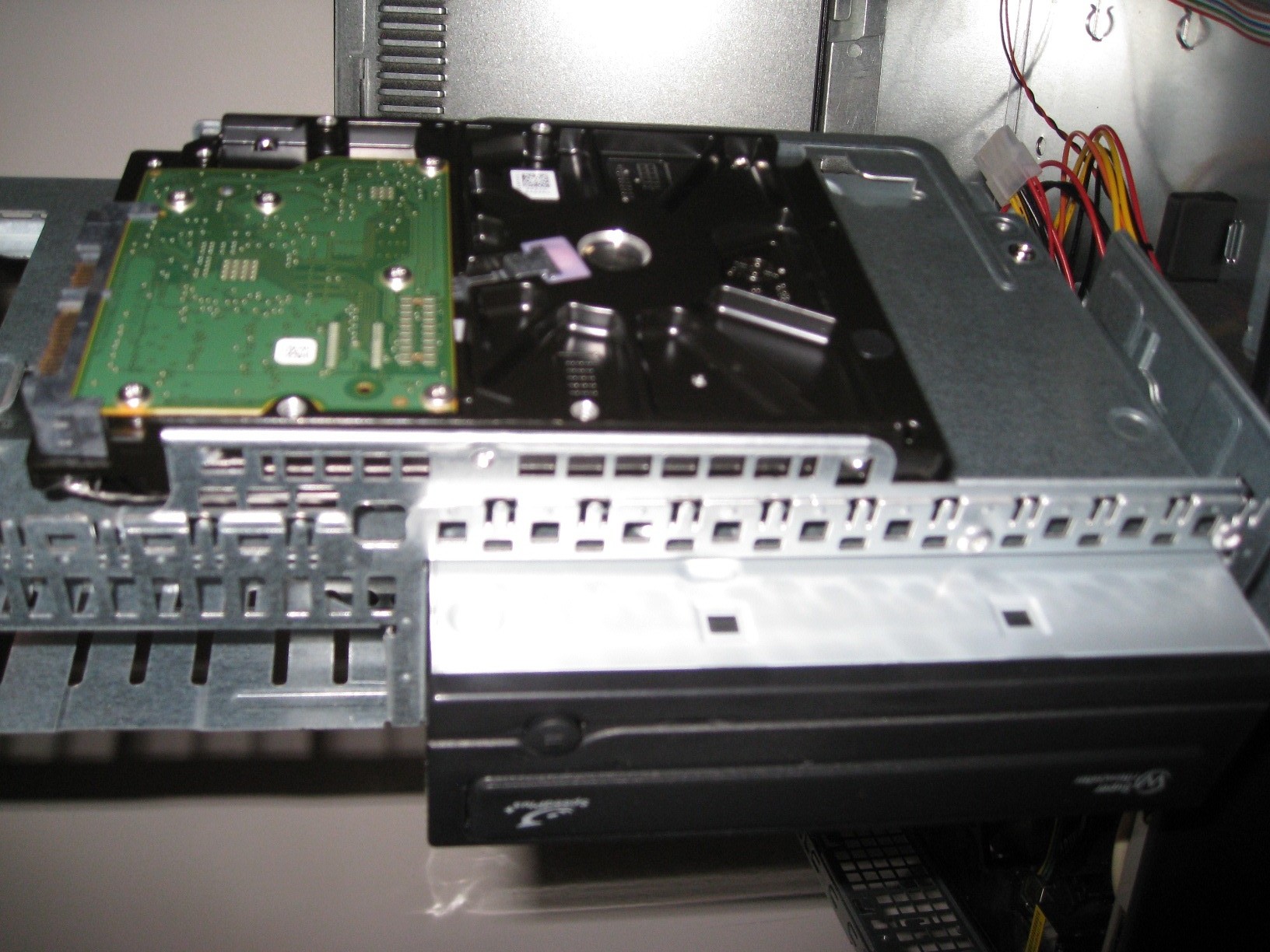
The drive cage lifts up easily. Underneath the rubber seat is positioned so that an installed hard-drive sits flush against – presumably to limit vibration and noise.


With the cage fully out, following the instructions to slide in the DVD drive, and screw it in, and angle the hard drive in against the two hooks and screw that in too. The DVD drive needed to be as far forward as possible so that it would align with the front of the front panel. The first time we put the hard-drive in upside down (the visible board needs to go at the bottom, so that it sits up higher in the cage. But the second time it was around the right way.

The cage dropped in easily, and slid forward so the DVD drive stuck through to where the front panel would snap back on over it. The front panel had to be carefully taken off first by depressing the plastic tabs that held it in place, and then pushed back in place once the drive bay was back in.

Build Step 5: Wiring it all Up

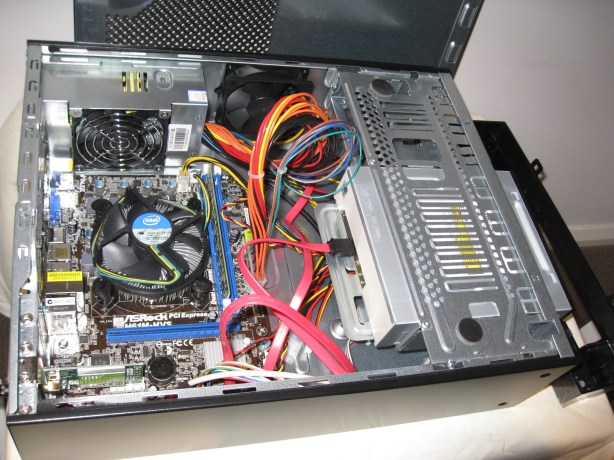
Wiring it all up inside was actually remarkably straight forward as well. The various connectors that needed to be attached were:

  1. The main ATX power connector from the power supply to the motherboard.
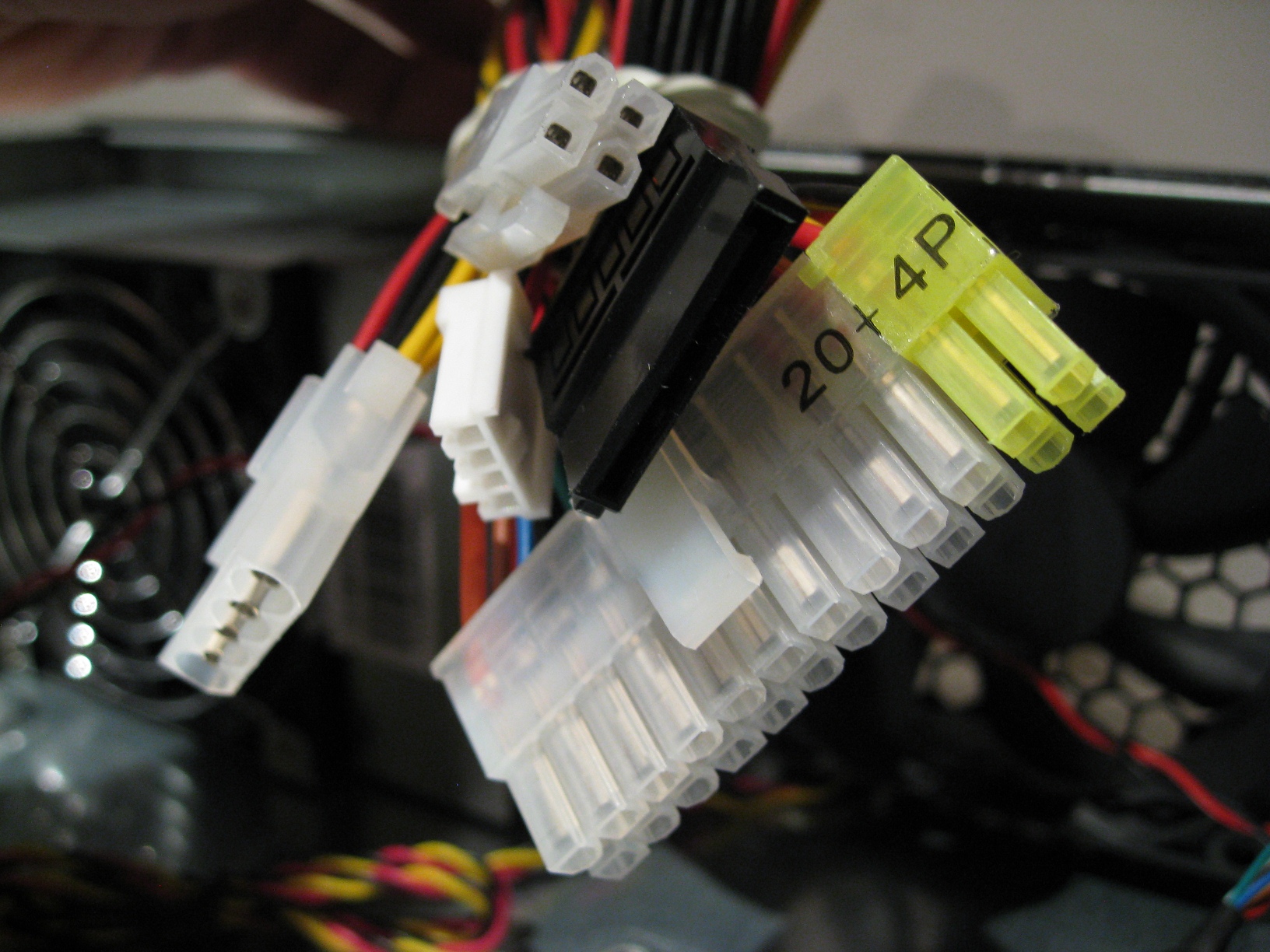
  2. The 12V mini ATX power connector from the power supply to the motherboard.
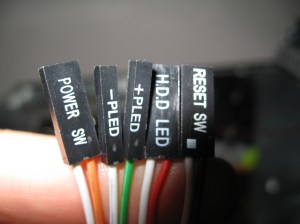
  3. The power switch connector, power on and off LED connectors, HDD LED connector and reset switch connectors  (see picture) from the front panel to the motherboard.
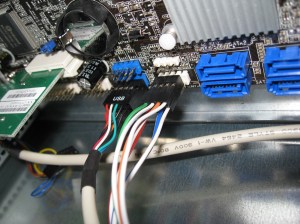
  4. The USB connector from the front panel to the motherboard. (See picture for this inserted into motherboard.)
  5. A red serial ATA cable from the DVD drive to the motherboard.
  6. A red serial ATA cable from the HDD drive to the motherboard.
  7. A black ATA power connector from the power supply to the HDD.
  8. Fan power from the case fan to the motherboard (only three pin power provided, not variable speed).
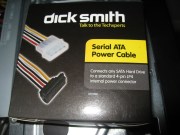
And then it dawned on us. We were missing a second ATA power connector for the DVD drive!
It was 5:30 by this stage, and too late to make it to a shop to pick one up. So we had to call it a day. See below for how everything looked.

The following morning, after a quick trip to Dick Smith, and another $6.79 later, with the necessary cable in hand, we finished wiring it up.

Build Step 6: Setting it Up

So, all that was left was to install the new beast in its new desk home, attach the power cable, monitor, wireless keyboard dongle, put the batteries in the keyboard and mouse, and power her up.

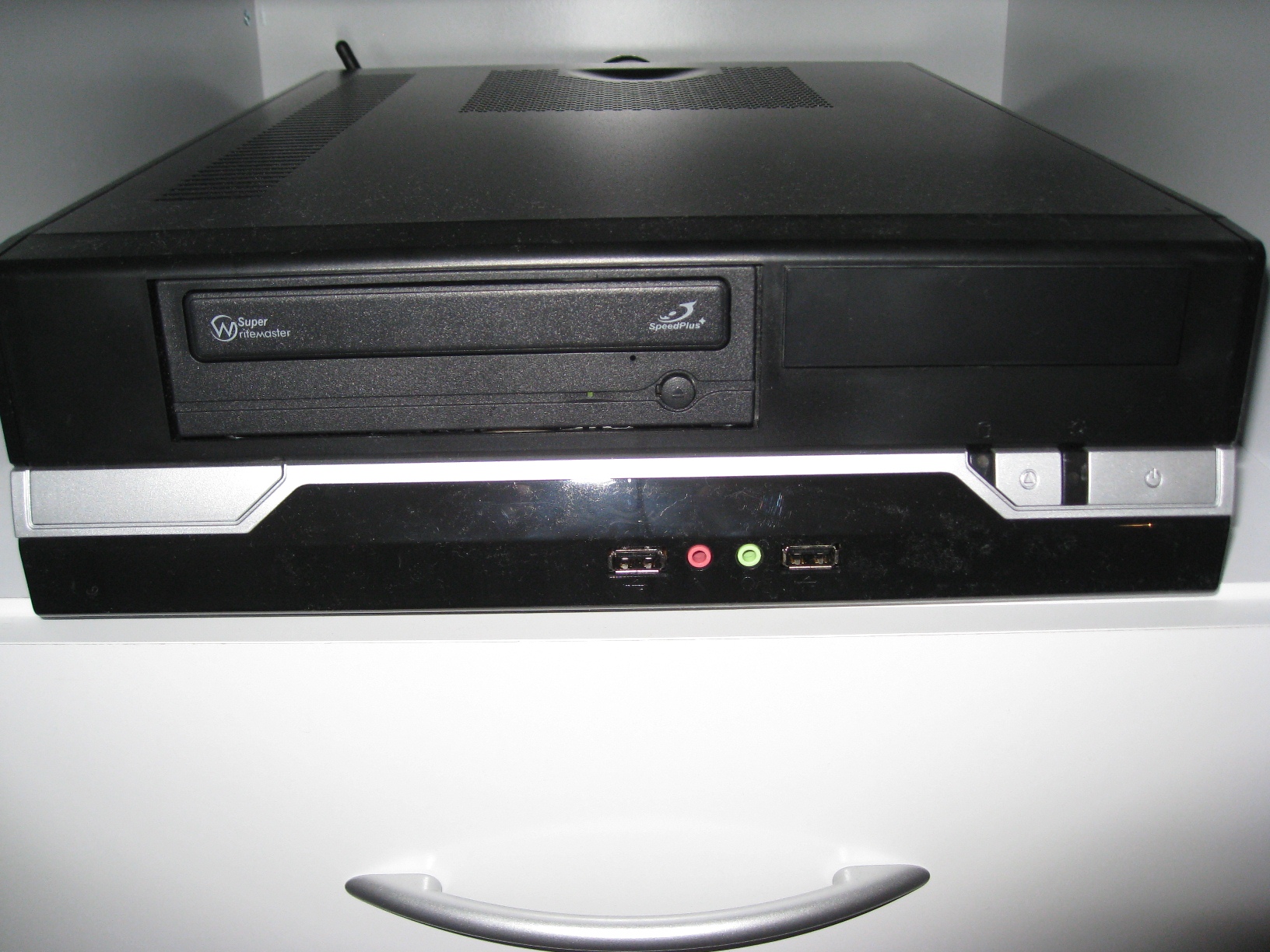
Here is the finished article:

Then, with Windows 7 DVD in the drive, we powered up.

We went through the full Windows 7 setup process seamlessly, and it all worked great!

But there were two things I forgot:

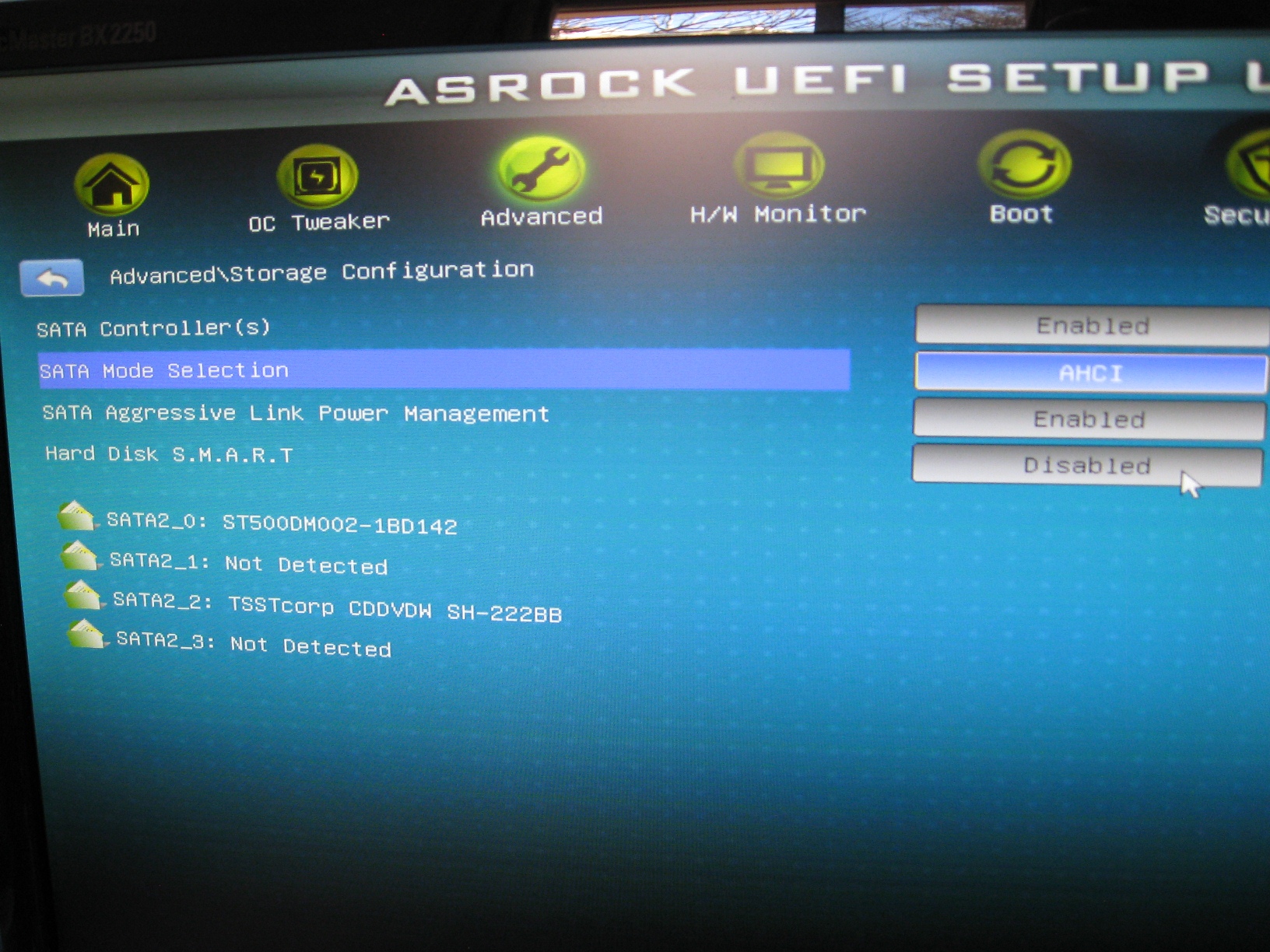
1) Set the SATA Mode to AHCI instead of IDE to make the drive access faster. See UEFI boot time setup screen below with the correct setting. Without this set, hard-drive access was slower than it needed to be. But I couldn’t change it after Windows was installed (wouldn’t boot into Windows). So reinstalled from scratch after setting it correctly.

2) Install the Intel video drivers off the provided ASRock CD. Without doing this Zoo Tycoon 2 wouldn’t run.

Conclusion

Success! Everything seems to run smoothly. I haven’t benchmarked anything – but that’s not really the point with this machine. It doesn’t take up much space, it is relatively quiet, doesn’t seem to generate much heat, and certainly performs as needed.

I spent more time deciding which parts to purchase than we did putting it together and installing windows combined. Even with the additional cost of the SATA power cable that was needed, the whole machine still came in under $500 – even with mouse and keyboard. A satisfying weekend’s work.

Building a decent mini desktop for my 6 year old son – for under $500 – software included – Part 3 – Receiving

Since it’s been 24 hours since I ordered from the mWave and MegaBuy web-sites, and I haven’t yet received a follow-up email from either company since the original order confirmations, I thought I’d check on the status of my orders.

mWave

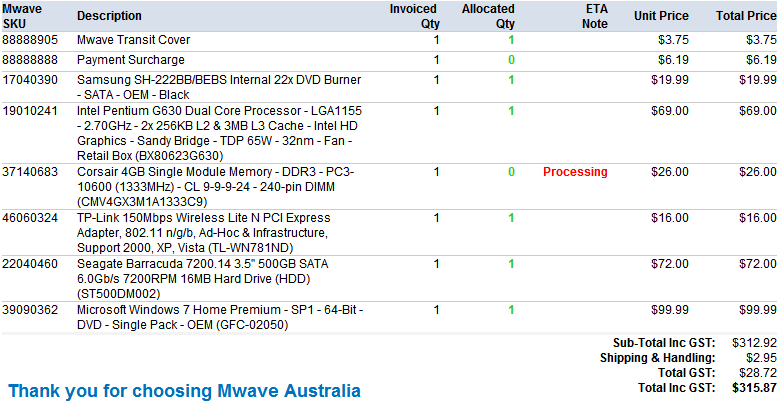
Here is the progress of the mWave order according to the order status link they provide:

Note the red processing status next to the memory module. Apparently, this means that they are in the process of ordering this part from their suppliers. That’s pretty impressive visibility of status. Looks like everything else is in stock at mWave already, and will ship as soon as the memory arrives.

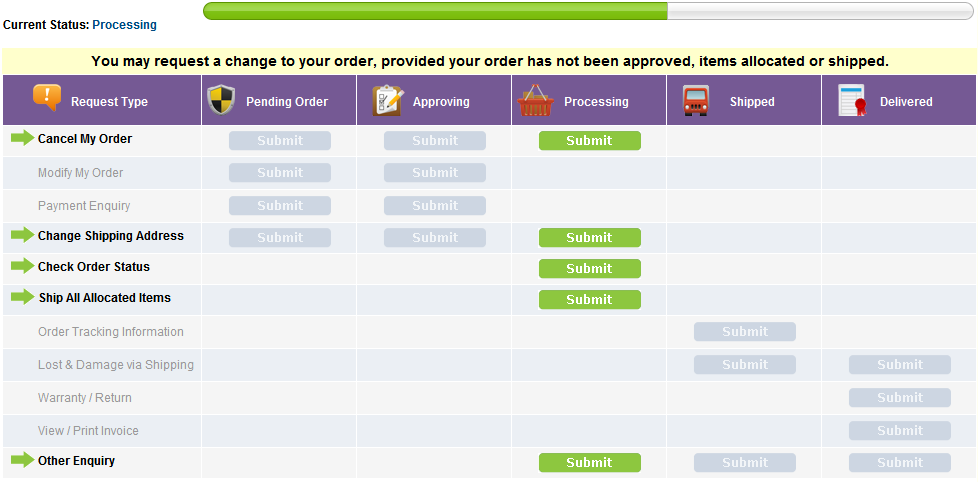
mWave also provides this nice workflow status screen, where you can take one of the actions available at the current order stage, including requesting shipment of any parts already available – although it does warn you this may cost you more in shipping fees:

MegaBuy

Checking in on my order at MegaBuy, the order status page doesn’t provide as much detail. There is a section at the end with messages, which simply states that the payment confirmation is still in progress:

Hmm. Hope they aren’t sending a letter to my bank – there must be faster ways to confirm payment.

Day Two

10:15AM: Received an email from Megabuy telling me that my order has changed status to “processing”, i.e. that payment has been received and confirmed. I’m curious to know if this part of the ordering process will go faster if I use the same credit card information on subsequent orders, because 36 hours to confirm payment seems like a long time to me.

11:22AM: Received an email from mWave telling me that my order has shipped, with a link to the tracking site for the order (I had to copy and paste the tracking ID), and a warning that tracking data might not appear for 24 hours.

2:27PM: Received an email from MegaBuy telling my that my order has changed status to “processed”, and has been sent to the warehouse for shipping.

Day Three

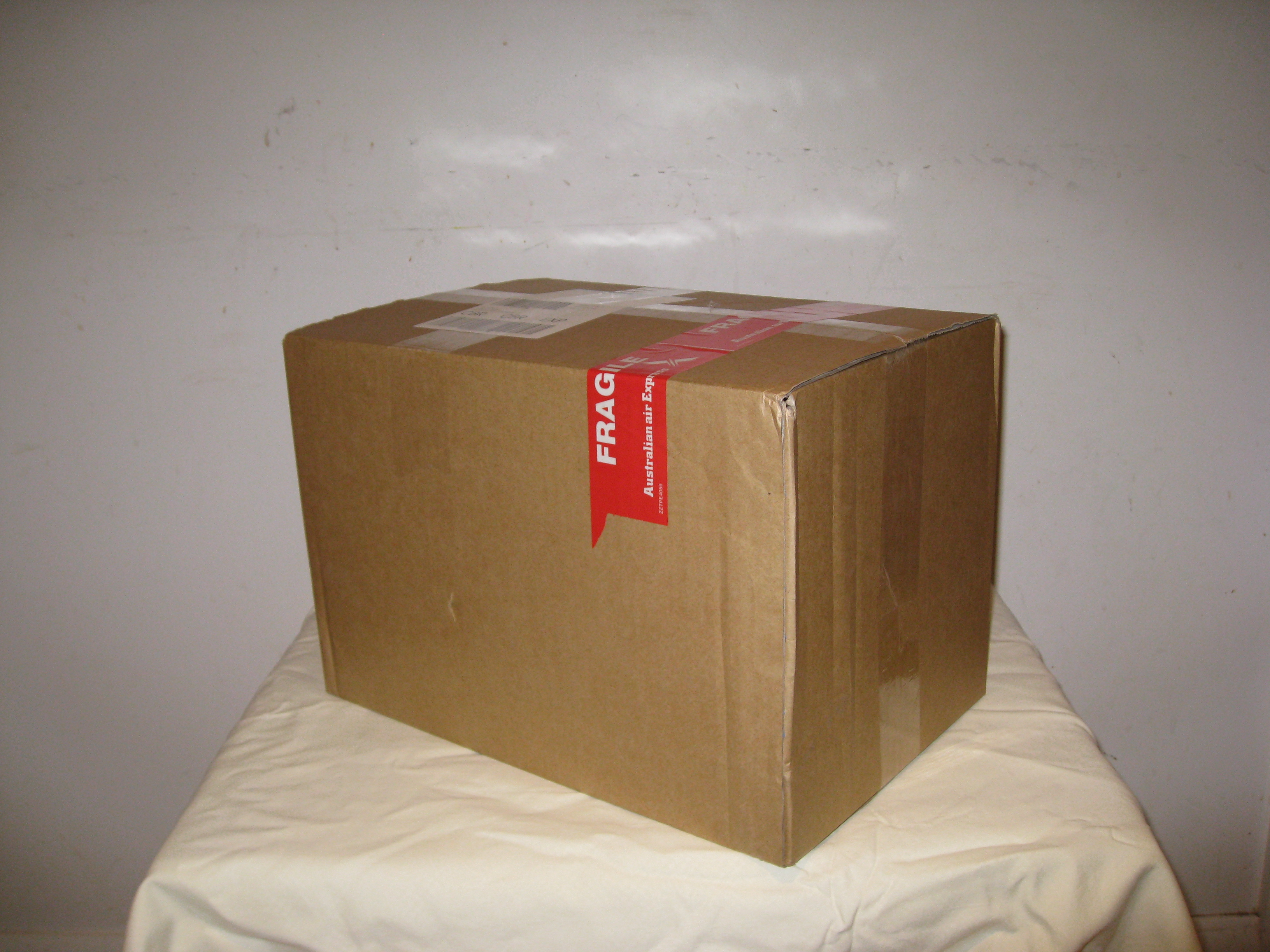
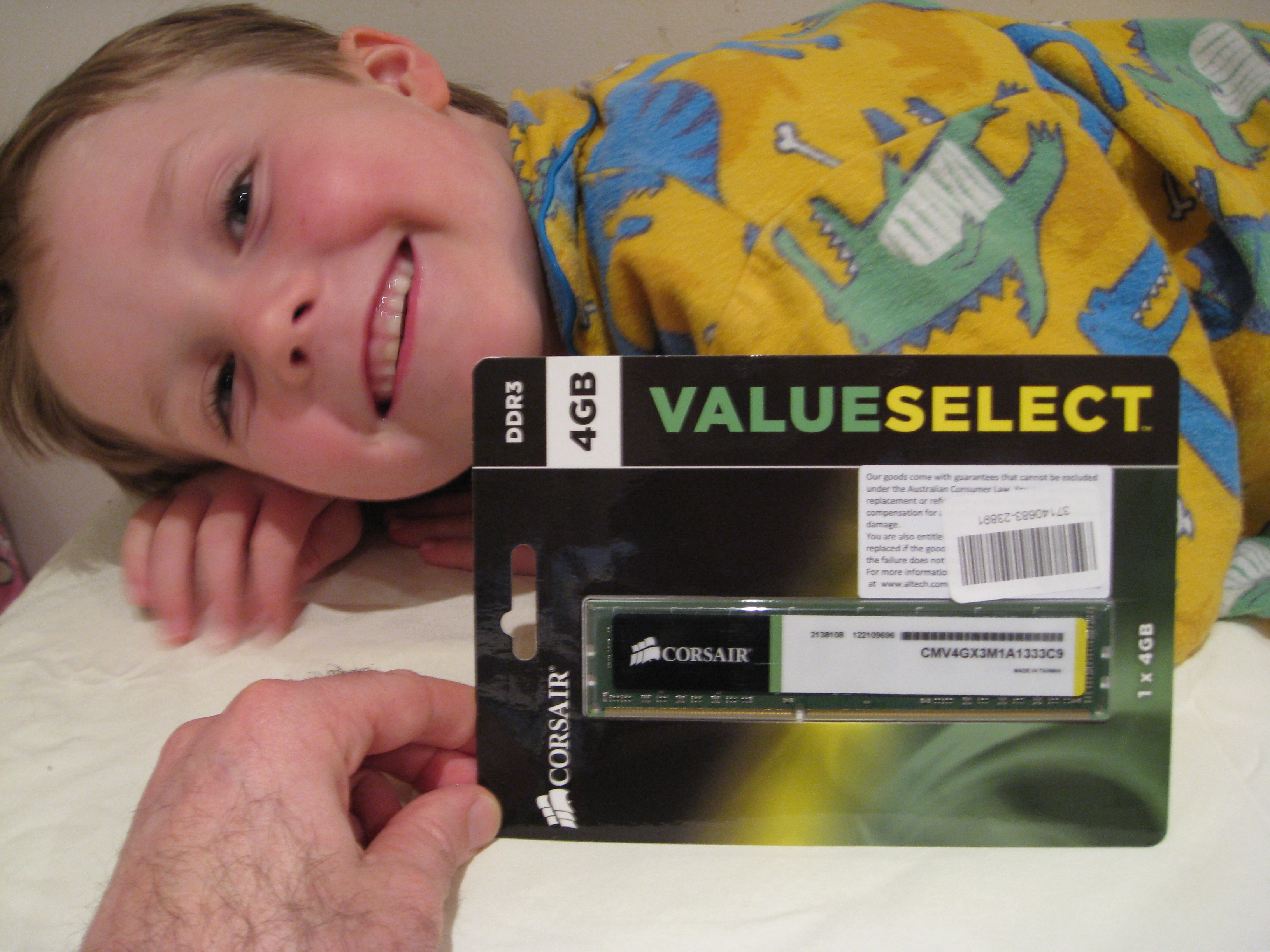
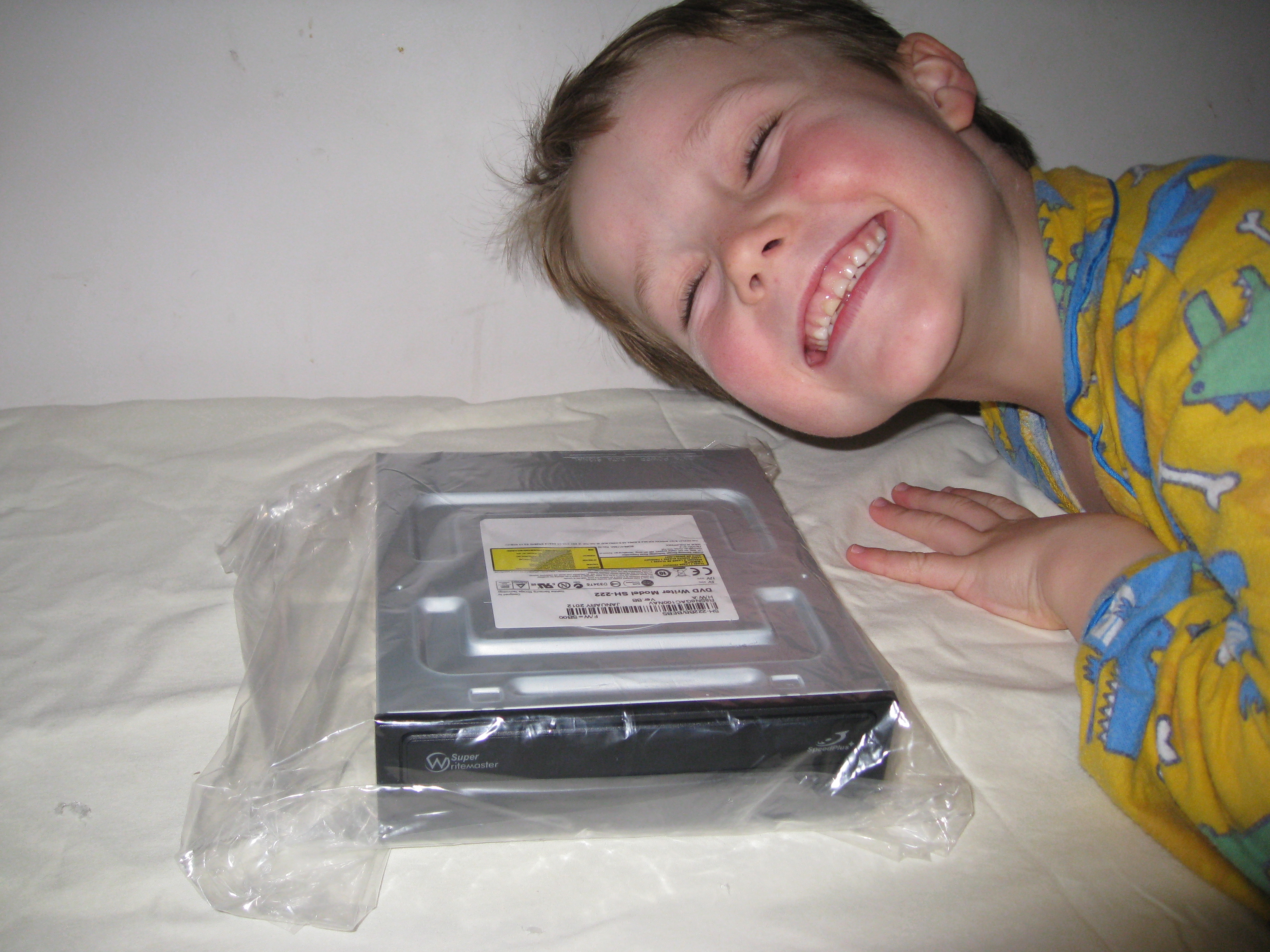
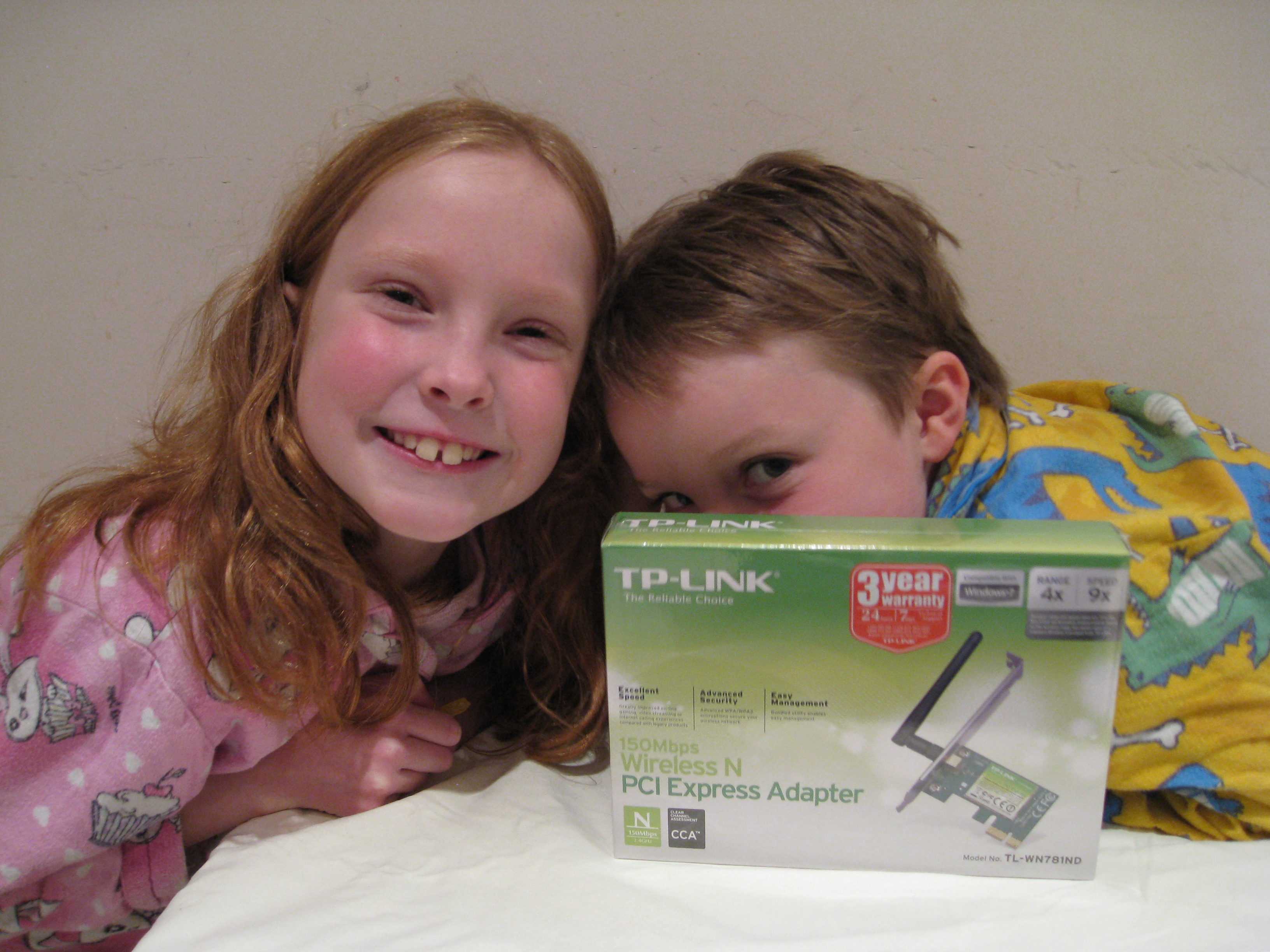
The mWave order arrived today, 24 hours after it was shipped. Nice. Came in a simple box, which we unpacked after dinner.


Of course, his big sister wanted to join in.


And yes, he really is as cheeky as he looks. No idea where he gets that from.

Day Four

Checked the MegaBuy web-site today, and there was no update to the status of my order. It still said “Processed”The description of the Processed status is quite illuminating (my red highlight added):

“The order is being picked from stock, packed & prepared for delivery and sent for delivery with a courier. The order will remain in this status until we have confirmation from the warehouse that the order has been shipped, which sometimes may occur as long as 1-2 days after the order has been shipped, so it is not uncommon for the order to remain in this status even once you have taken delivery of the order. If the order is in this status for a prolonged period of time (i.e. more than 5 days), it may mean that some or all items in the order are on back order (i.e. Not in stock and waiting to be received from supplier before they can be shipped to you) and we recommend that that you check the Order History section of your Order Information page. If it is not clear what is happening with the order from the Order History section of the Order Information page, please contact us and we will promptly find out and let you know the exact status of your order.”

Day Five

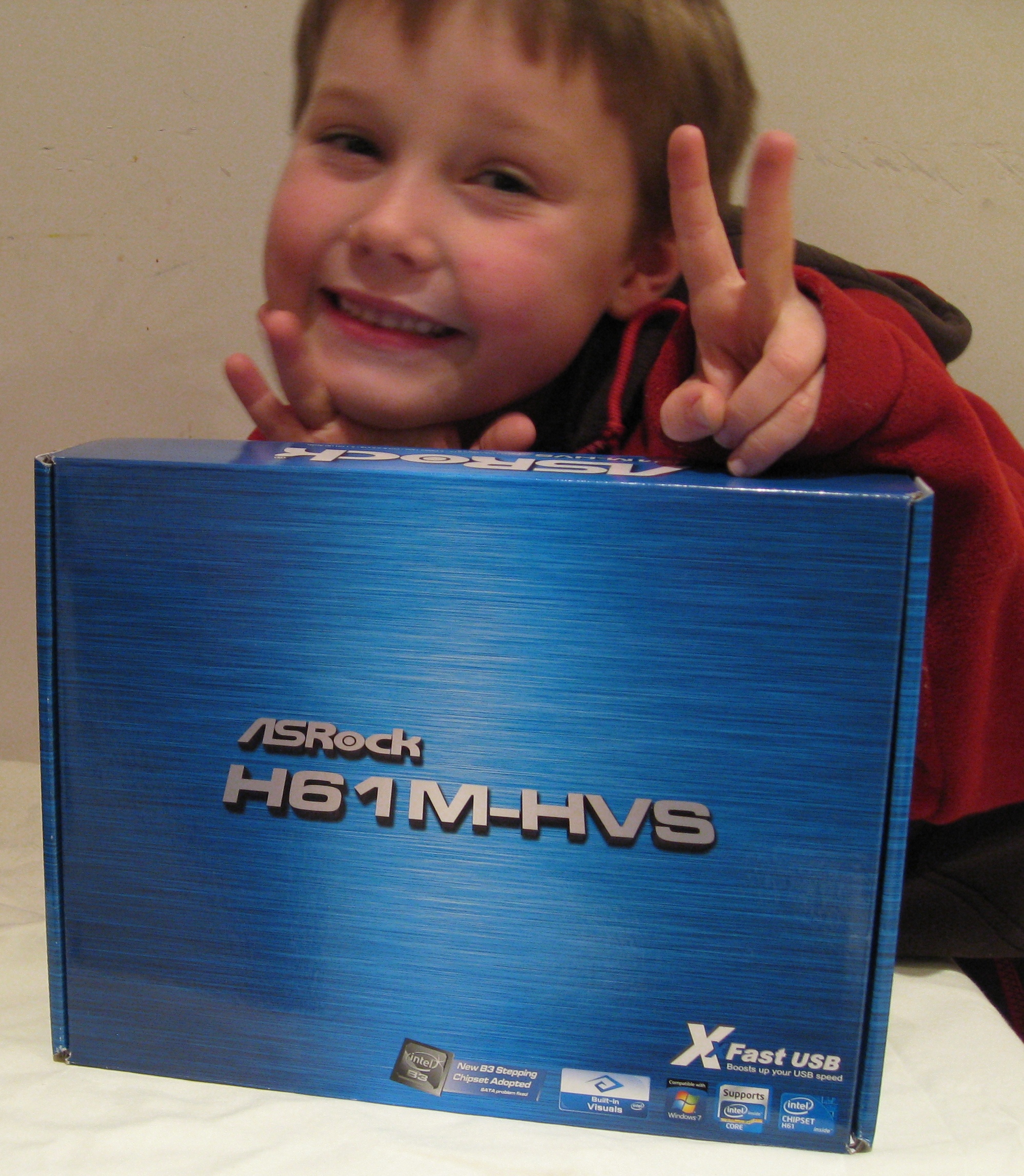
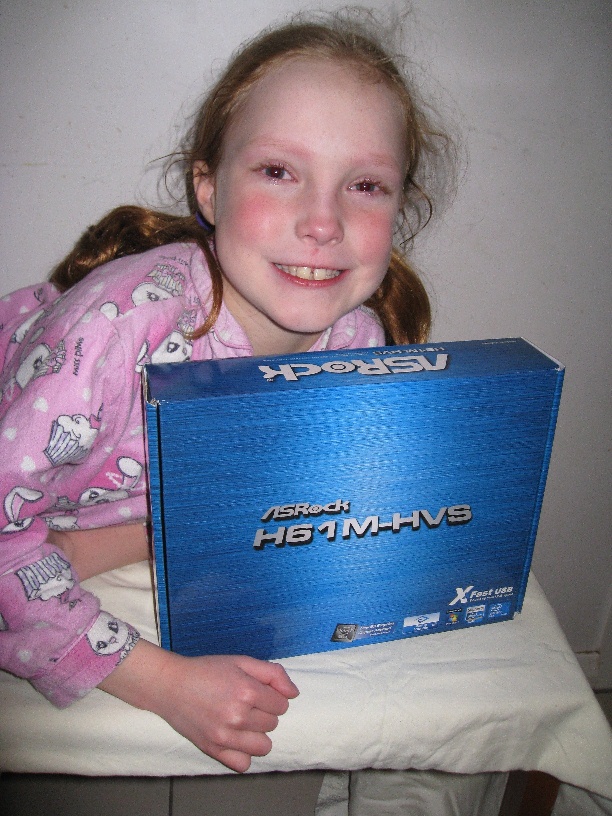
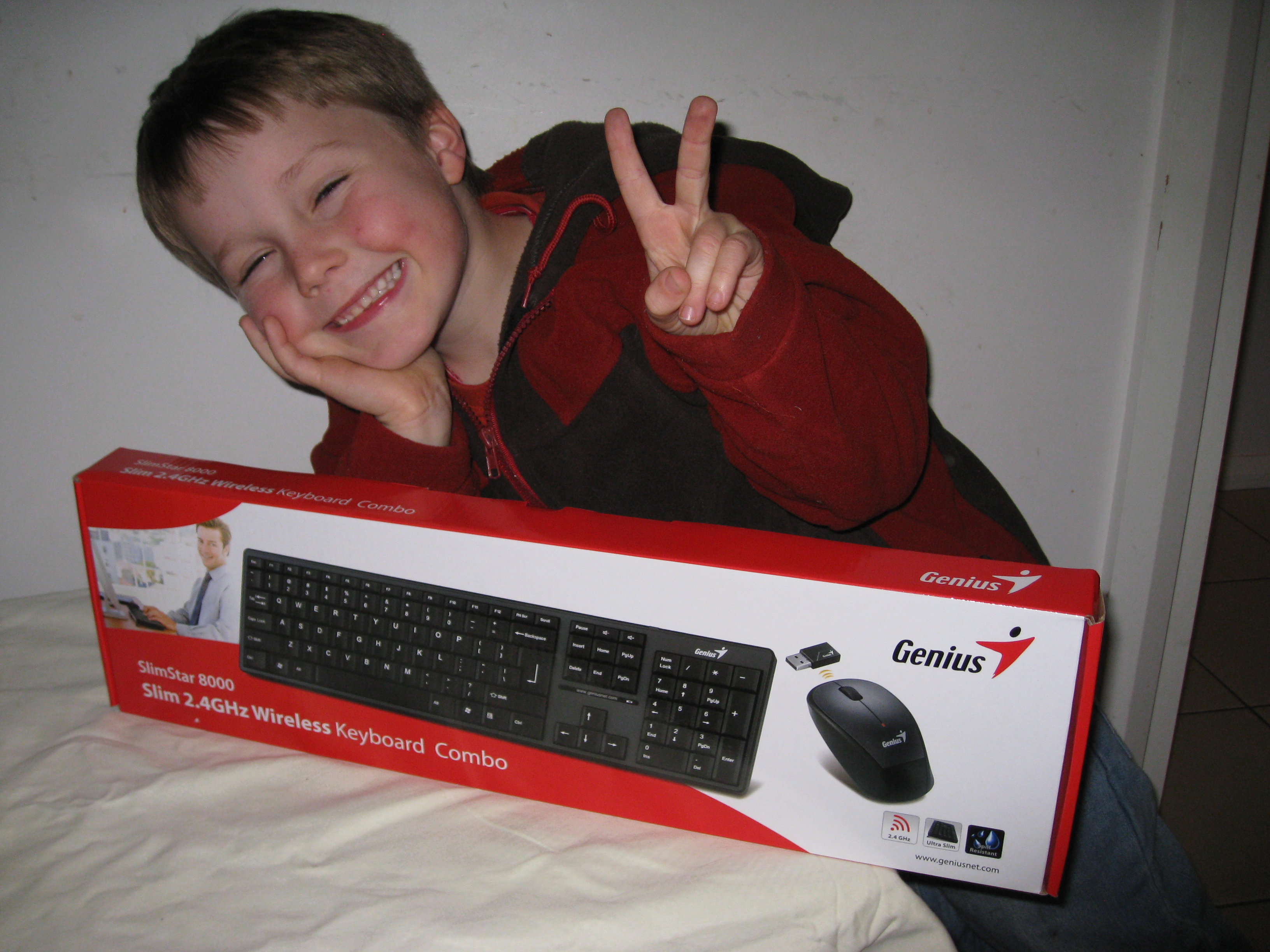
Just as I was about to contact MegaBuy to find out when to expect the order to arrive – and had resigned myself to not getting to build the PC this weekend – two boxes arrived by courier. The packing slip said “Drop Ship” and the actual supplier name (Altech Computers) was shown. The case was in a box by itself, and the motherboard, keyboard and low-profile tp-link bracket (not pictured) came in a second-hand optical drive box with recycled packaging. Nice to see the packing approach was green.

The motherboard was everyone’s favourite part name, so you get a bonus picture of that. His sister was a bit teary due to some sibling tension over posing rights.


PS: Where’d he get the whole bunny ears thing from?

PPS: The megabuy site still says “Processed”. No doubt it will change to “Shipped” at some point. 🙂

Next time: Let the Fun Begin

Building a decent mini desktop for my 6 year old son – for under $500 – software included – Part 2 – Research and Ordering

(Aside – I suspect there is a way to get WordPress to create a multi-part post, but I haven’t worked it out in the 20 seconds I spent looking at it – so I’m going to go with a new post manually linked to the previous one.)

A couple of weeks ago, I was lamenting the inability of my current Dell Studio 1747 laptop to drive Elder Scrolls V at more than about 3 frames per second at 2560 x 1440 resolution on my nice new 27″ monitor (purchased for working at home, of course) and so started researching what it would take to put together a new gaming rig for myself.

I spent a good few hours looking at CPUs, solid-state-drives, power supplies, motherboards etc. looking for the right sweetspot of price per performance, and quietness.  The reviews at anandtech are awesome, as is Tom’s Hardware when their ad-serving links aren’t causing the site to slow to a crawl.

As I was going through this process, I found the search engine at MegaBuy easy to use, and their prices seemed very competitive. So, once I had my list of bits, I priced everything on megabuy.com.au. But when I put it all together in my shopping cart, and went to check-out, I discovered that MegaBuy’s shipping model seems to be to drop-ship everything from suppliers, and charge an additional delivery fee every time a new supplier is added. By the time I had about $150 in shipping fees, and 4 separate shipments, I was feeling a little insulted.

After a bit of googling, I discovered mWave, and noticed that not only was it’s shipping pricing more reasonable, but that many components were actually cheaper, too. mWave strongly recommends shipping to a work address, and I had to head off on an overseas business trip, so I put the plans for the new gaming PC on hold. While away my plans morphed into building a computer for my son instead.

In the interests of full disclosure, I should probably point out at this point that I’ve never actually built a complete PC from scratch before. I’ve done plenty of cannibalizing, power supply replacements, graphics card and memory-stick insertions etc. but I’ve never actually got an empty case, motherboard, and all the other bits and pieces and put them all together. Not only that, but I hadn’t actually been too bothered with the internals of a PC since the mid-2000s, when I decided that laptops were the way to go for the foreseeable future – so was totally out of date with the latest CPUs etc until I started my latest research.

But undaunted, on my return I switched the focus of my research to a cheap and cheerful but somewhat future-proofed desktop machine, that wouldn’t be too complicated to put together.

The decisions I made were:

  • To use a micro-ATX motherboard and corresponding slimline case. I could just picture my wife’s reaction if a full-size ATX desktop tower showed up in my son’s room, but wasn’t confident in being able to fit everything necessary into anything smaller than micro-ATX at the target price-point.
  • An on-board graphics card would do just fine. I’d heard good things about Intel HD Graphics – good enough for my son’s educational and non-cutting-edge-game-playing purposes anyway.
  • Choose a decent CPU for under $60. cpubenchmark makes it so easy to compare CPUs by simplifying it  down to a couple of easy charts . I don’t know about you, but $60 seems insanely cheap to me for a CPU that has performance equivalent to a cutting edge processor from only a few short years ago – and definitely appeard to be around the sweetspot for price performance at the lower end of the price-range.
  • Go with a case that has power supply included. Let’s face it, this machine isn’t going to be sucking a lot of power – and it seems like you can save a few bucks by getting the case and power supply together.
  • 4GB RAM is plenty – but I decided to go with a single stick so I can add more if need be – it looks like it will be cheaper to get one stick than two anyway!
  • Be careful to get the right motherboard video outputs – I have an existing monitor with HDMI inputs but no DVI that I want to reuse for 1920 x 1080 viewing – so decided to get a motherboard with an HDMI connection
  • Wireless networking was more important than wired – My house isn’t cabled with CAT5, so figured I wouldn’t need Gigabit Ethernet – only a wireless card. I also didn’t want a USB dongle sticking out that could get knocked by my son or one of his friends when messing around in his room.
  • Might as well go wireless keyboard and mouse – less to get pulled yanked and potentially destroy the connectors on the PC

So, here are the parts I ordered today:

From MegaBuy

  • Aywun DM529 Micro-ATX Slim Desktop Case, Black, 300W TFX PSU with 1 x 5.25″ external and 2 x 3.5 drive bays (1 internal, 1 external), and four slimline expansion slots – $58.91
  • ASRock H61M-HVS B3 microATX motherboard, with Intel H61 Express chipset, 2 DDR3 memory slots at up to 1333 GHz max 16GB, HDMI and D-Sub video connectors, 1 PCI-e 16 and 1 PCI-e 2.0 slots, 4 x 3.0 GB/s SATA ports, 6 USB 2.0 ports, 5.1 channel Audio, and 100MB LAN – $51.38
  • Genius Slim 2.4GHz Wireless Keyboard Combo – $25.08
  • TP-Link Low profile bracket for WN781ND – $3.96 (so can fit the wireless card below into the low profile slot of the Aywun case – was not in stock at mWave)
  • Shipping (including insurance) and credit card handling fees – $32.16
  • Total: $171.49

From mWave

  • Intel Pentium G630 Dual Core Processor 2.7GHz Retail Box – $69
  • Corsair 4GB Single Module Memory DDR3 1333MHz – $26
  • Seagate Barracuda 7200rpm 500GB HDD – $72
  • TP-Link 150MBps Wirless Lite N PCI Express Adapter – $16
  • Samsung SH-222BB/BEBS Internal 22x DVD Burner – $19.99
  • Microsoft Windows 7 Home Premium SP1 64-Bit DVD – $99.99
  • Shipping (including insurance) and credit card handling fees – $12.89
  • Total: $315.87
The order from Megabuy was optimized to make sure everything was coming in a single shipment. The case and motherboard were about $15 cheaper than from mWave, and the wireless keyboard and TP-Link low profile bracket weren’t available from mWave.
Grand Total
  • Hardware Only: $342.32
  • Shipping Etc.: $45.05
  • Grand Total with OS: $487.36

So, in theory, if all these pieces fit together how I hope they will this is a pretty decent slimline Windows 7 PC (including keyboard and mouse) for under A$500.

Next time: Receiving the orders.

Building a decent mini desktop for my 6 year old son – for under $500 – software included – Part 1 – Getting Started

I love sites that give detailed walk-throughs of how to do something. Particularly when they assume you aren’t an expert in the topic. But I’ve never gotten around to creating anything like that myself, and figured that rather than continue to endlessly suck the blogosphere dry I should try to contribute something back.

I’m the father of a six-year-old son who is showing some interest in computers, where by “some interest” I mean:

  1. Is keen to play on the iPad that lives by my bed at any opportunity
  2. Seems to quite enjoy the dazzlingly primitive educational games on his sister’s 7-year-old laptop (which I converted to Qimo from a hotfix-paralyzed Windows XP install)
  3. Likes watching me play RPGs

Um, so he actually enjoys computer games, then, you say? Ah, I reply, but I too started down the path to IT industry success with just such a passion!  (Didn’t we all?) And in my defense, he only occasionally gets to watch RPGs that aren’t too blood-and-gore filled.

Like all parents, I’m keen to give my offspring every possible opportunity for future success, so partly at my wife’s suggestion, and partly because it would help justify the expense for such a young afficionado – I’ve launched into a joint father/son build-a-computer project.

Not surprisingly, given the recipe above, when approached with this idea and asked what he would do with such a device, my son replied “play games?”

Devil me: Awesome. My plan’s working so far. Joint hack-and-slash adventuring await!

Angel me: You mean enlightening educational experiences that will ensure he has a satisfying and financially rewarding career.

Devil Me: What, it’s not like he’s going to be the future creator of the Facebook of 2024.

Angel me: Stop being so cynical.

Anyway, here’s the plan:

  • Research the parts needed for a mini-ATX computer that won’t take up too much room on his desk, and which can be had for around the $300 Aussie dollar mark
  • Order parts from online Australian suppliers without getting gouged by outrageous shipping fees
  • Spend an enjoyable and frustration-free weekend afternoon putting the computer together
  • Install an OEM version of Windows 7 (so can upgrade to Windows 8 when available using the free $15 offer that Microsoft has announced)
  • Notch up one for excellent parenting!

Either that, or I’ll get him hooked on WoW and regret the day I ever embarked on this project.

In the next post, I’ll give details of the research and parts ordering process.