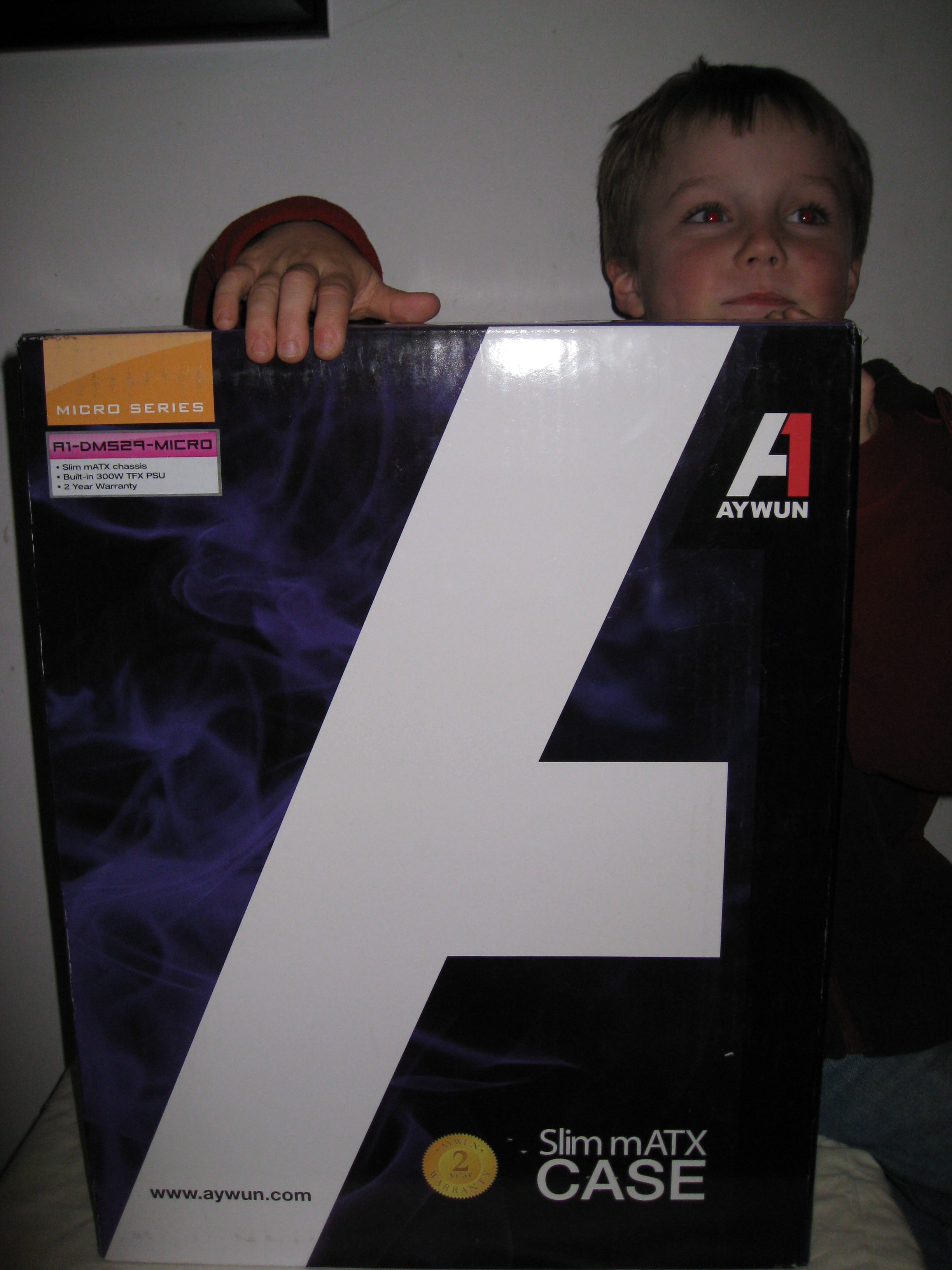
For some reason I was expecting the Aywun case to come in a plain cardboard box. But the presentation was the kind of thing you’d expect to see in a retail store. I guess the logo tells me how to pronounce Aywun: as A-1. I was thinking AY-wuhn in my head, with the emphasis on the first syllable.
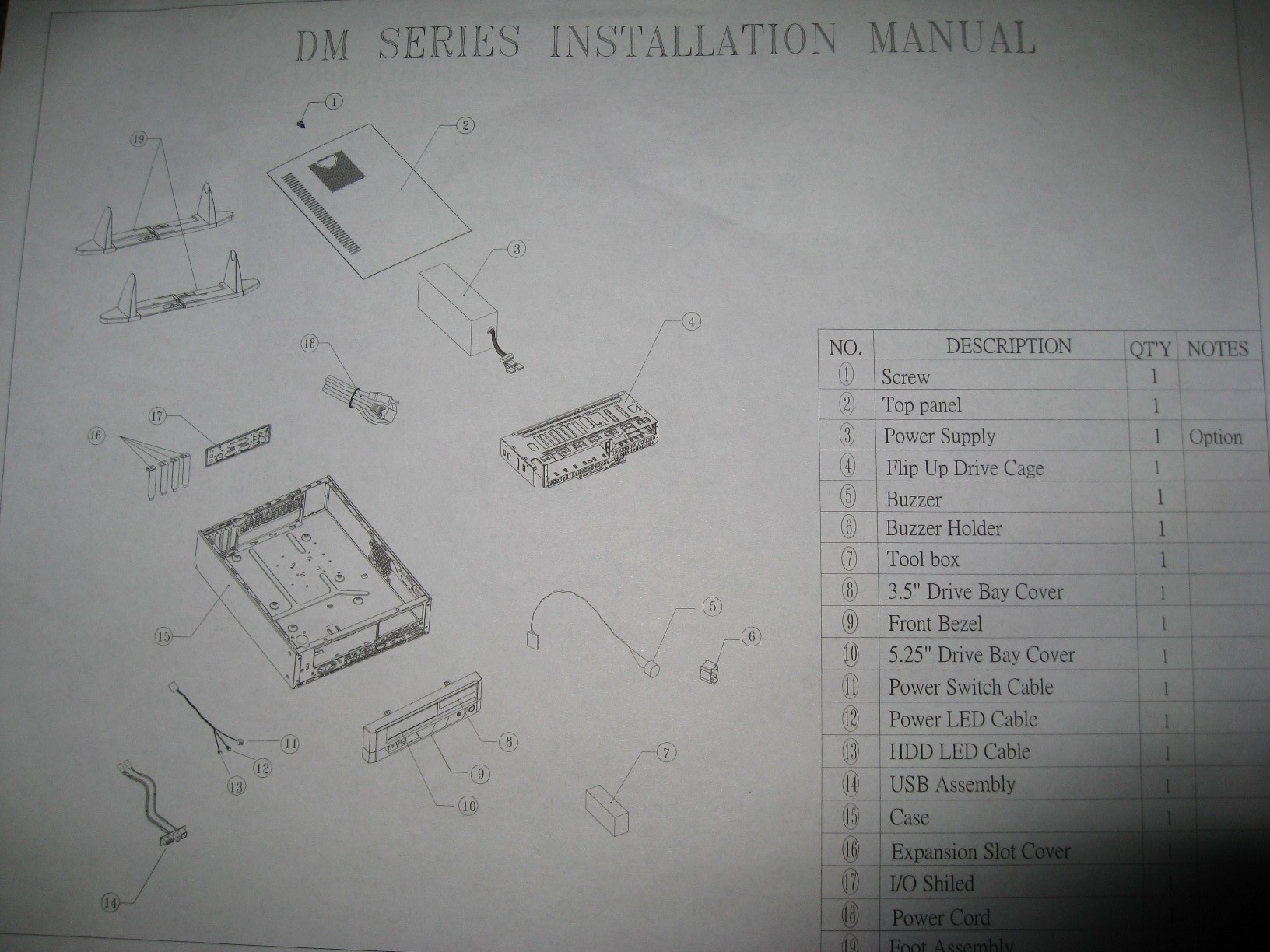
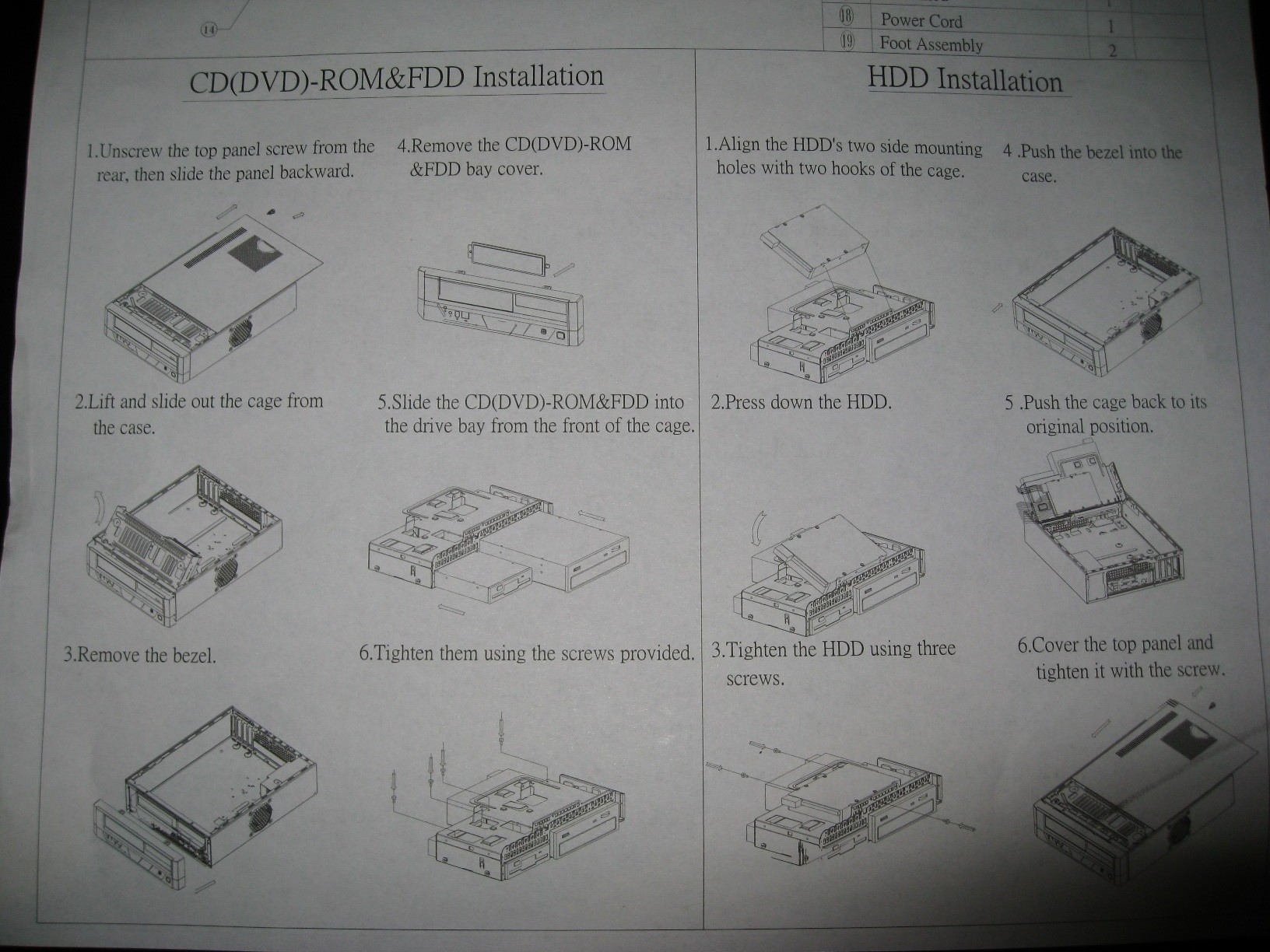
A single double-sided printed piece of paper fell out when we pulled the case out of the box. These are the only instructions. It remains to be seen whether they’ll be enough, but from the look of the internals, it should be hard to go too wrong. The first side has the exploded parts diagram, and instructions for installing the optical and hard-disk drives into the removable cage. The second side has the information on connecting the front USB, Audio and firewire ports (IEEE1394) to the motherboard. We don’t have firewire on our ASTech motherboard.
We clocked on for the actual build at about 3:40pm on Saturday afternoon.
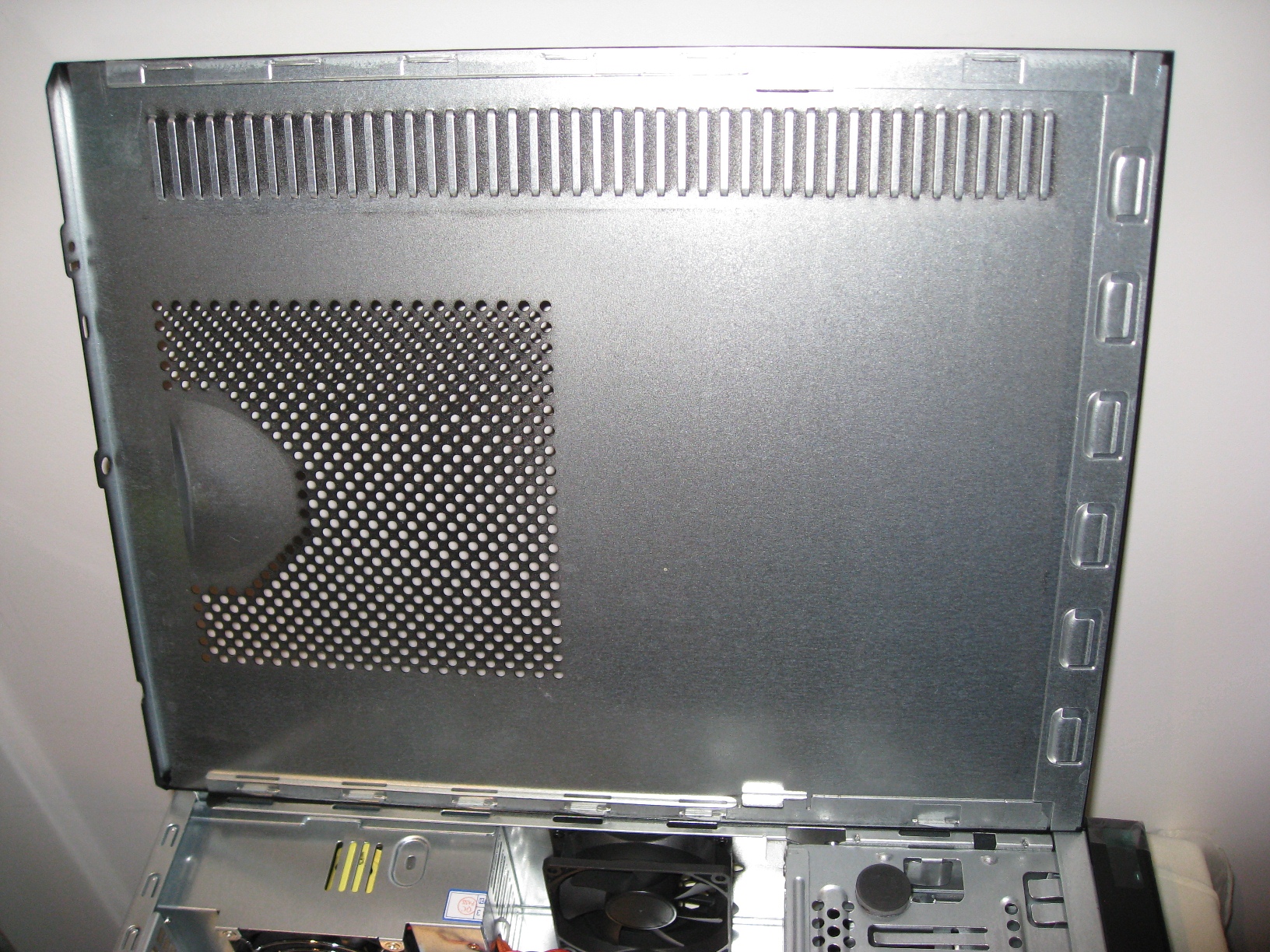
After Mr F removed the single side panel screw with his fingers, I slid the stiff panel along a centimetre or so, and removed it to reveal the box of parts and a power cable. The parts include two plastic feet for standing the case upright, four stick-on rubber feet, 11 motherboard mounting screws, 4 drive mounting screws, and two long screws with only a bit thread on the end which I didn’t recognize.
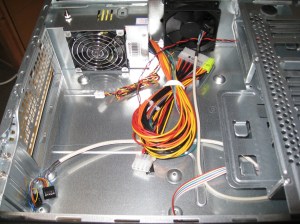
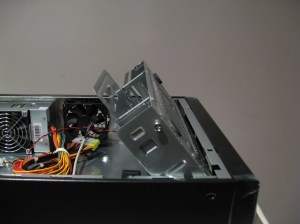
Inside the case itself looks nice and clear with plenty of space around the motherboard mounting area. Some routing flanges were keeping the front panel wires nicely tidy, with enough play to allow it to be removed. The drive cage tilts up easily by pulling on the protruding handle, to allow the DVD and HDD installations to be easily followed, and can be pulled completely out to give plenty of space for routing wires to the front of the case.
Build Step 1: The Motherboard
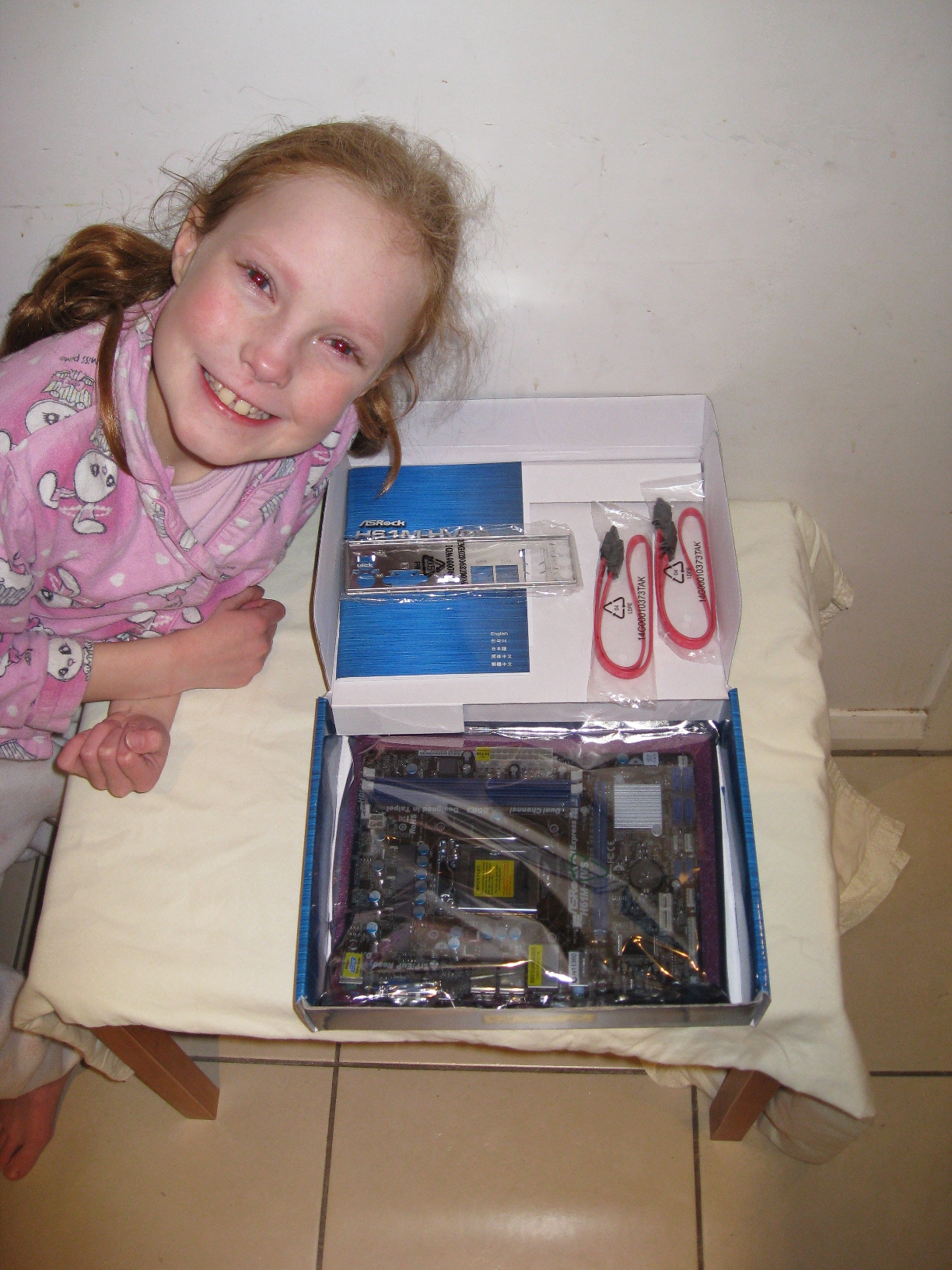
The motherboard box just contained the motherboard itself, the motherboard port plate, two red SATA data cables, and a short but easy to understand manual.
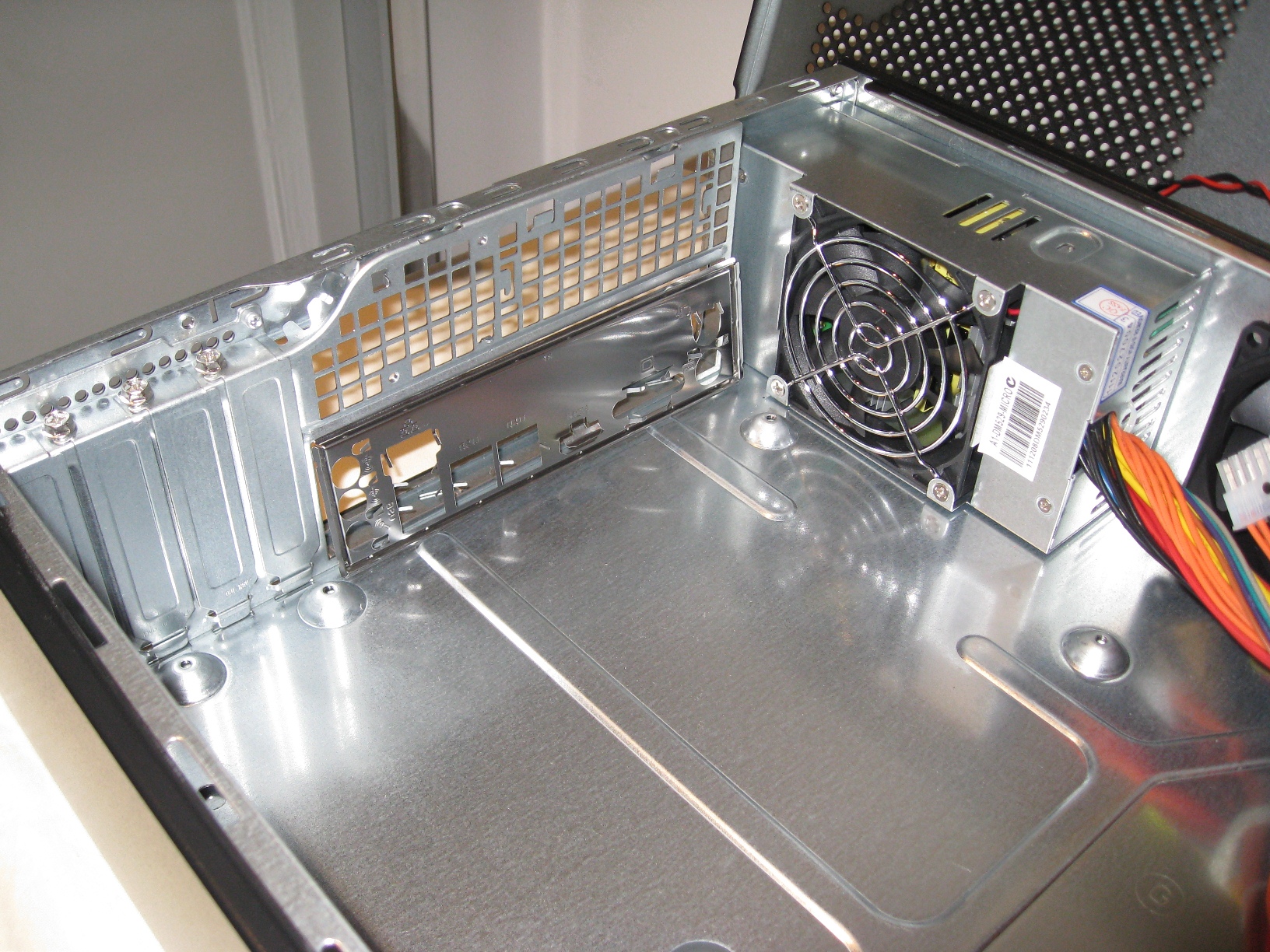
First step: put the port plate into the case. This required some strong adult fingers to help get it to snap in on along all the edges. The key thing was to make sure that the text descriptions of each port were legible from outside the case – I don’t think it would have snapped in the other way around, but I wasn’t keen to try. Also made sure the port holes were aligned to the bottom of the case – where the motherboard will be.
Second step, carefully lower the motherboard into position (we both helped with this part, too!) There are several springy metal slivers sticking out the back of the plate that meant I had to push the motherboard into position, while junior finger-tightened the screws into position.
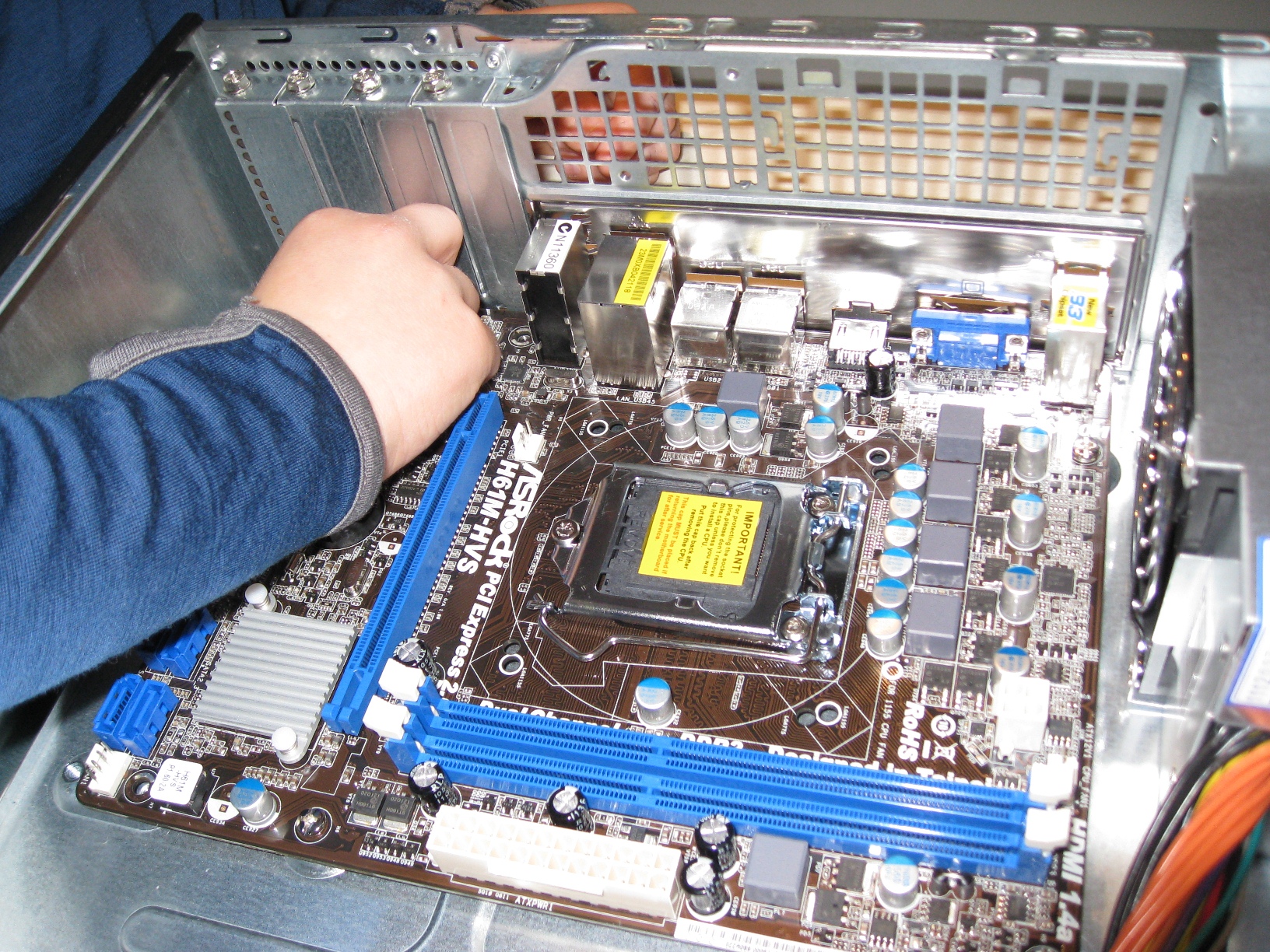
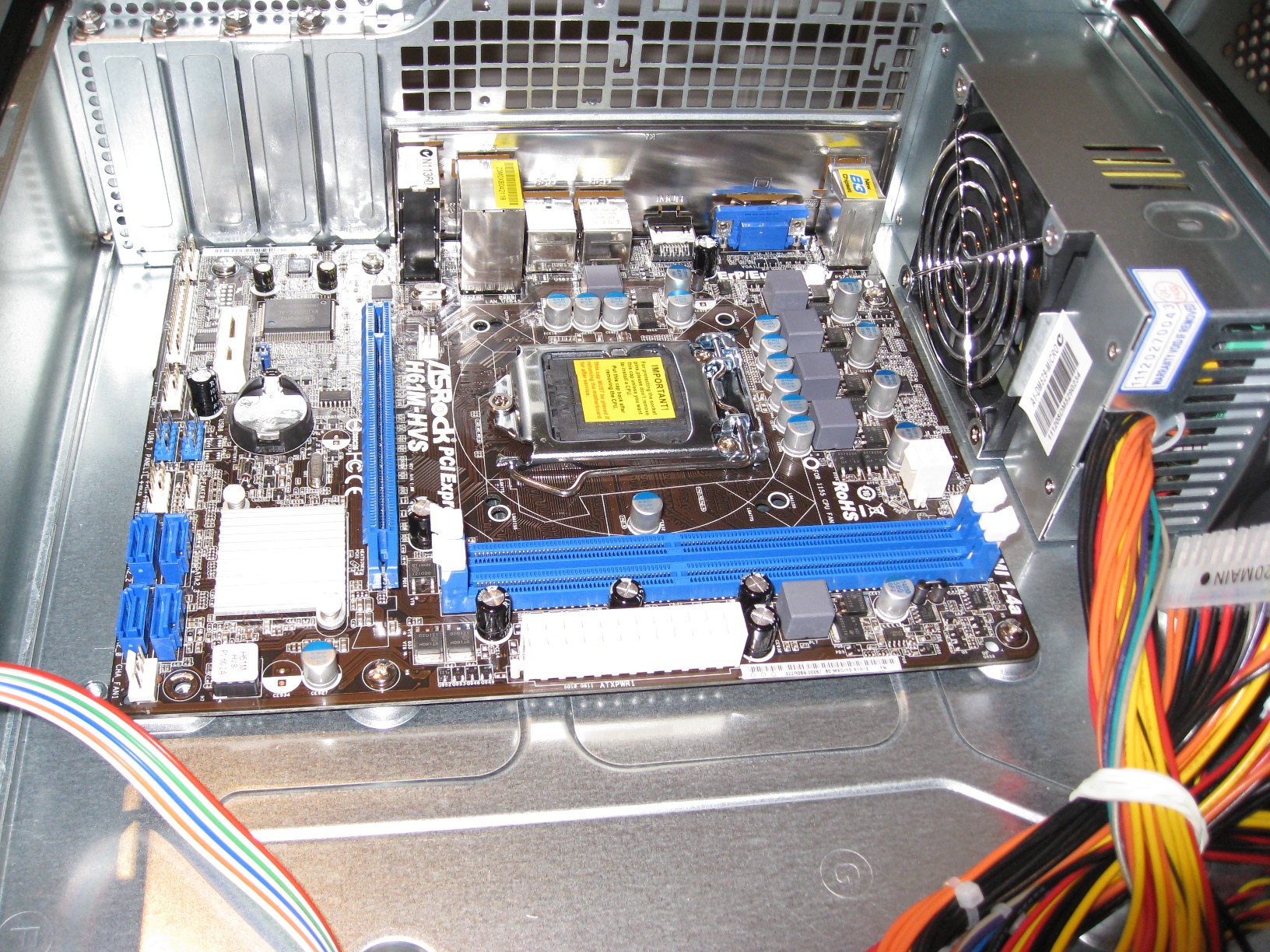 We actually ended up doing this twice with the five screws. The first time one of the sticking out bits of metal actually slid into the HDMI port, which I wasn’t keen on – so I removed the screws and realigned the motherboard so this was no longer the case.
I don’t have a plastic tipped screw-driver (I assume such things exist) and I was a bit worried about the possibility of screw-driver slippage gouging the board, so after the finger-tightening I used a regular Phillips screw-driver to carefully tighten the motherboard screws.
Build Step 2: The CPU
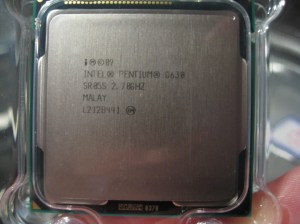
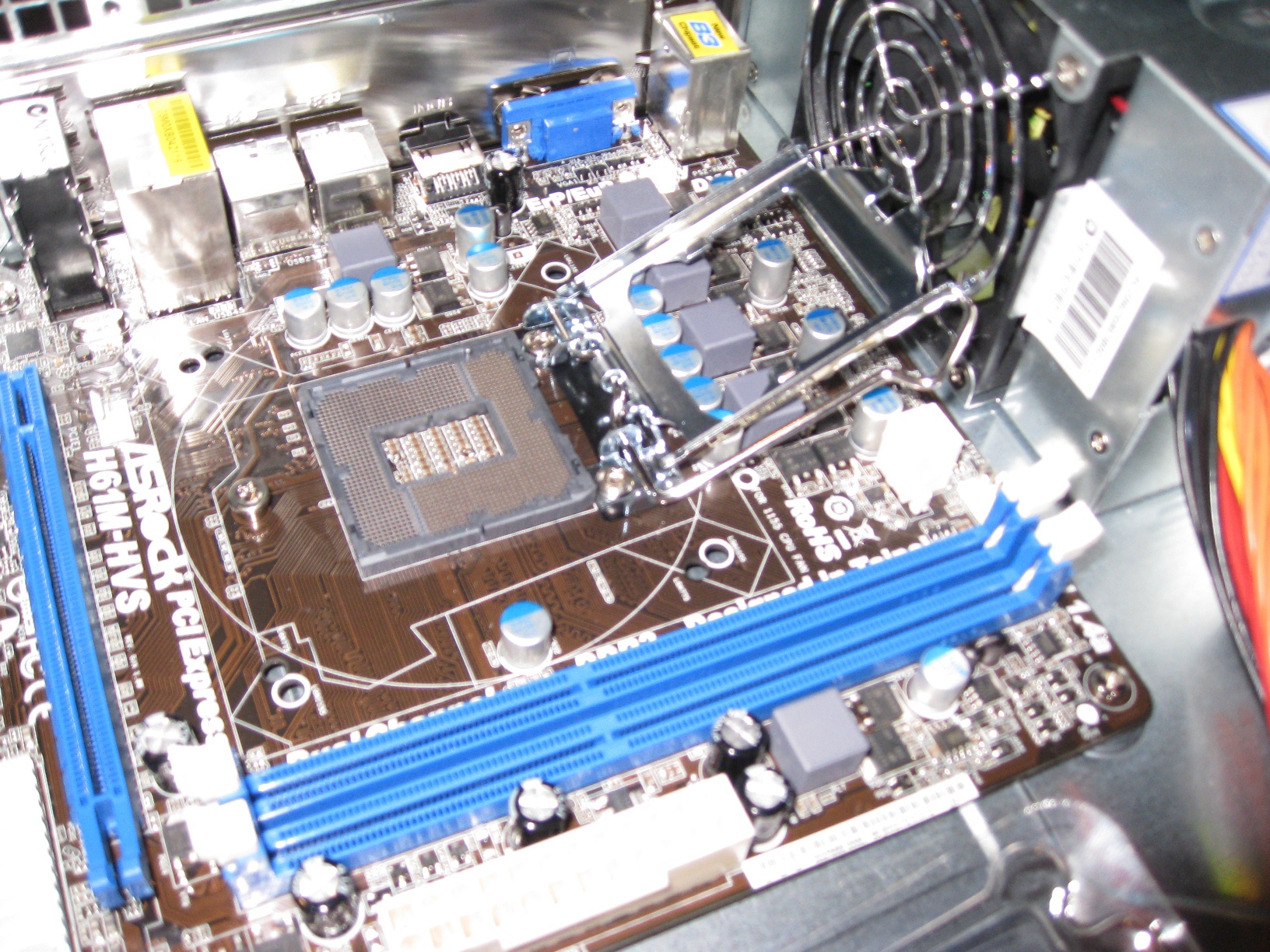
Both the Intel box and the motherboard included instructions on how to install the CPU – but I have to say I’m completely flabbergasted at how idiot-proof this is. Sure, if you spilled your drink in the socket while doing a build, you could screw it up – but even that might be recoverable!
Looks like the CPU itself was made in Malaysia (apologies for the focus). It was a bit difficult to release the spring on the socket, so I did that part, but Mr F. carefully removed the CPU from it’s plastic cover, and managed to seat it into the slot perfectly. Of course it was even harder to push the spring-latch down again, so I had to do that too.
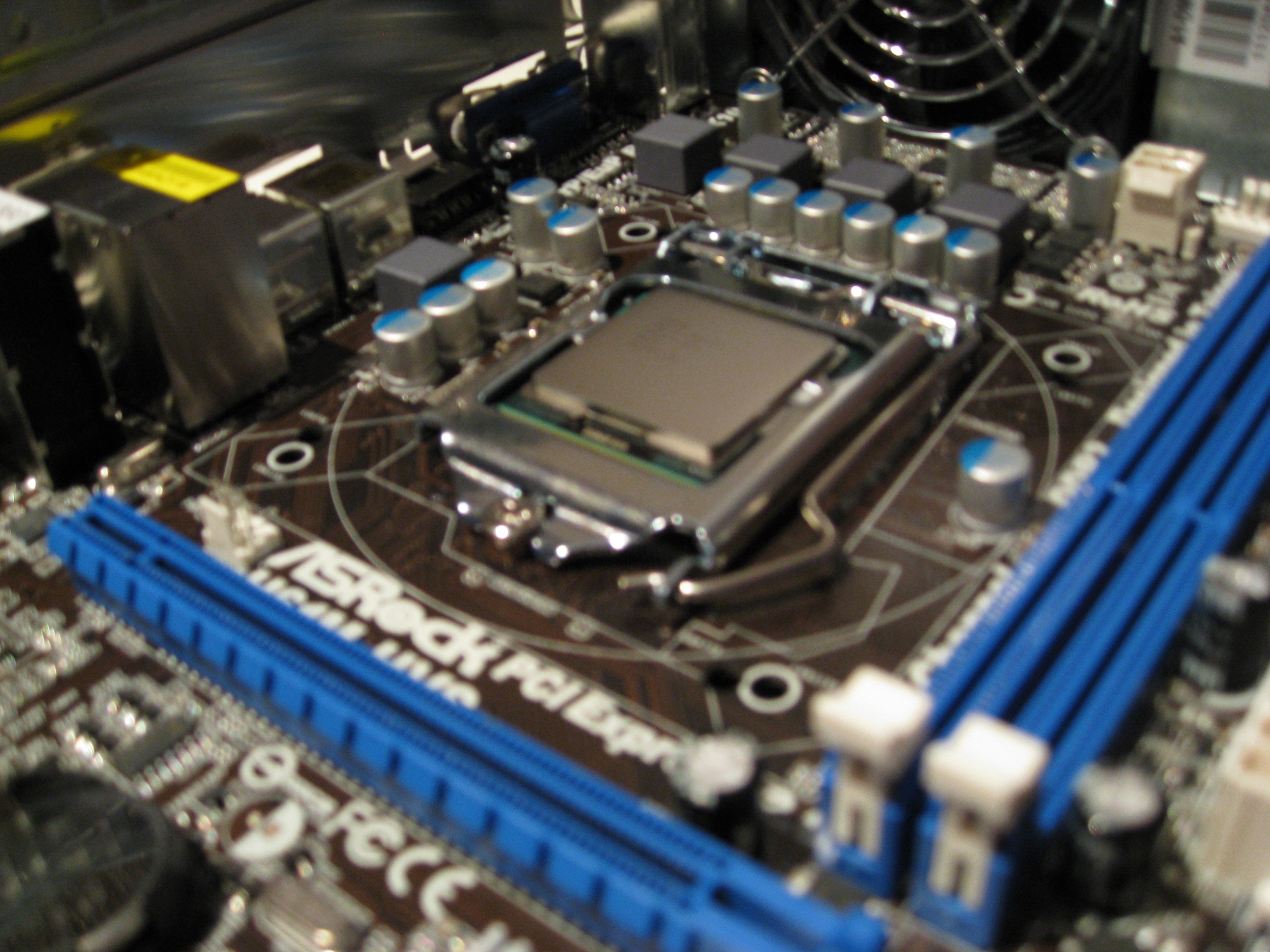
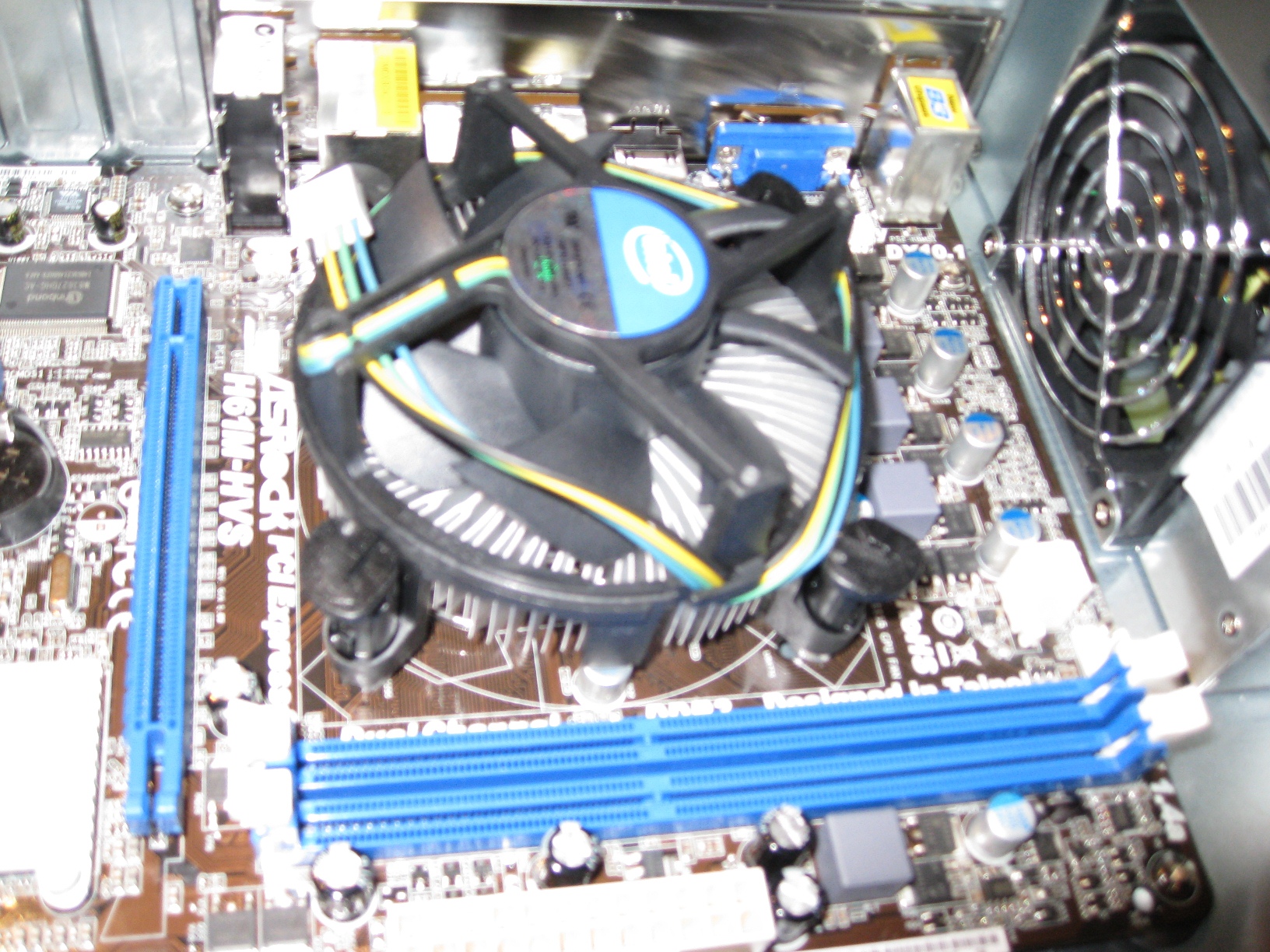
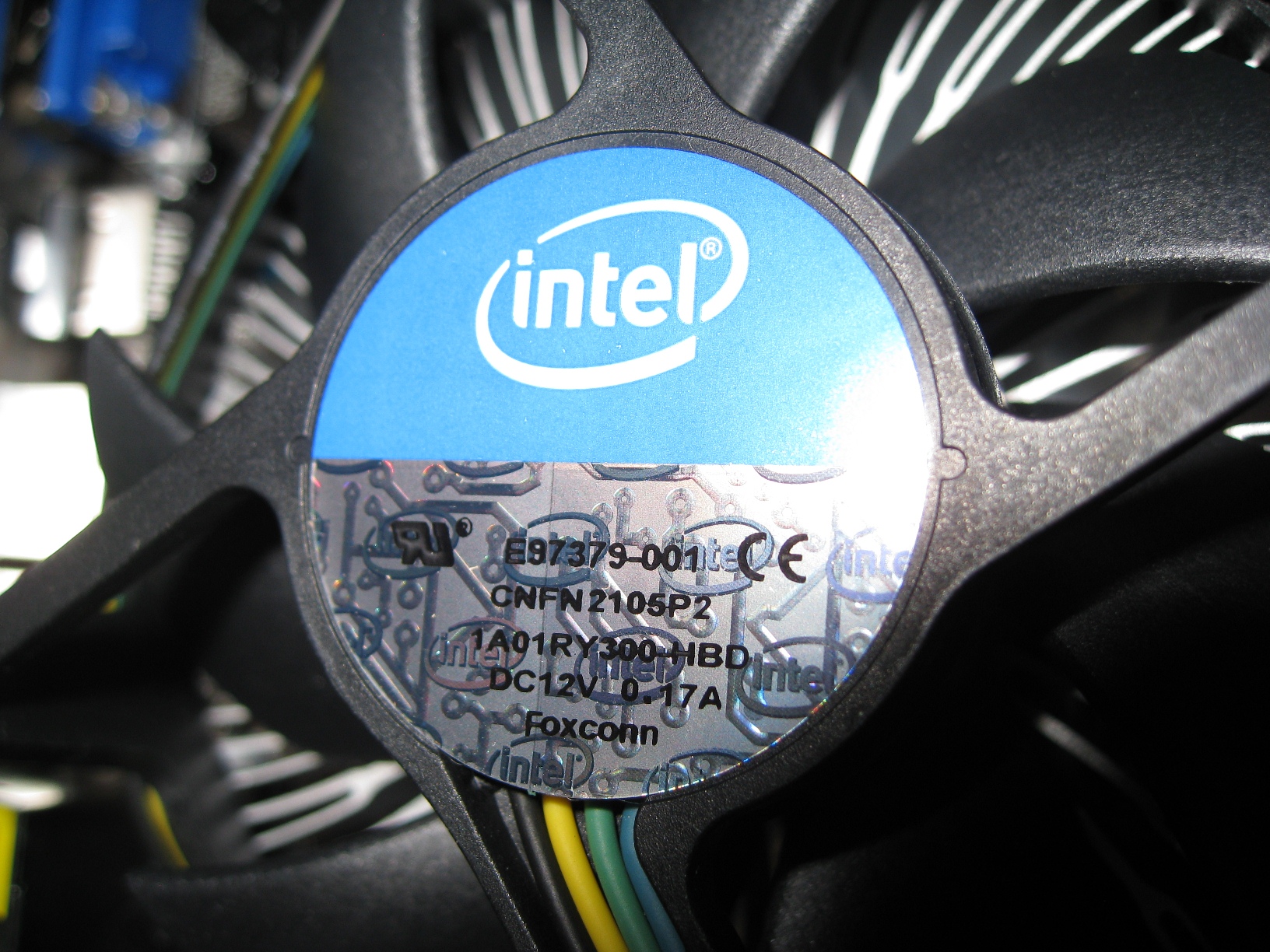
I noted that the fan assembly came with a bit of heat transfer material on the bottom – so I warned to keep fingers away from that…but dropping it onto the motherboard over the CPU and pushing gently on each of the four corners makes it snap into place incredibly easily. A remarkably simple and elegant piece of engineering considering the complex piece of silicon it is keeping cool underneath.
Build Step 3: Wireless Card and Memory
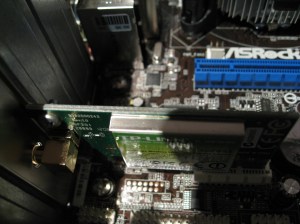 The regular sized card adapter was screwed on very tightly. It took a strong wrist to undo the two screws. Unscrewing the antenna was also necessary to remove it. Attaching the low profile adapter was simply a matter of screwing the two small screws back on, and finger-screwing the antenna back on as well. The card then slotted nicely into the single regular PCI slot (not the PCI x16 one), which has a much longer contact strip.
After pushing back the two white levers at the end of memory slot closest to the CPU, the single memory DIMM also seated properly with a firm push.
Build Step 4: Drive installation
The drive cage lifts up easily. Underneath the rubber seat is positioned so that an installed hard-drive sits flush against – presumably to limit vibration and noise.
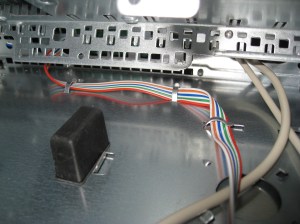
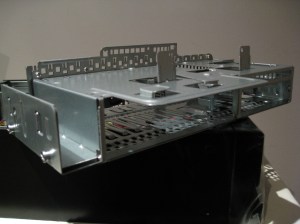
With the cage fully out, following the instructions to slide in the DVD drive, and screw it in, and angle the hard drive in against the two hooks and screw that in too. The DVD drive needed to be as far forward as possible so that it would align with the front of the front panel. The first time we put the hard-drive in upside down (the visible board needs to go at the bottom, so that it sits up higher in the cage. But the second time it was around the right way.
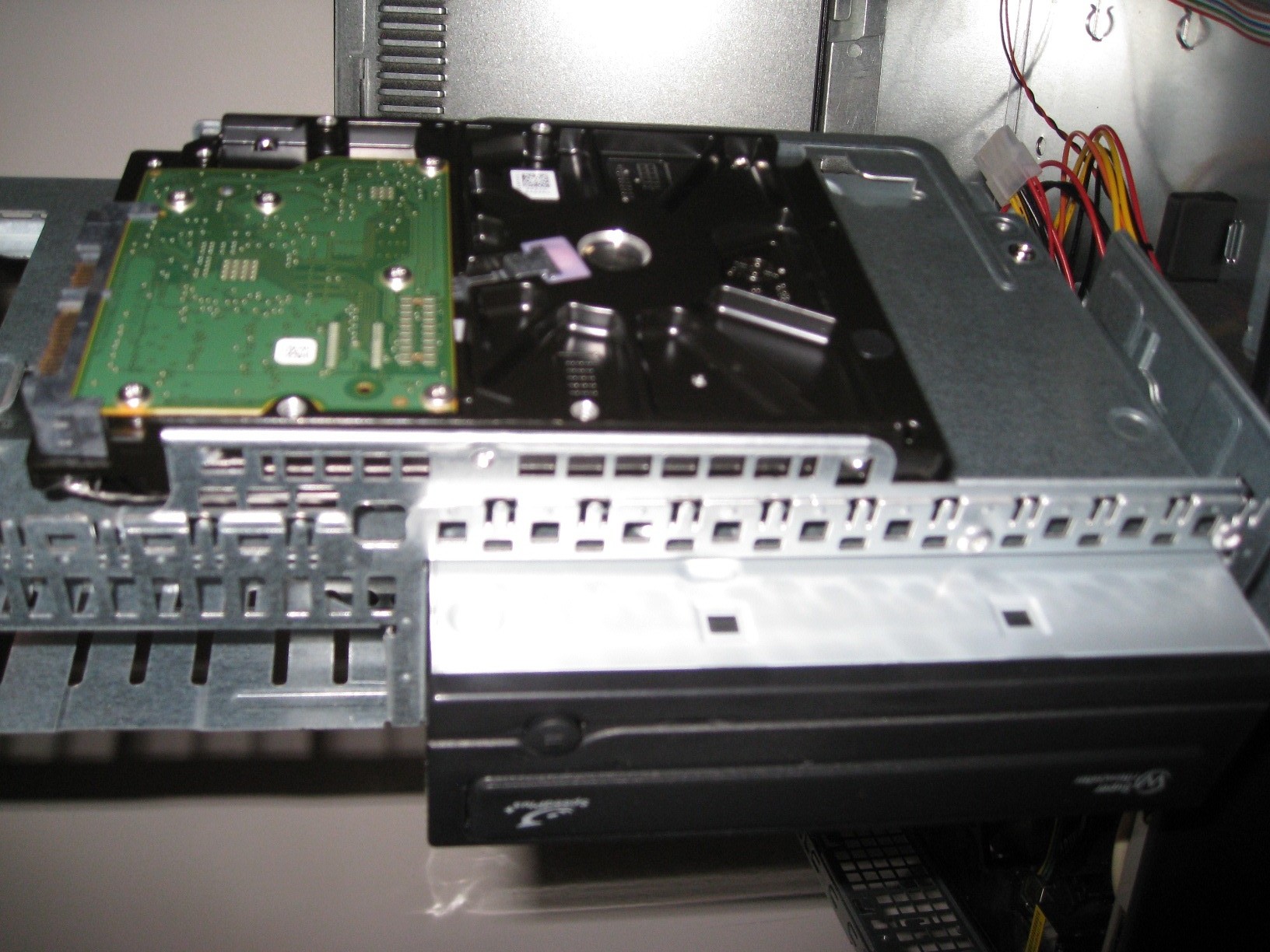
The cage dropped in easily, and slid forward so the DVD drive stuck through to where the front panel would snap back on over it. The front panel had to be carefully taken off first by depressing the plastic tabs that held it in place, and then pushed back in place once the drive bay was back in.
Build Step 5: Wiring it all Up
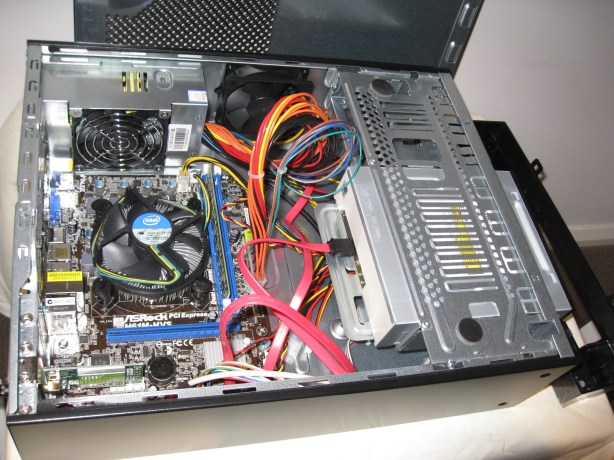
Wiring it all up inside was actually remarkably straight forward as well. The various connectors that needed to be attached were:
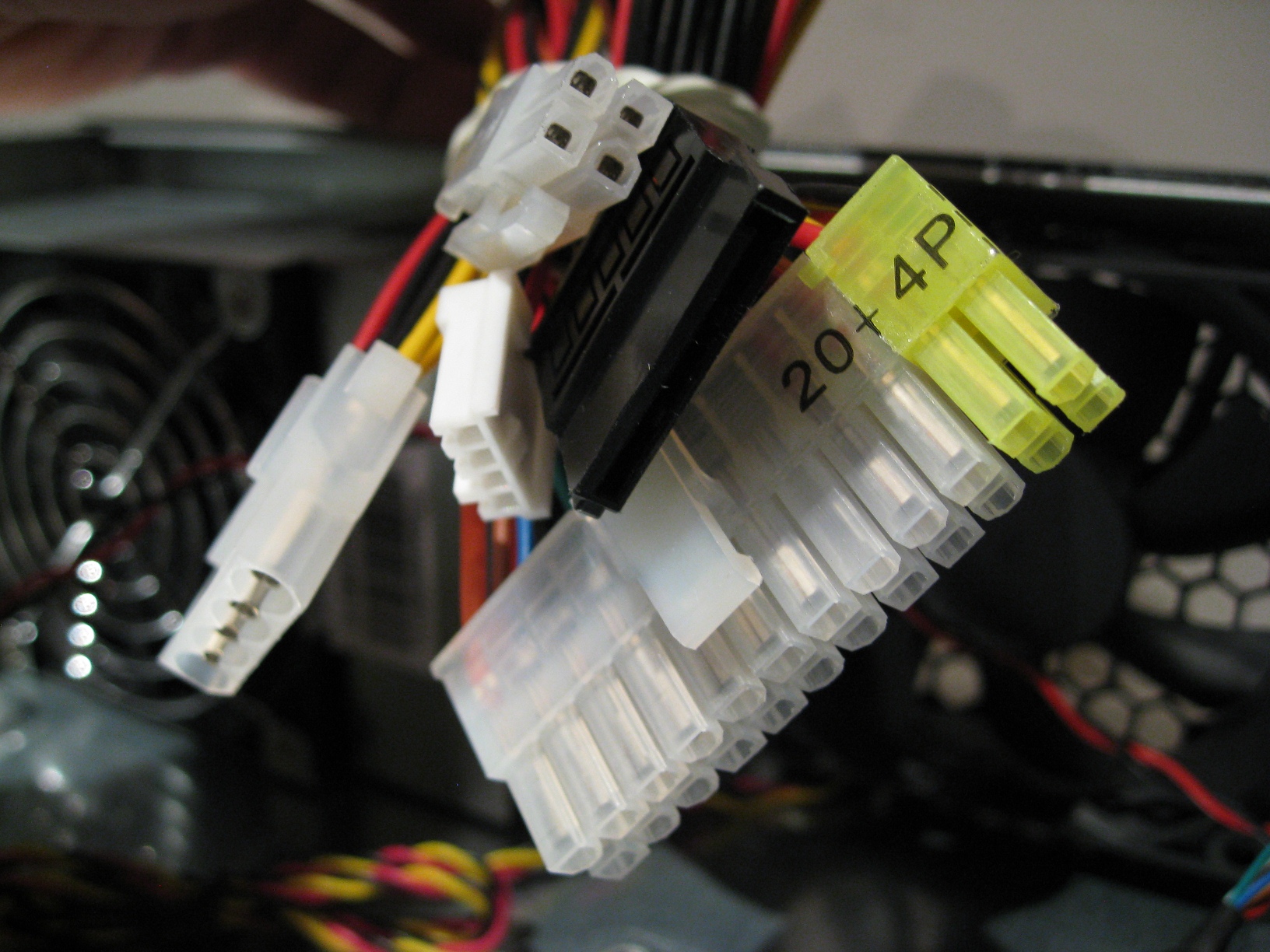
 The main ATX power connector from the power supply to the motherboard.
- The 12V mini ATX power connector from the power supply to the motherboard.
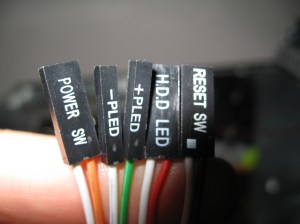
- The power switch connector, power on and off LED connectors, HDD LED connector and reset switch connectors (see picture) from the front panel to the motherboard.
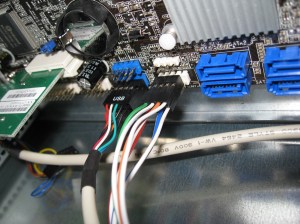
- The USB connector from the front panel to the motherboard. (See picture for this inserted into motherboard.)
- A red serial ATA cable from the DVD drive to the motherboard.
- A red serial ATA cable from the HDD drive to the motherboard.
- A black ATA power connector from the power supply to the HDD.
- Fan power from the case fan to the motherboard (only three pin power provided, not variable speed).
Build Step 6: Setting it Up
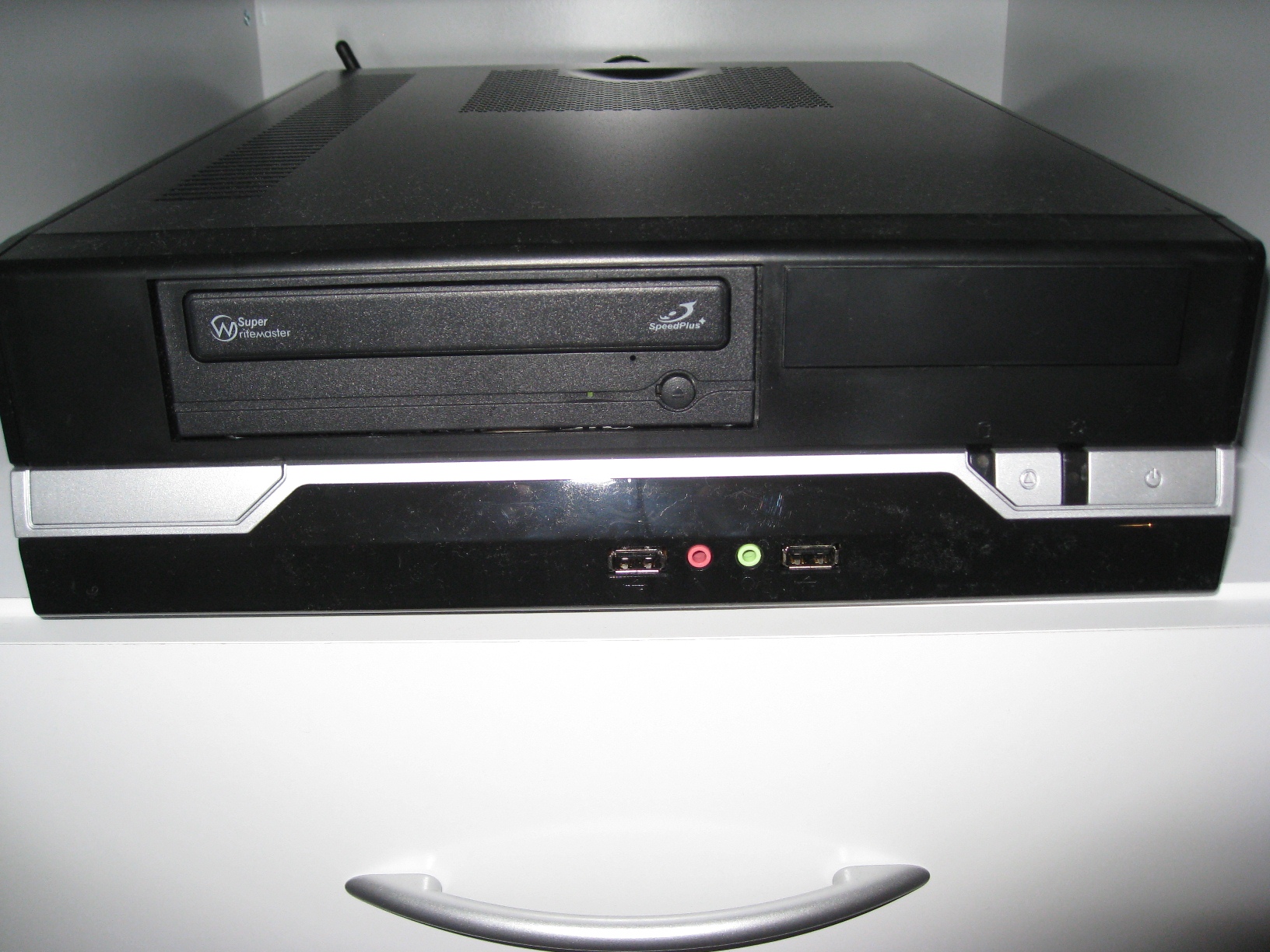
So, all that was left was to install the new beast in its new desk home, attach the power cable, monitor, wireless keyboard dongle, put the batteries in the keyboard and mouse, and power her up.
Here is the finished article:
Then, with Windows 7 DVD in the drive, we powered up.
We went through the full Windows 7 setup process seamlessly, and it all worked great!
But there were two things I forgot:
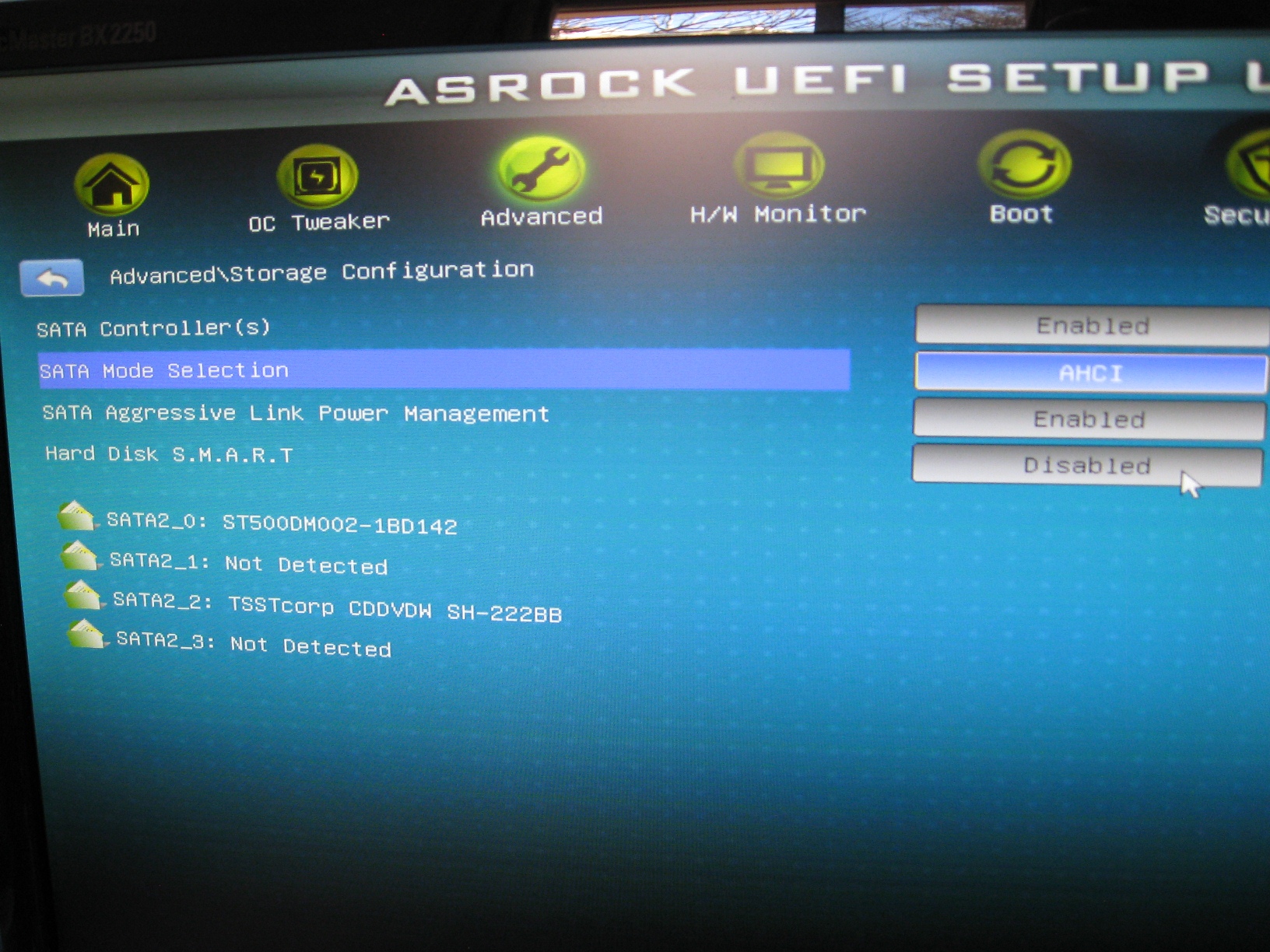
1) Set the SATA Mode to AHCI instead of IDE to make the drive access faster. See UEFI boot time setup screen below with the correct setting. Without this set, hard-drive access was slower than it needed to be. But I couldn’t change it after Windows was installed (wouldn’t boot into Windows). So reinstalled from scratch after setting it correctly.
2) Install the Intel video drivers off the provided ASRock CD. Without doing this Zoo Tycoon 2 wouldn’t run.
Conclusion
Success! Everything seems to run smoothly. I haven’t benchmarked anything – but that’s not really the point with this machine. It doesn’t take up much space, it is relatively quiet, doesn’t seem to generate much heat, and certainly performs as needed.
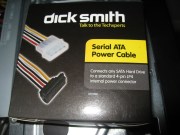
I spent more time deciding which parts to purchase than we did putting it together and installing windows combined. Even with the additional cost of the SATA power cable that was needed, the whole machine still came in under $500 – even with mouse and keyboard. A satisfying weekend’s work.
 Ecphorize