Building a decent mini desktop for my 6 year old son – for under $500 – software included – Part 4 – Assembly

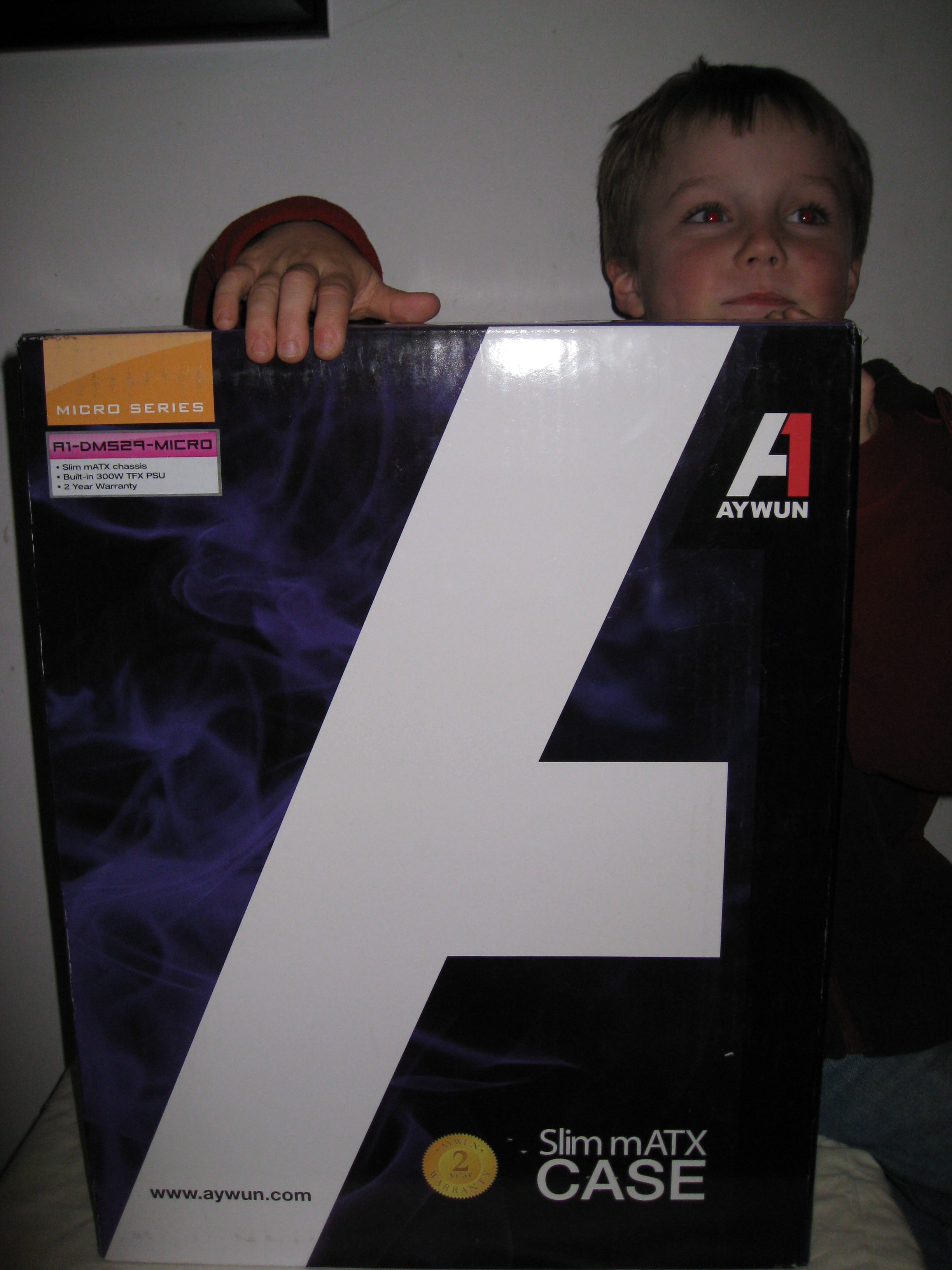
For some reason I was expecting the Aywun case  to come in a plain cardboard box. But the presentation was the kind of thing you’d expect to see in a retail store. I guess the logo tells me  how to pronounce Aywun: as A-1. I was thinking AY-wuhn in my head, with the emphasis on the first syllable.

A single double-sided printed piece of paper fell out when we pulled the case out of the box. These are the only instructions. It remains to be seen whether they’ll be enough, but from the look of the internals, it should be hard to go too wrong. The first side has  the exploded parts diagram, and instructions for installing the optical and hard-disk drives into the removable cage. The second side has the information on connecting the front USB, Audio and firewire ports (IEEE1394) to the motherboard. We don’t have firewire on our ASTech motherboard.
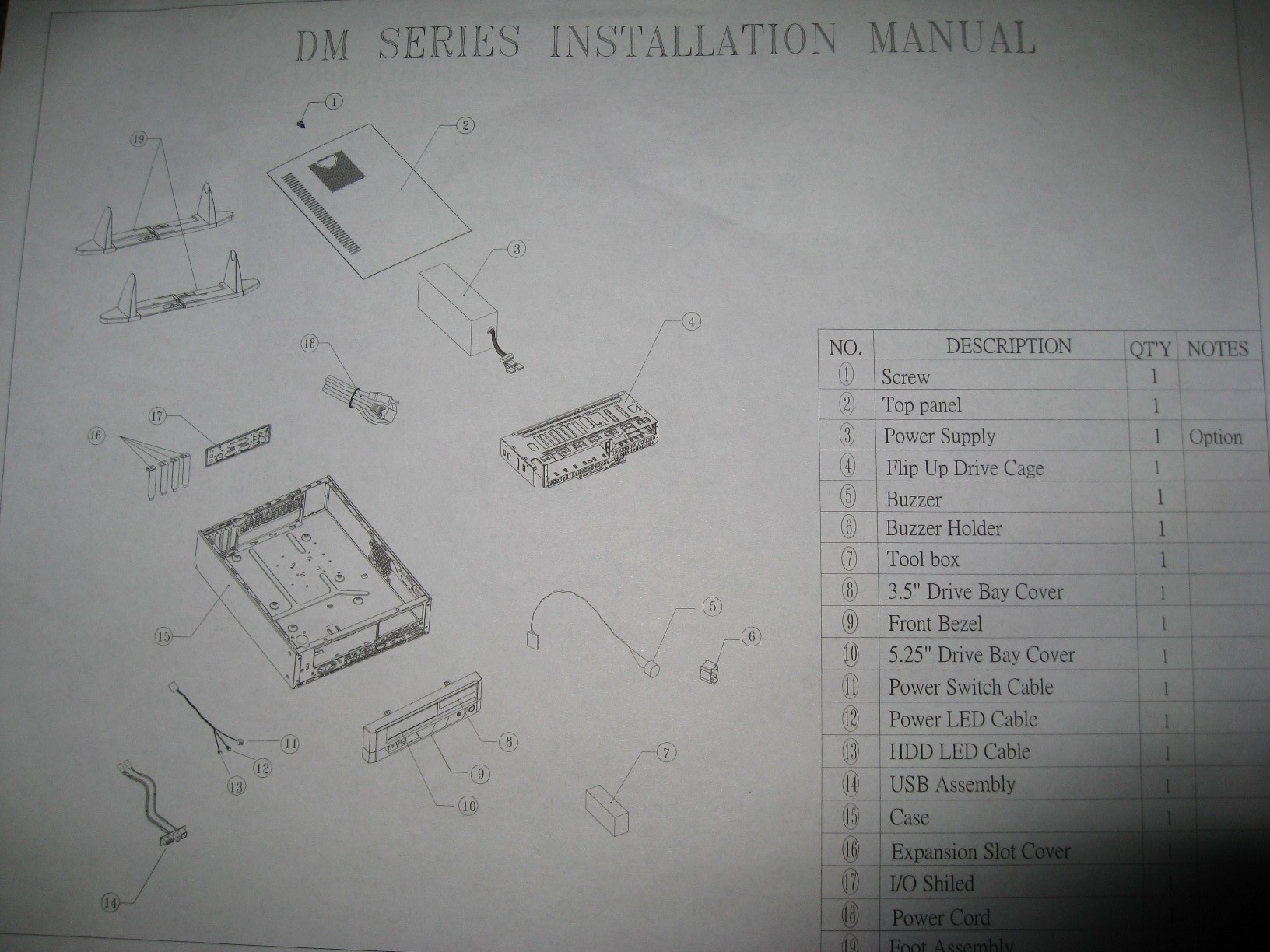
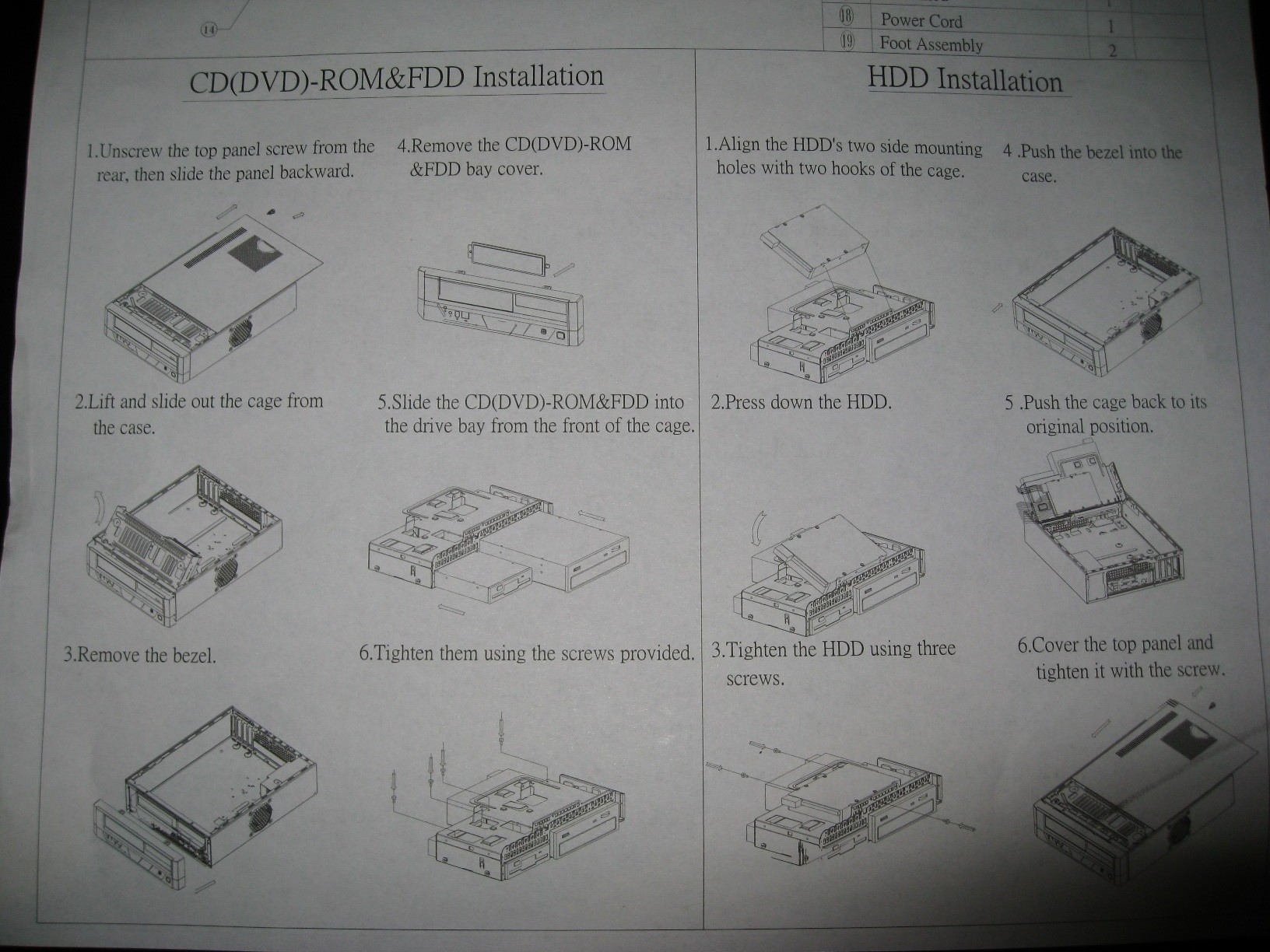
 

We clocked on for the actual build at about 3:40pm on Saturday afternoon.

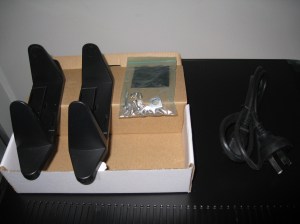
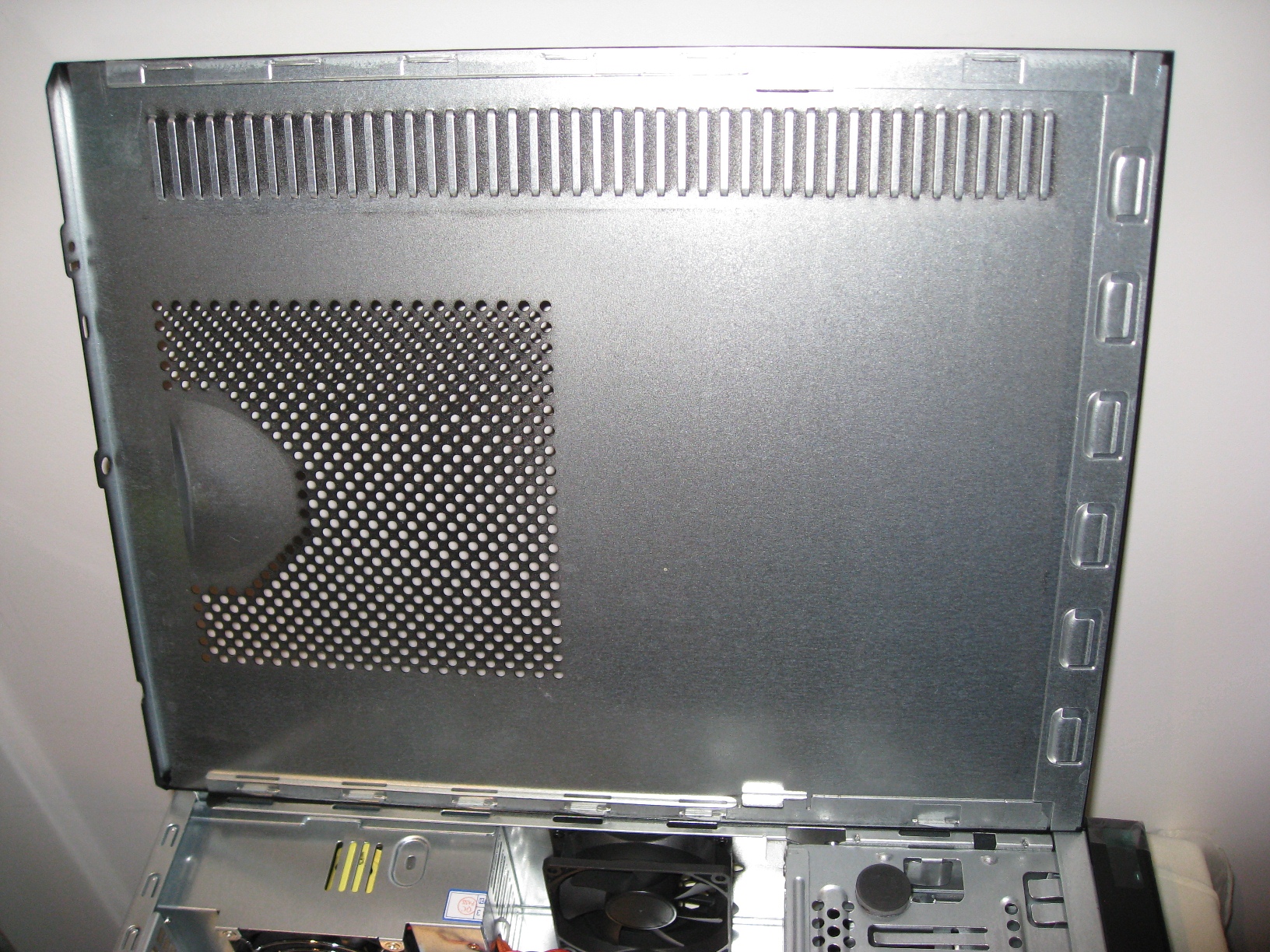
After Mr F removed the single side panel screw with his fingers, I slid the stiff panel along a centimetre or so, and removed it to reveal the box of parts and a power cable. The parts include two plastic feet for standing the case upright, four stick-on rubber feet, 11 motherboard mounting screws, 4 drive mounting screws, and two long screws with only a bit thread on the end which I didn’t recognize.
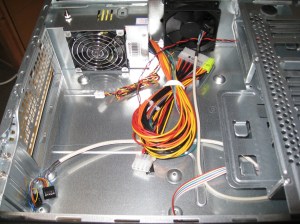
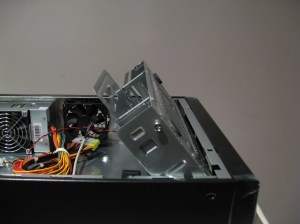
  

Inside the case itself looks nice and clear with plenty of space around the motherboard mounting area. Some routing flanges were keeping the front panel wires nicely tidy, with enough play to allow it to be removed. The drive cage tilts up easily by pulling on the protruding handle, to allow the DVD and HDD installations to be easily followed, and can be pulled completely out to give plenty of space for routing wires to the front of the case.

Build Step 1: The Motherboard

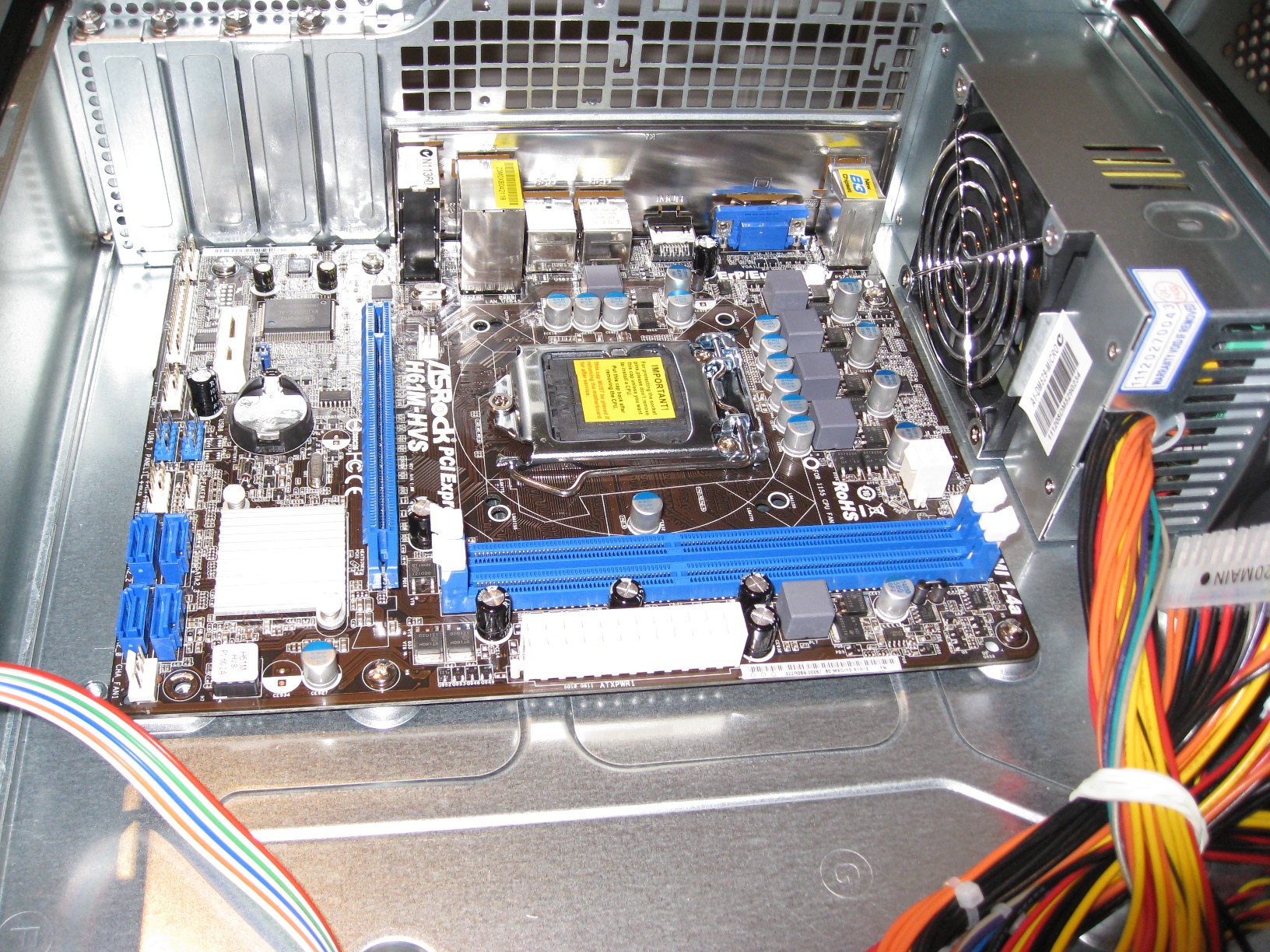
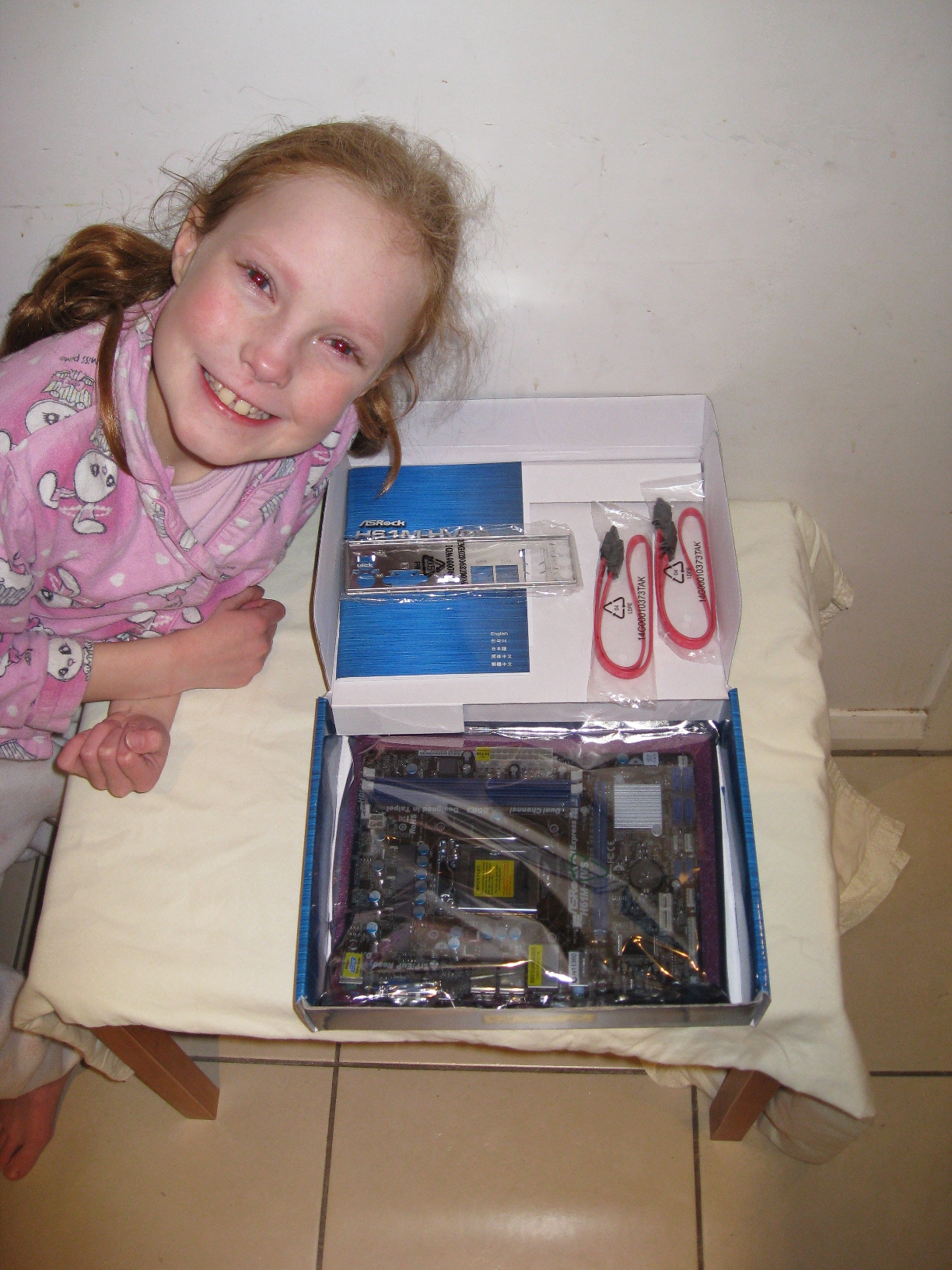
The motherboard box just contained the motherboard itself, the motherboard port plate, two red SATA data cables, and a short but easy to understand manual.
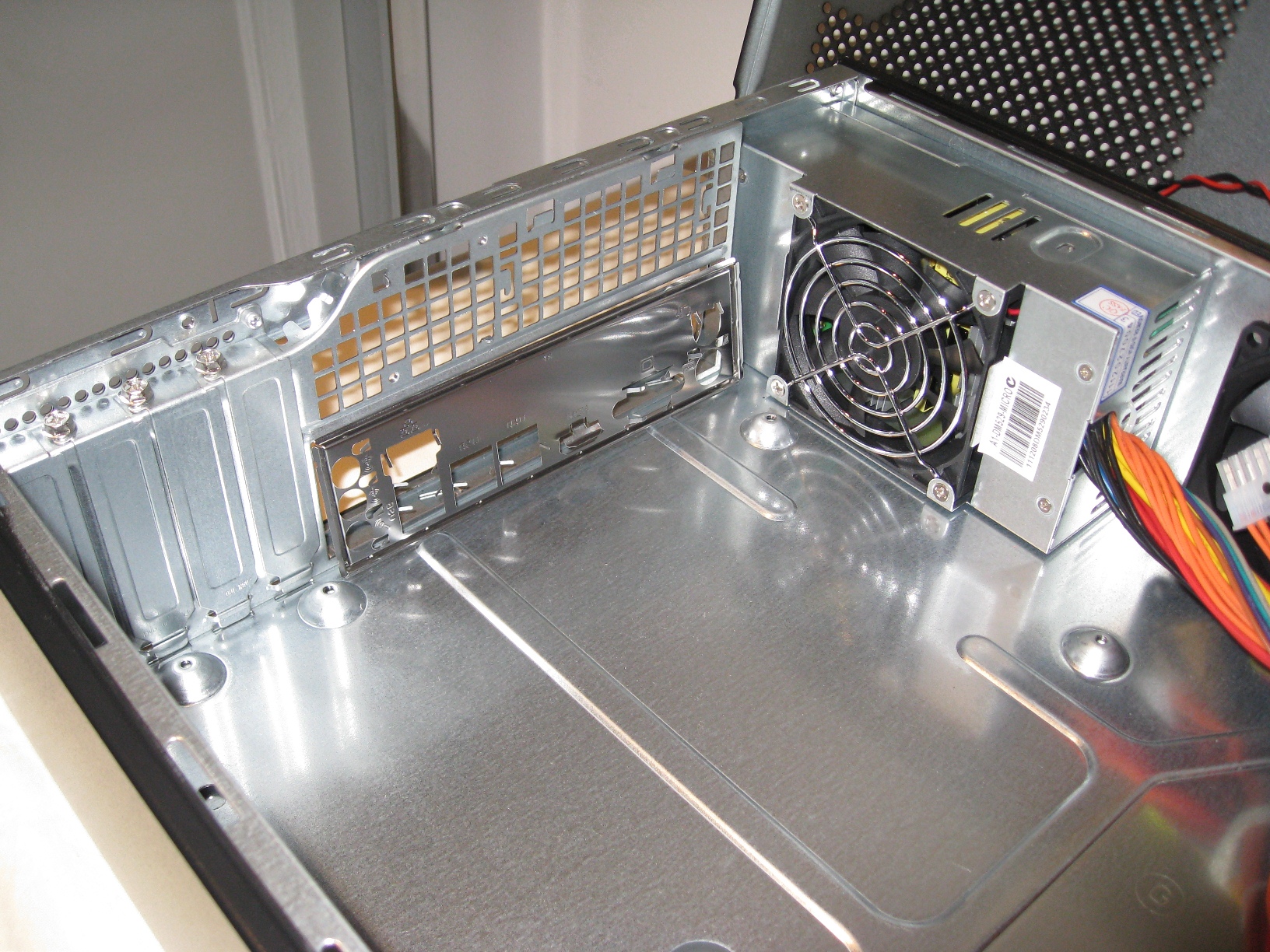
      

First step: put the port plate into the case. This required some strong adult fingers to help get it to snap in on along all the edges. The key thing was to make sure that the text descriptions of each port were legible from outside the case – I don’t think it would have snapped in the other way around, but I wasn’t keen to try. Also made sure the port holes were aligned to the bottom of the case – where the motherboard will be.

Second step, carefully lower the motherboard into position (we both helped with this part, too!) There are several springy metal slivers sticking out the back of the plate that meant I had to push the motherboard into position, while junior finger-tightened the screws into position.
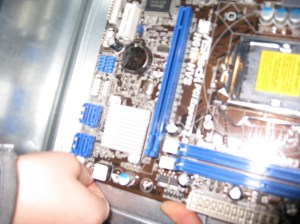
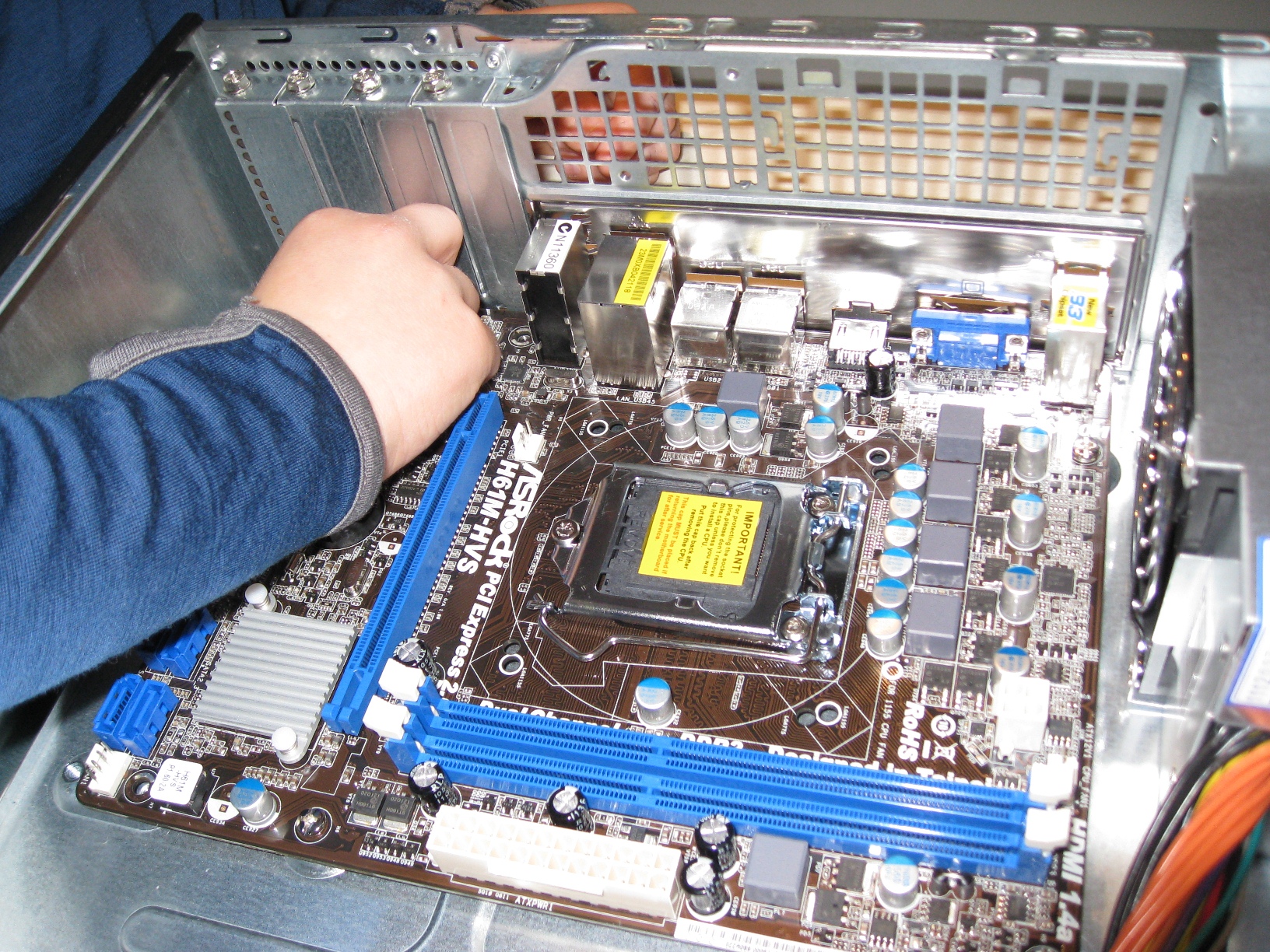
 
We actually ended up doing this twice with the five screws. The first time one of the sticking out bits of metal actually slid into the HDMI port, which I wasn’t keen on – so I removed the screws and realigned the motherboard so this was no longer the case.

I don’t have a plastic tipped screw-driver (I assume such things exist) and I was a bit worried about the possibility of screw-driver slippage gouging the board, so after the finger-tightening I used a regular Phillips screw-driver to carefully tighten the motherboard screws.

Build Step 2: The CPU
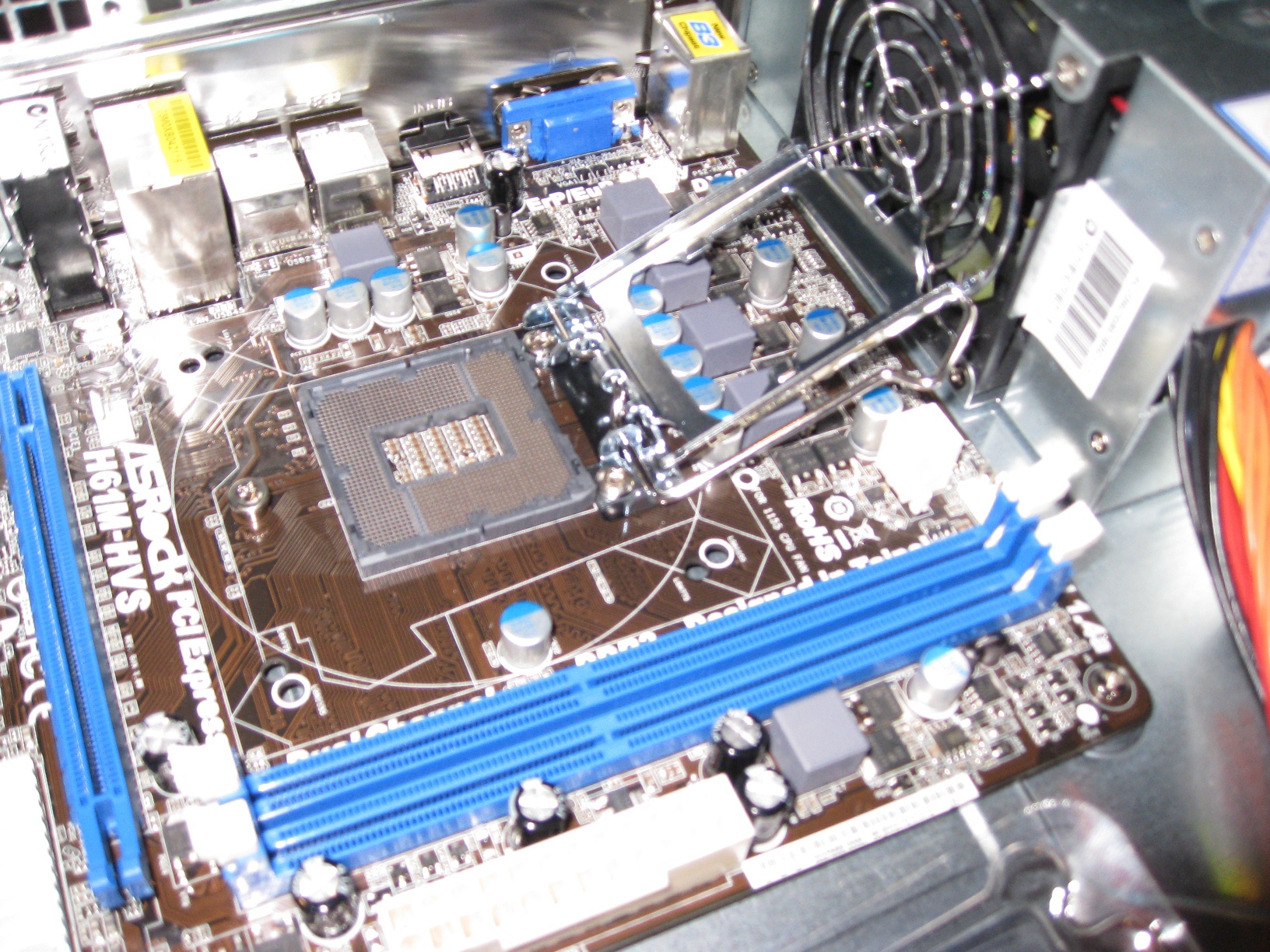
Both the Intel box and the motherboard included instructions on how to install the CPU – but I have to say I’m completely flabbergasted at how idiot-proof this is. Sure, if you spilled your drink in the socket while doing a build, you could screw it up – but even that might be recoverable!

Looks like the CPU itself was made in Malaysia (apologies for the focus). It was a bit difficult to release the spring on the socket, so I did that part, but Mr F. carefully removed the CPU from it’s plastic cover, and managed to seat it into the slot perfectly. Of course it was even harder to push the spring-latch down again, so I had to do that too.
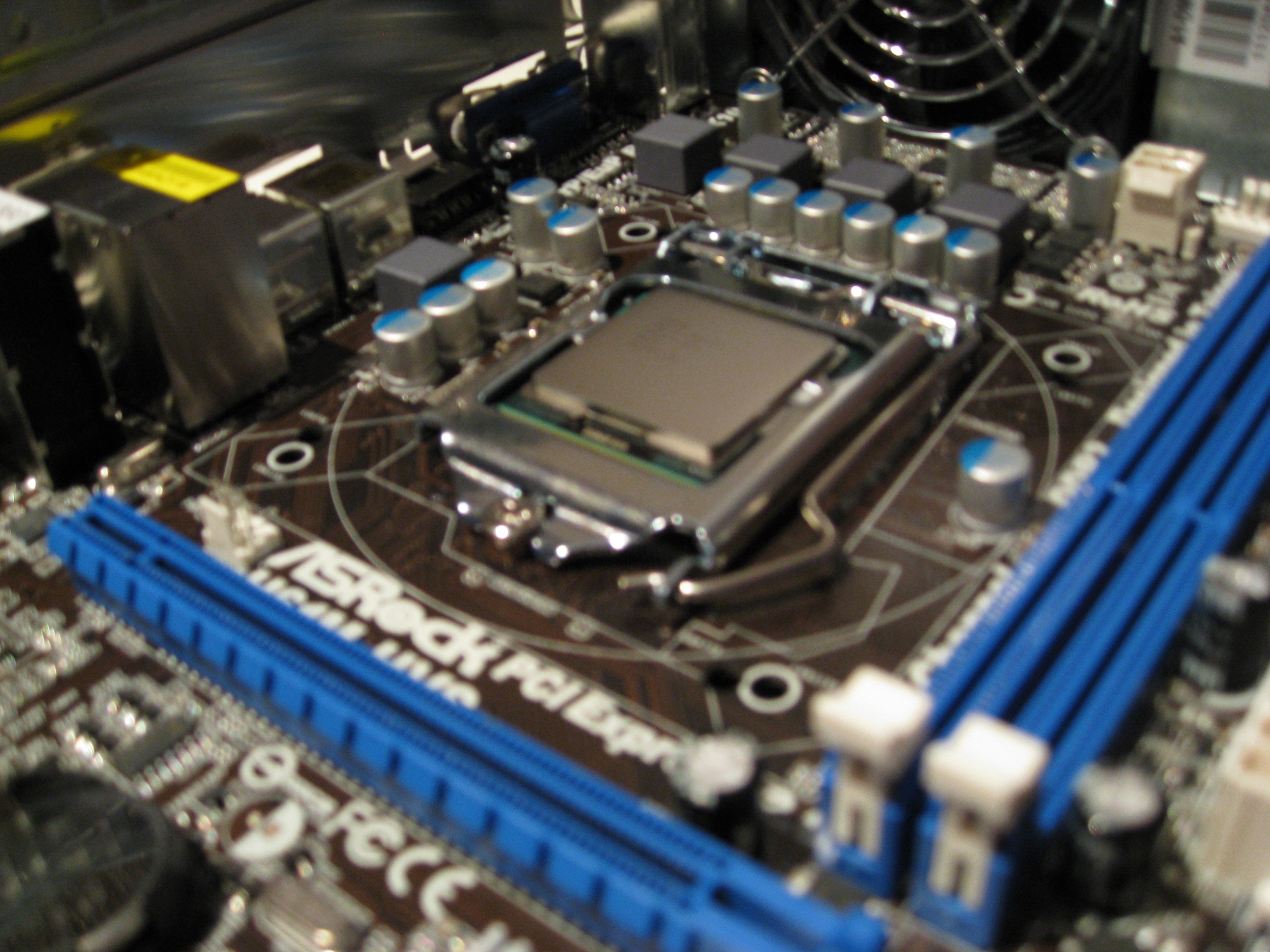
 

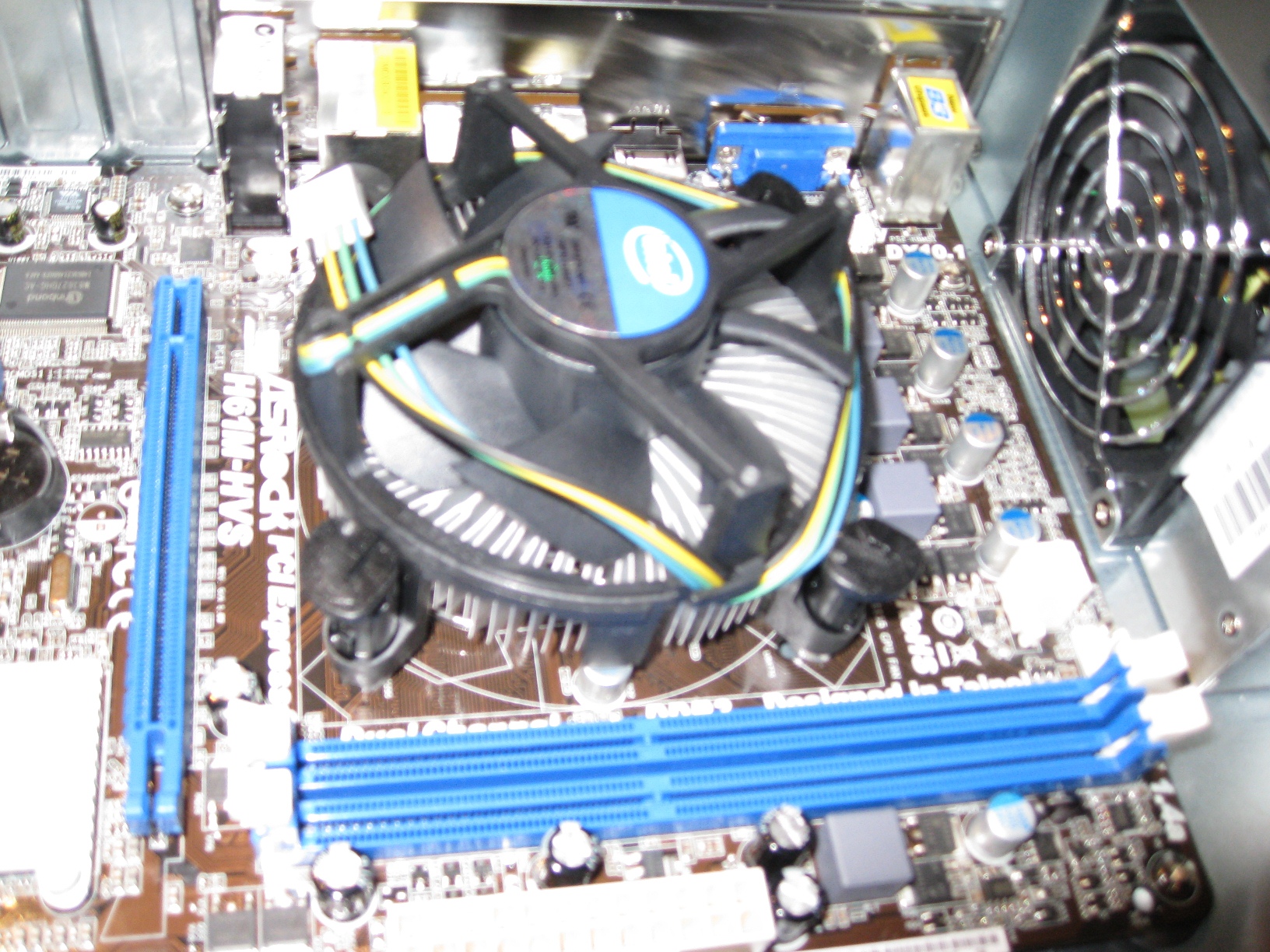
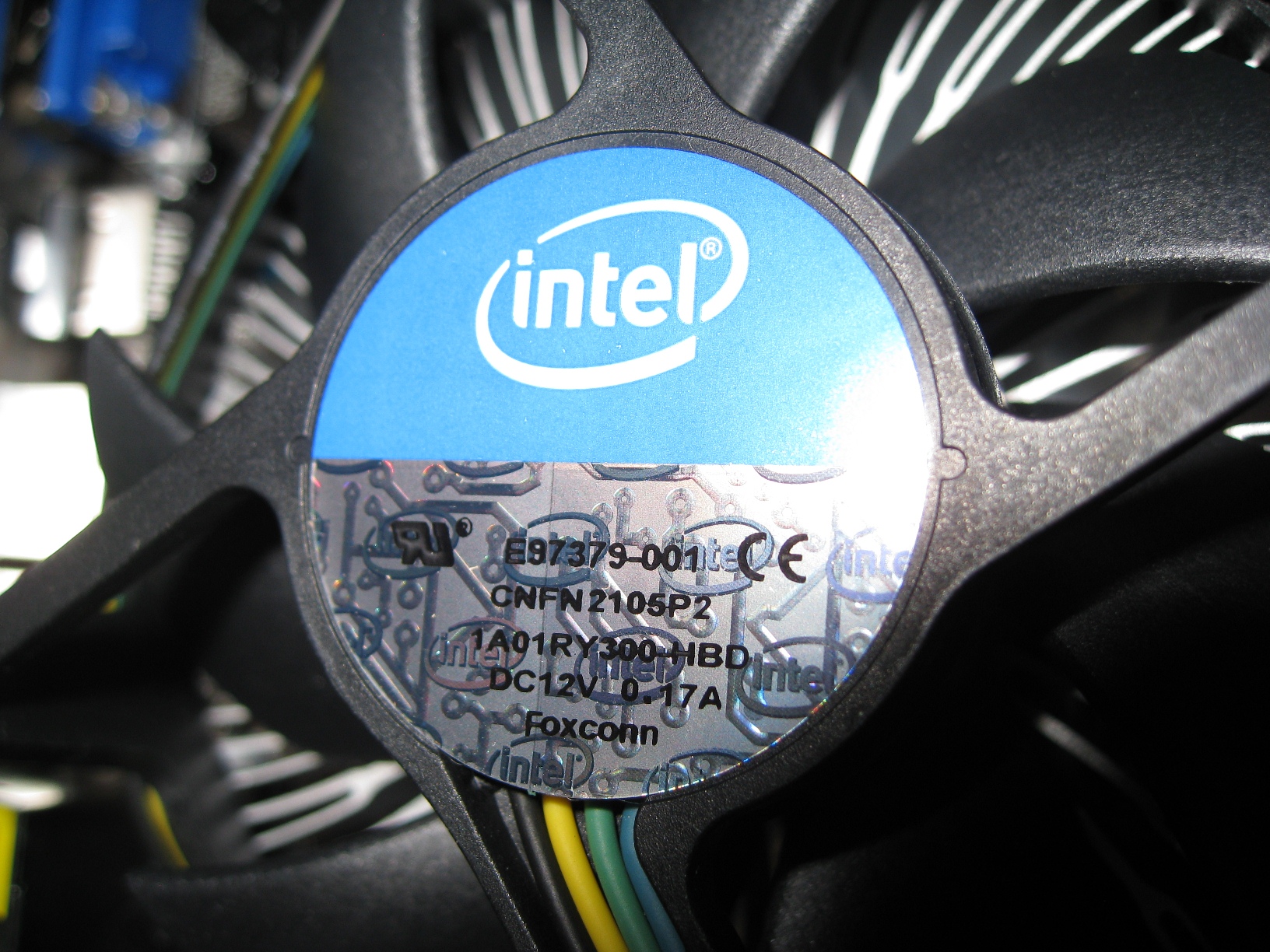
I noted that the fan assembly came with a bit of heat transfer material on the bottom – so I warned to keep fingers away from that…but dropping it onto the motherboard over the CPU and pushing gently on each of the four corners makes it snap into place incredibly easily. A remarkably simple and elegant piece of engineering considering the complex piece of silicon it is keeping cool underneath.
 

Build Step 3: Wireless Card and Memory
The regular sized card adapter was screwed on very tightly. It took a strong wrist to undo the two screws. Unscrewing the antenna was also necessary to remove it. Attaching the low profile adapter was simply a matter of screwing the two small screws back on, and finger-screwing the antenna back on as well. The card then slotted nicely into the single regular PCI slot (not the PCI x16 one), which has a much longer contact strip.

After pushing back the two white levers at the end of memory slot closest to the CPU, the single memory DIMM also seated properly with a firm push.

Build Step 4: Drive installation

The drive cage lifts up easily. Underneath the rubber seat is positioned so that an installed hard-drive sits flush against – presumably to limit vibration and noise.
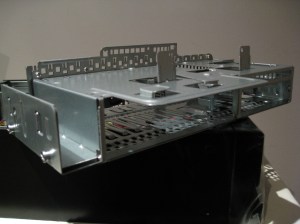
 

With the cage fully out, following the instructions to slide in the DVD drive, and screw it in, and angle the hard drive in against the two hooks and screw that in too. The DVD drive needed to be as far forward as possible so that it would align with the front of the front panel. The first time we put the hard-drive in upside down (the visible board needs to go at the bottom, so that it sits up higher in the cage. But the second time it was around the right way.
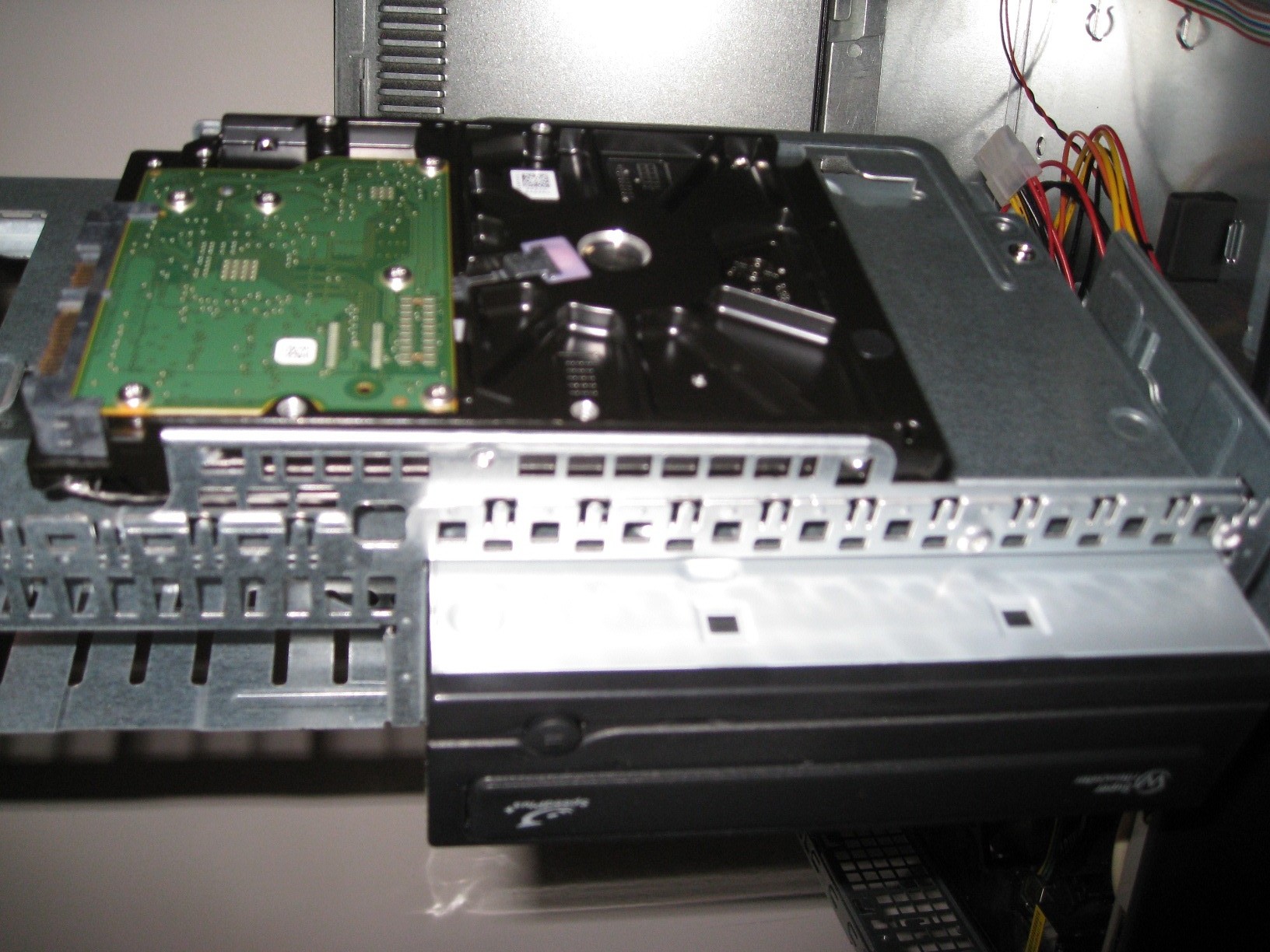
The cage dropped in easily, and slid forward so the DVD drive stuck through to where the front panel would snap back on over it. The front panel had to be carefully taken off first by depressing the plastic tabs that held it in place, and then pushed back in place once the drive bay was back in.

Build Step 5: Wiring it all Up

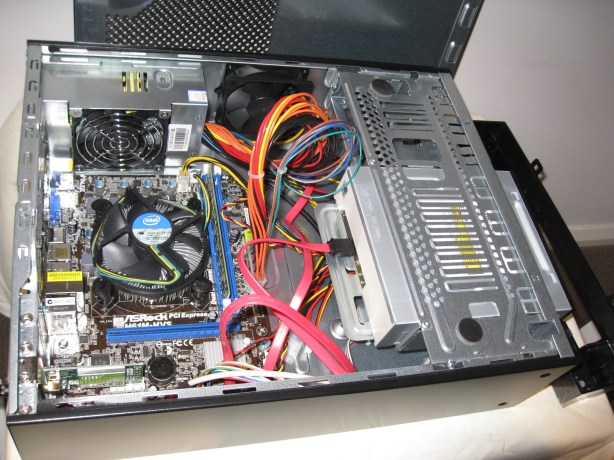
Wiring it all up inside was actually remarkably straight forward as well. The various connectors that needed to be attached were:
  1. The main ATX power connector from the power supply to the motherboard.
  2. The 12V mini ATX power connector from the power supply to the motherboard.
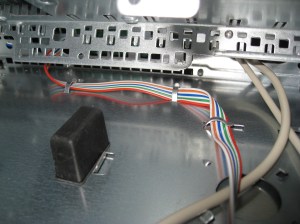
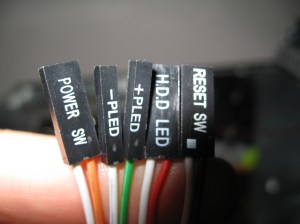
  3. The power switch connector, power on and off LED connectors, HDD LED connector and reset switch connectors  (see picture) from the front panel to the motherboard.
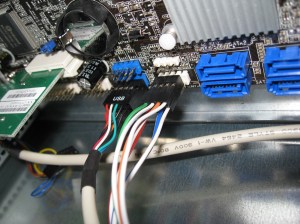
  4. The USB connector from the front panel to the motherboard. (See picture for this inserted into motherboard.)
  5. A red serial ATA cable from the DVD drive to the motherboard.
  6. A red serial ATA cable from the HDD drive to the motherboard.
  7. A black ATA power connector from the power supply to the HDD.
  8. Fan power from the case fan to the motherboard (only three pin power provided, not variable speed).
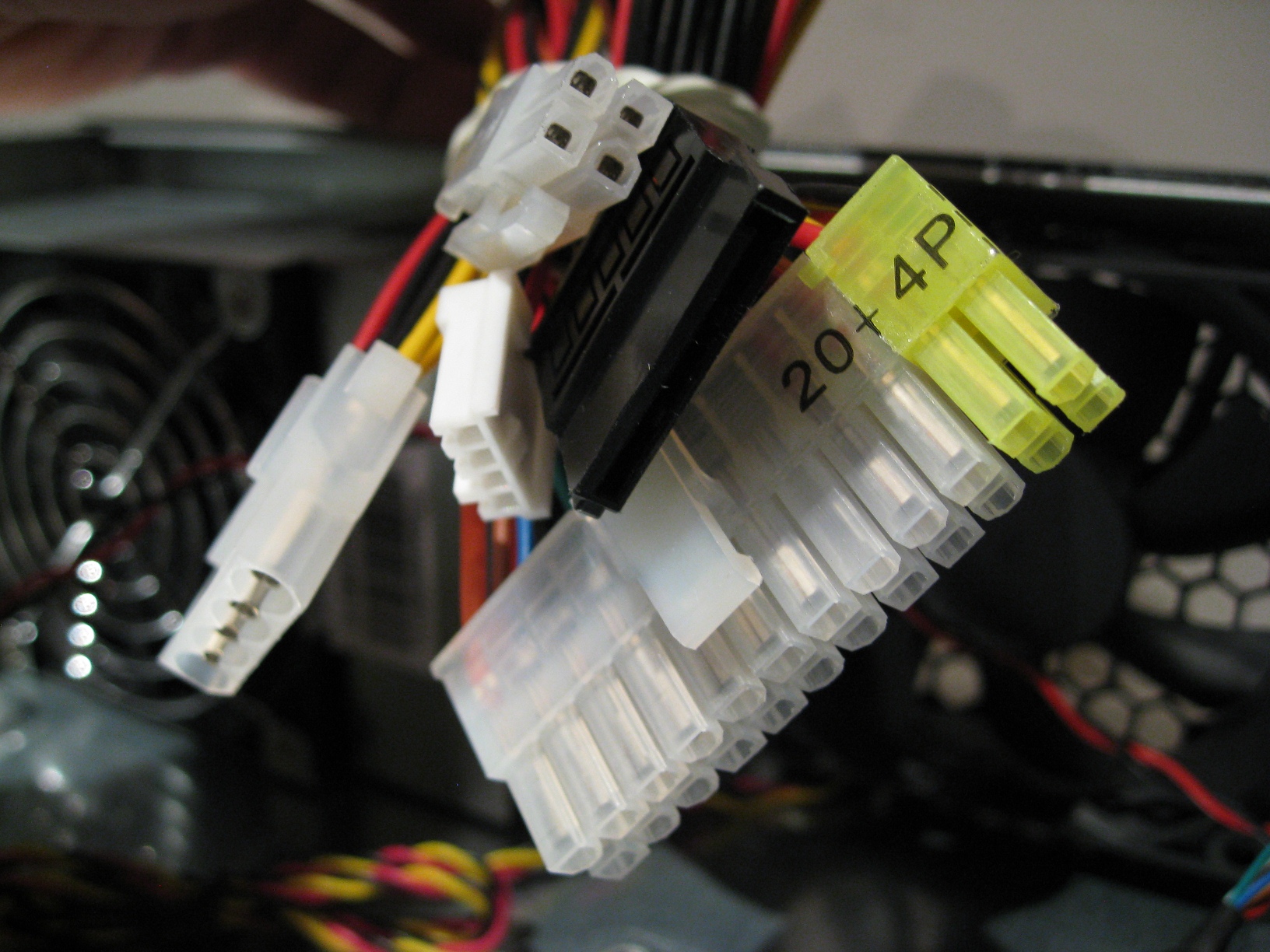
And then it dawned on us. We were missing a second ATA power connector for the DVD drive!
It was 5:30 by this stage, and too late to make it to a shop to pick one up. So we had to call it a day. See below for how everything looked.

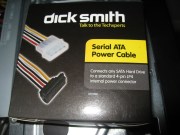
The following morning, after a quick trip to Dick Smith, and another $6.79 later, with the necessary cable in hand, we finished wiring it up.

Build Step 6: Setting it Up

So, all that was left was to install the new beast in its new desk home, attach the power cable, monitor, wireless keyboard dongle, put the batteries in the keyboard and mouse, and power her up.

Here is the finished article:
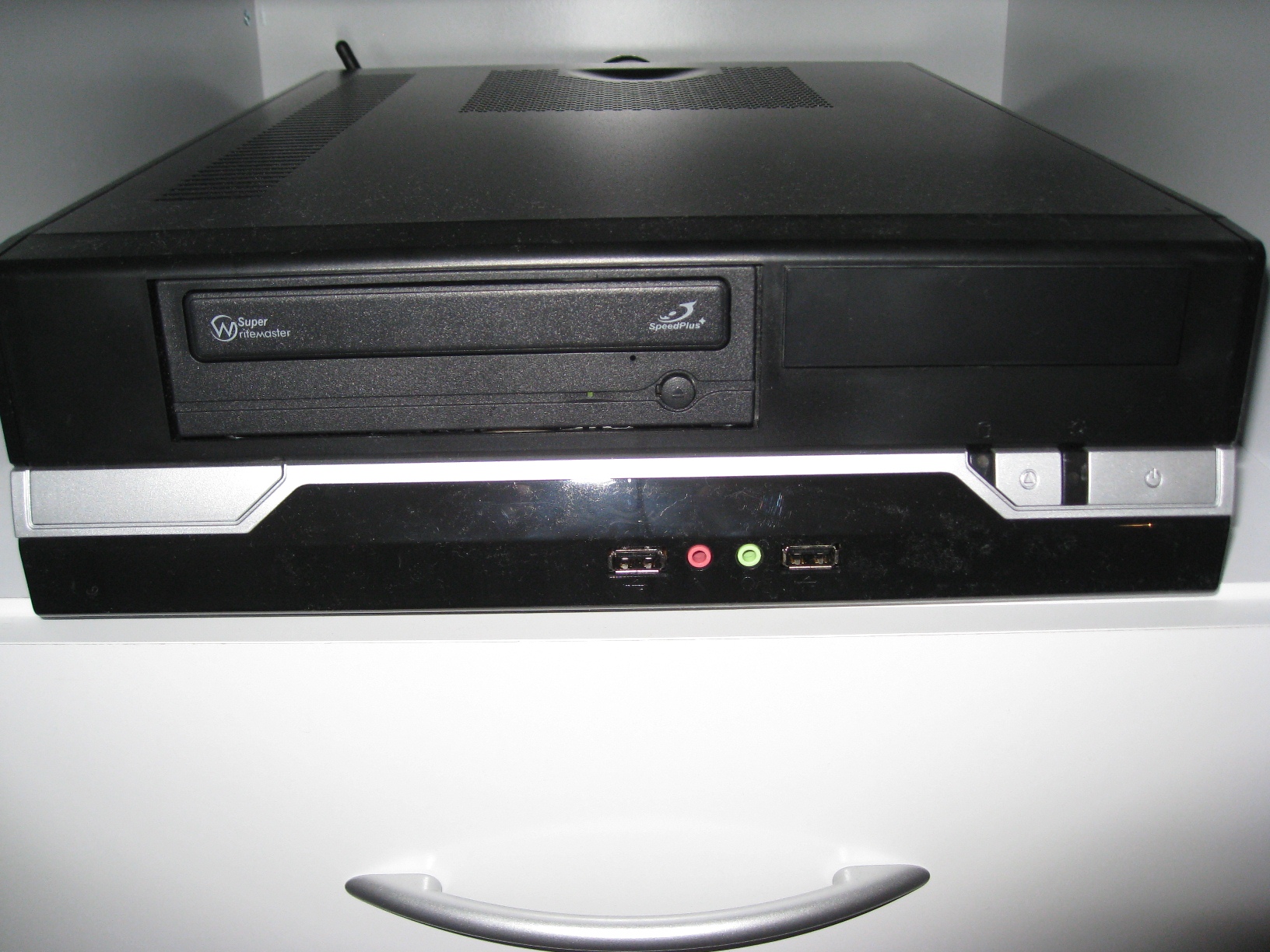
Then, with Windows 7 DVD in the drive, we powered up.

We went through the full Windows 7 setup process seamlessly, and it all worked great!

But there were two things I forgot:

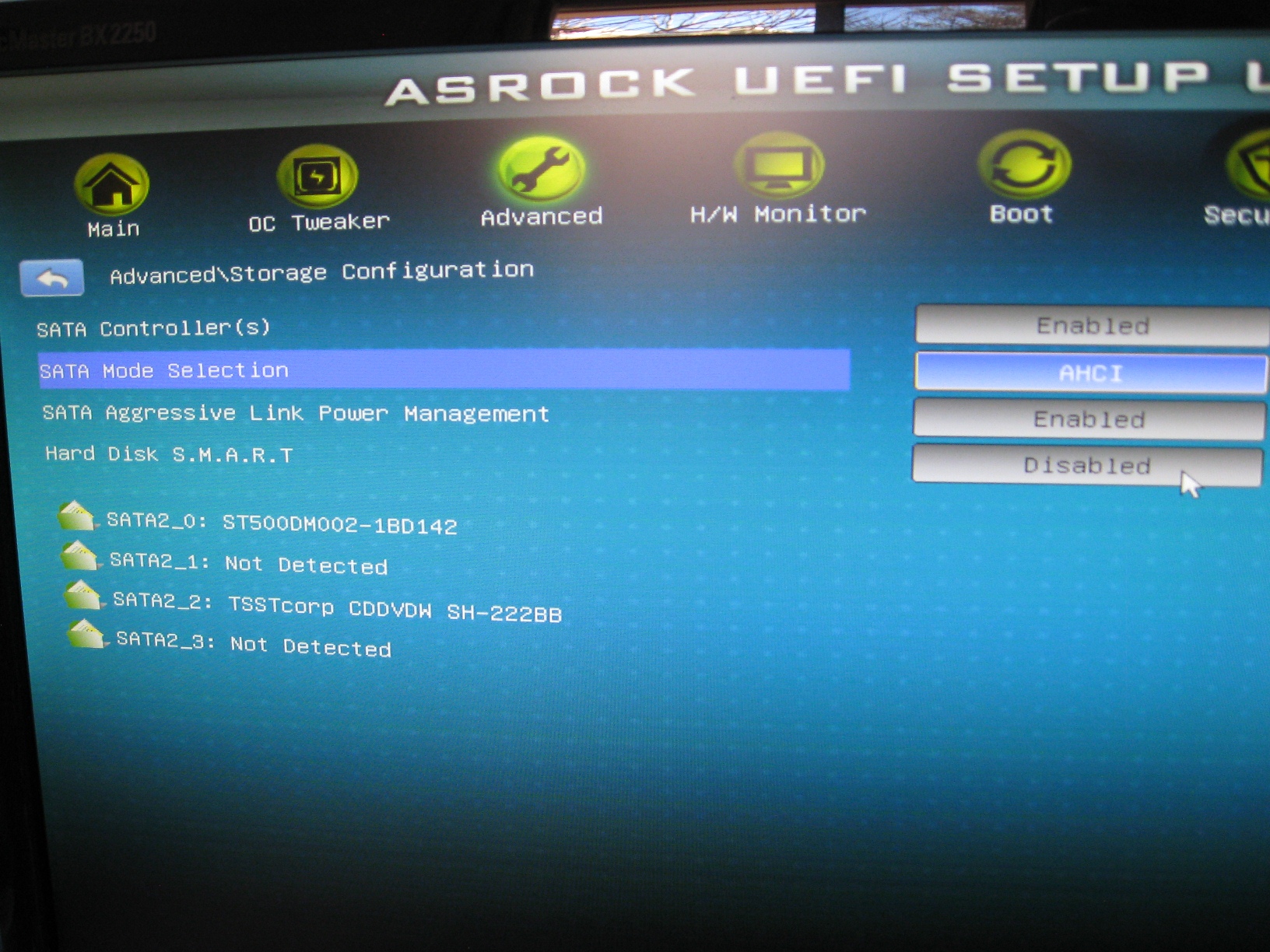
1) Set the SATA Mode to AHCI instead of IDE to make the drive access faster. See UEFI boot time setup screen below with the correct setting. Without this set, hard-drive access was slower than it needed to be. But I couldn’t change it after Windows was installed (wouldn’t boot into Windows). So reinstalled from scratch after setting it correctly.
2) Install the Intel video drivers off the provided ASRock CD. Without doing this Zoo Tycoon 2 wouldn’t run.

Conclusion

Success! Everything seems to run smoothly. I haven’t benchmarked anything – but that’s not really the point with this machine. It doesn’t take up much space, it is relatively quiet, doesn’t seem to generate much heat, and certainly performs as needed.

I spent more time deciding which parts to purchase than we did putting it together and installing windows combined. Even with the additional cost of the SATA power cable that was needed, the whole machine still came in under $500 – even with mouse and keyboard. A satisfying weekend’s work.
Building a decent mini desktop for my 6 year old son – for under $500 – software included – Part 3 – Receiving

Since it’s been 24 hours since I ordered from the mWave and MegaBuy web-sites, and I haven’t yet received a follow-up email from either company since the original order confirmations, I thought I’d check on the status of my orders.

mWave

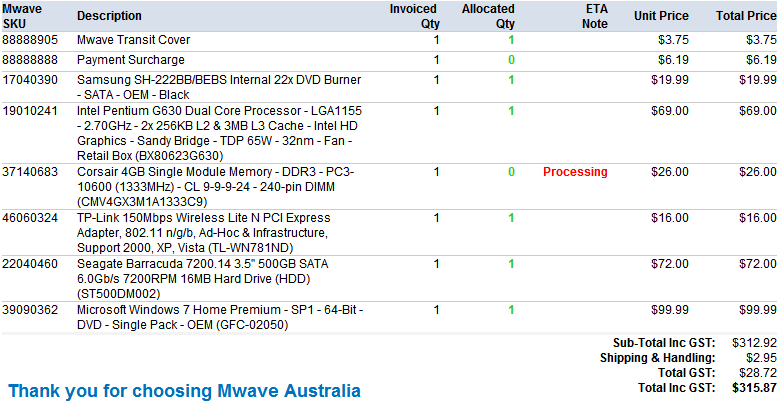
Here is the progress of the mWave order according to the order status link they provide:

Note the red processing status next to the memory module. Apparently, this means that they are in the process of ordering this part from their suppliers. That’s pretty impressive visibility of status. Looks like everything else is in stock at mWave already, and will ship as soon as the memory arrives.

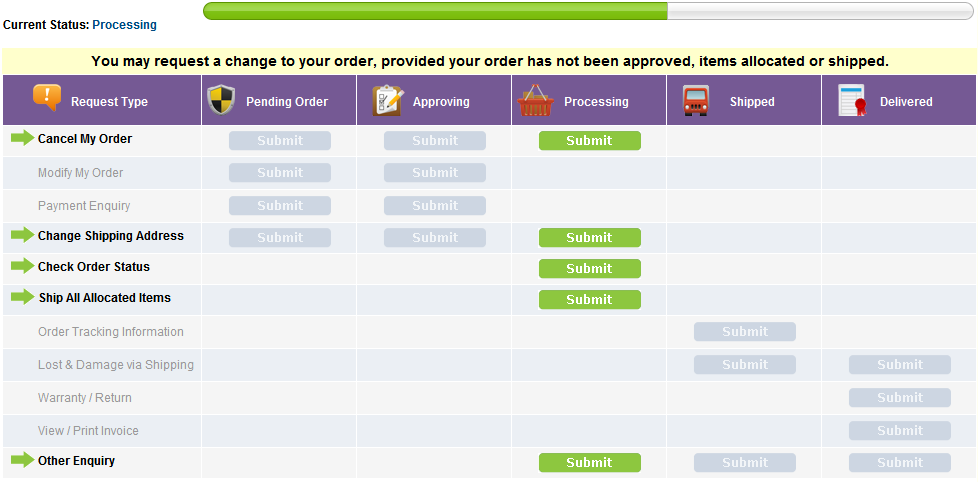
mWave also provides this nice workflow status screen, where you can take one of the actions available at the current order stage, including requesting shipment of any parts already available – although it does warn you this may cost you more in shipping fees:

MegaBuy

Checking in on my order at MegaBuy, the order status page doesn’t provide as much detail. There is a section at the end with messages, which simply states that the payment confirmation is still in progress:

Hmm. Hope they aren’t sending a letter to my bank – there must be faster ways to confirm payment.

Day Two

10:15AM: Received an email from Megabuy telling me that my order has changed status to “processing”, i.e. that payment has been received and confirmed. I’m curious to know if this part of the ordering process will go faster if I use the same credit card information on subsequent orders, because 36 hours to confirm payment seems like a long time to me.

11:22AM: Received an email from mWave telling me that my order has shipped, with a link to the tracking site for the order (I had to copy and paste the tracking ID), and a warning that tracking data might not appear for 24 hours.

2:27PM: Received an email from MegaBuy telling my that my order has changed status to “processed”, and has been sent to the warehouse for shipping.

Day Three

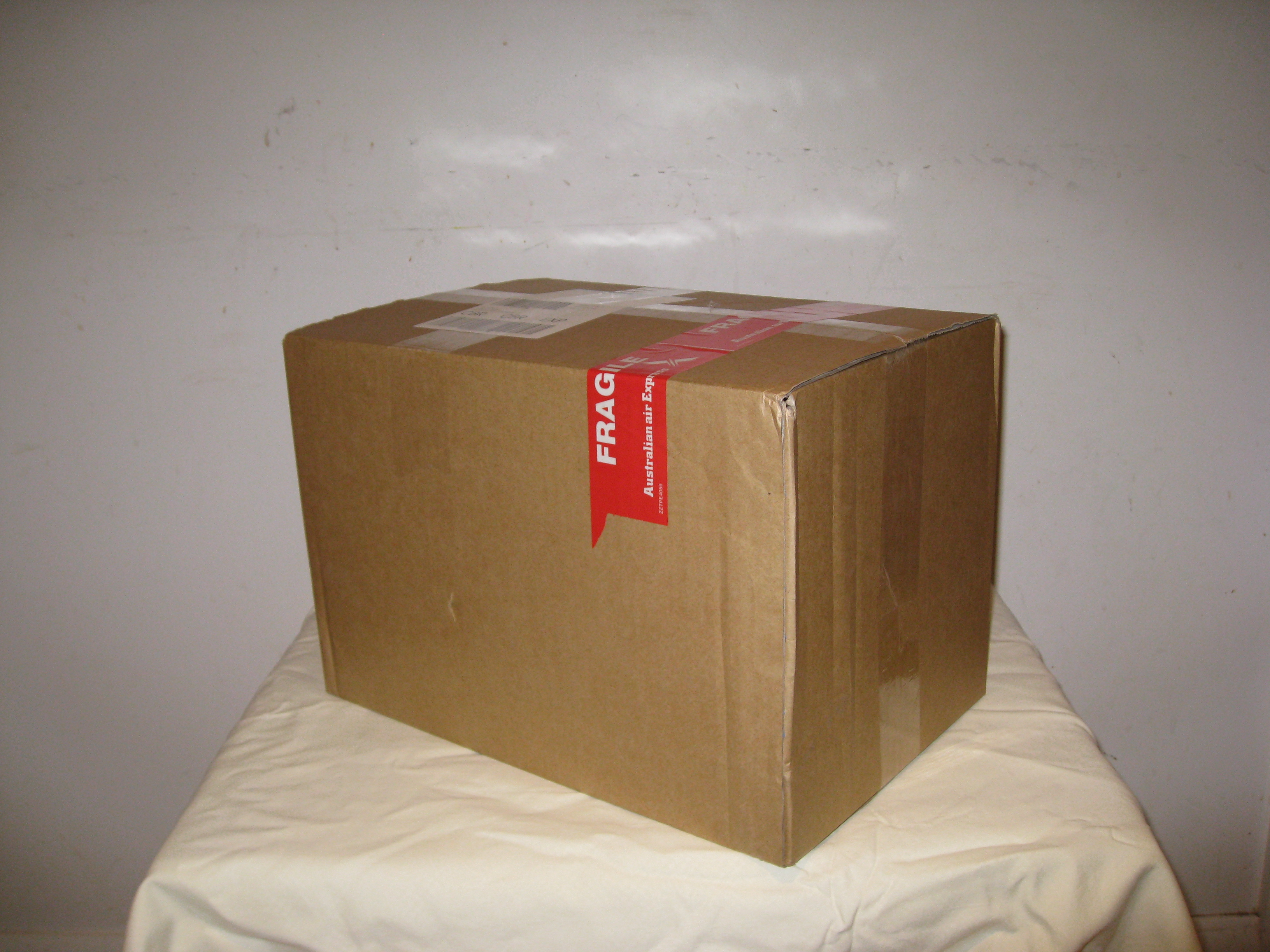
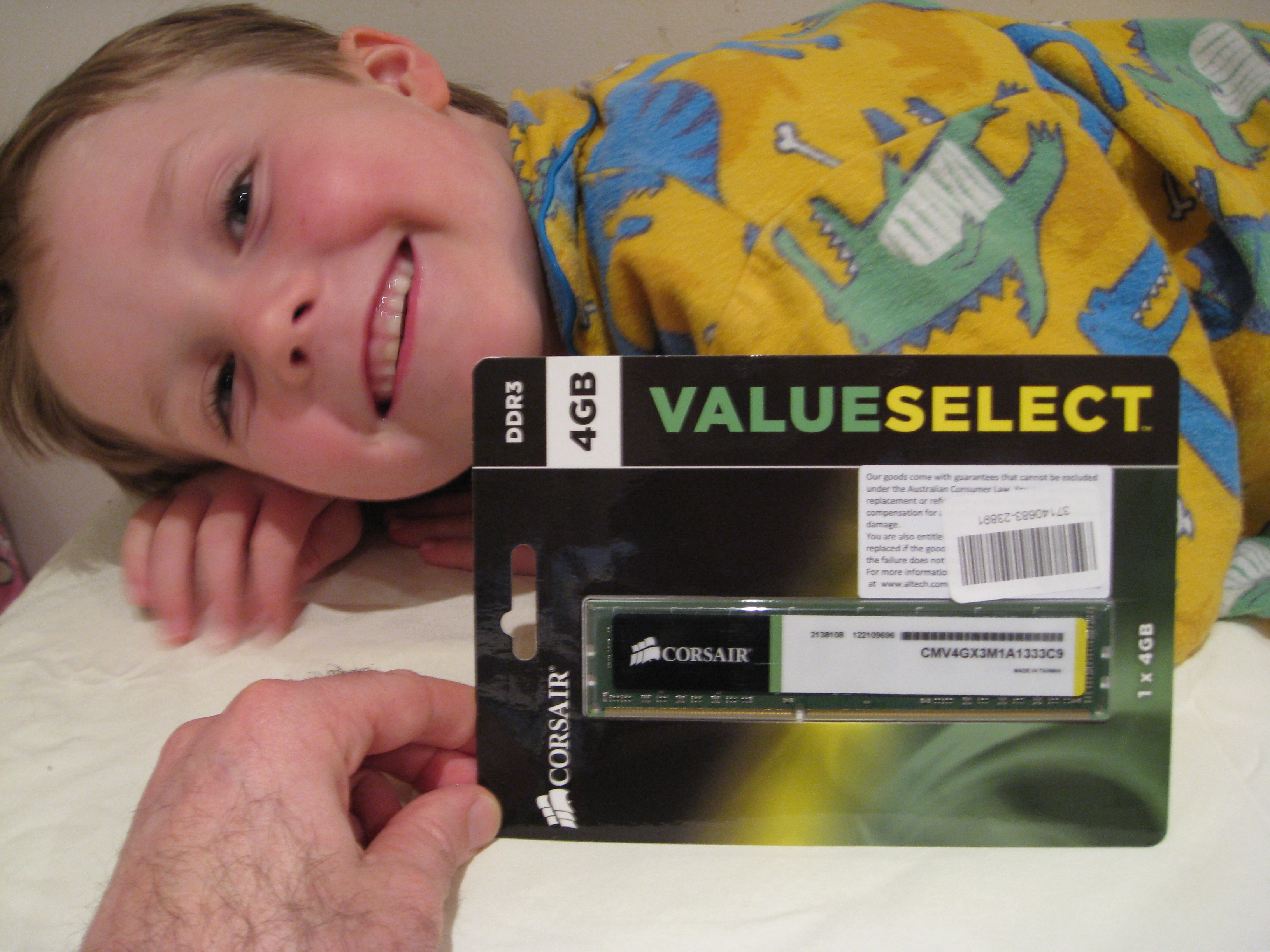
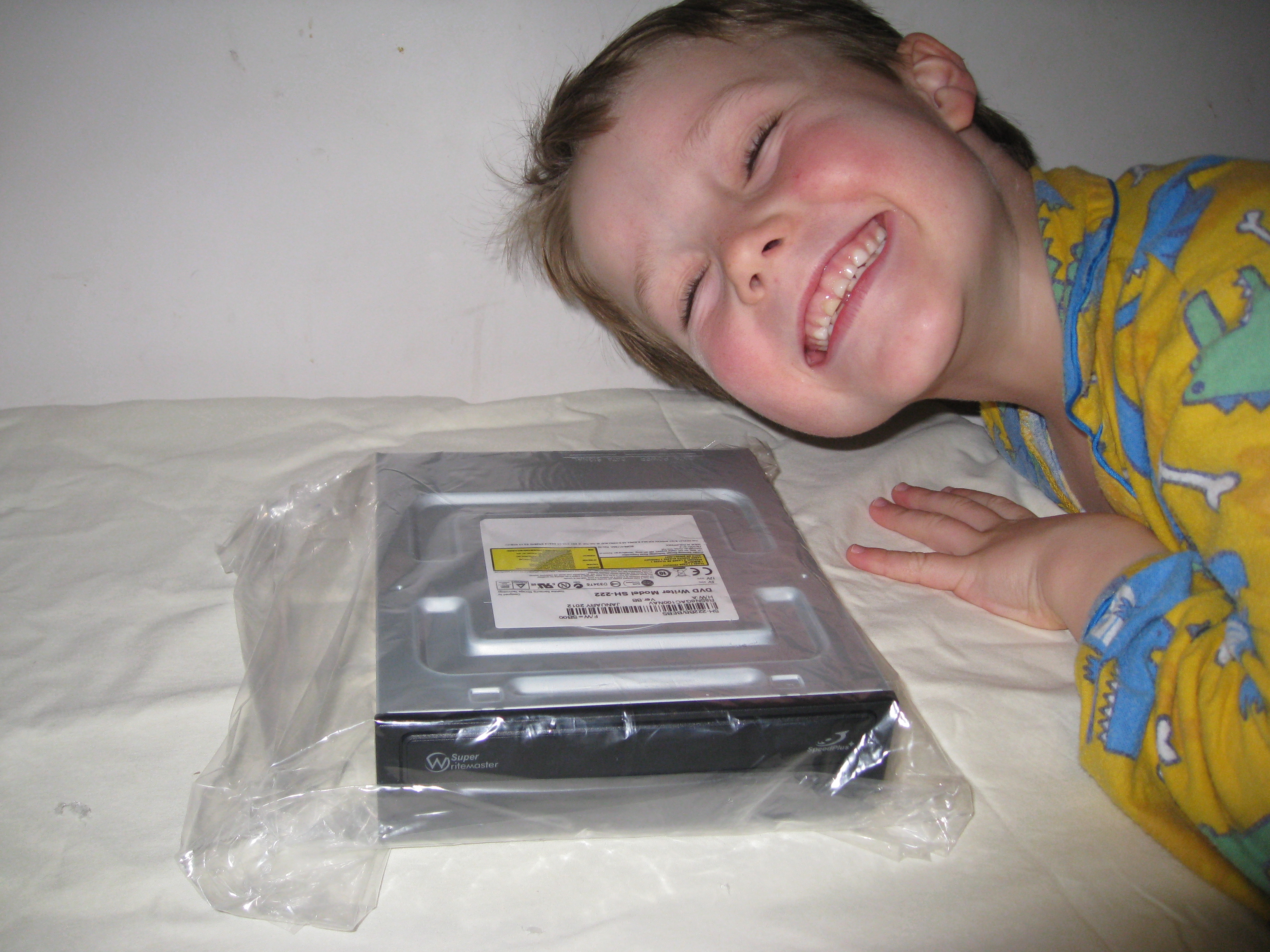
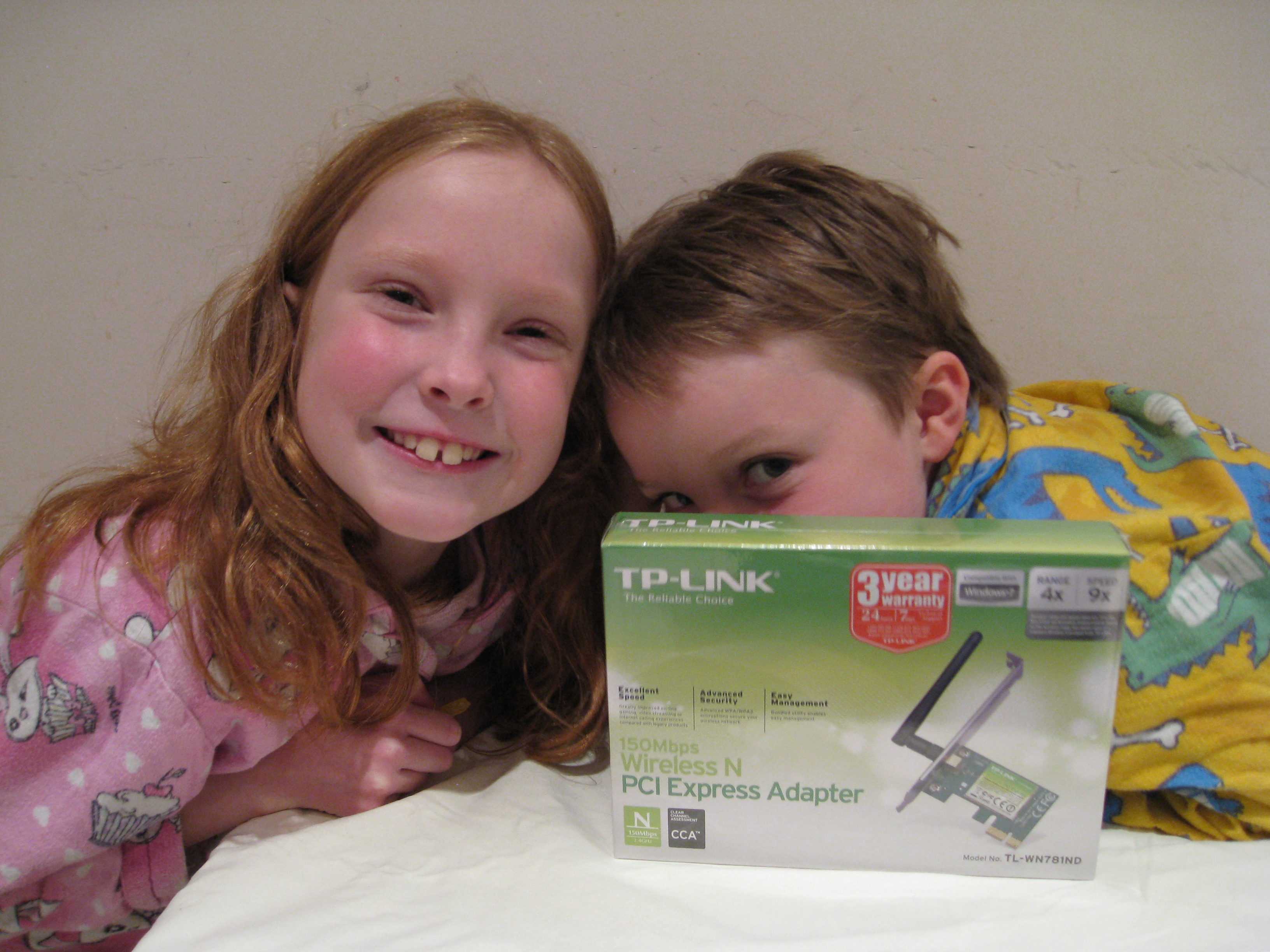
The mWave order arrived today, 24 hours after it was shipped. Nice. Came in a simple box, which we unpacked after dinner.


Of course, his big sister wanted to join in.


And yes, he really is as cheeky as he looks. No idea where he gets that from.

Day Four

Checked the MegaBuy web-site today, and there was no update to the status of my order. It still said “Processed”The description of the Processed status is quite illuminating (my red highlight added):

“The order is being picked from stock, packed & prepared for delivery and sent for delivery with a courier. The order will remain in this status until we have confirmation from the warehouse that the order has been shipped, which sometimes may occur as long as 1-2 days after the order has been shipped, so it is not uncommon for the order to remain in this status even once you have taken delivery of the order. If the order is in this status for a prolonged period of time (i.e. more than 5 days), it may mean that some or all items in the order are on back order (i.e. Not in stock and waiting to be received from supplier before they can be shipped to you) and we recommend that that you check the Order History section of your Order Information page. If it is not clear what is happening with the order from the Order History section of the Order Information page, please contact us and we will promptly find out and let you know the exact status of your order.”

Day Five

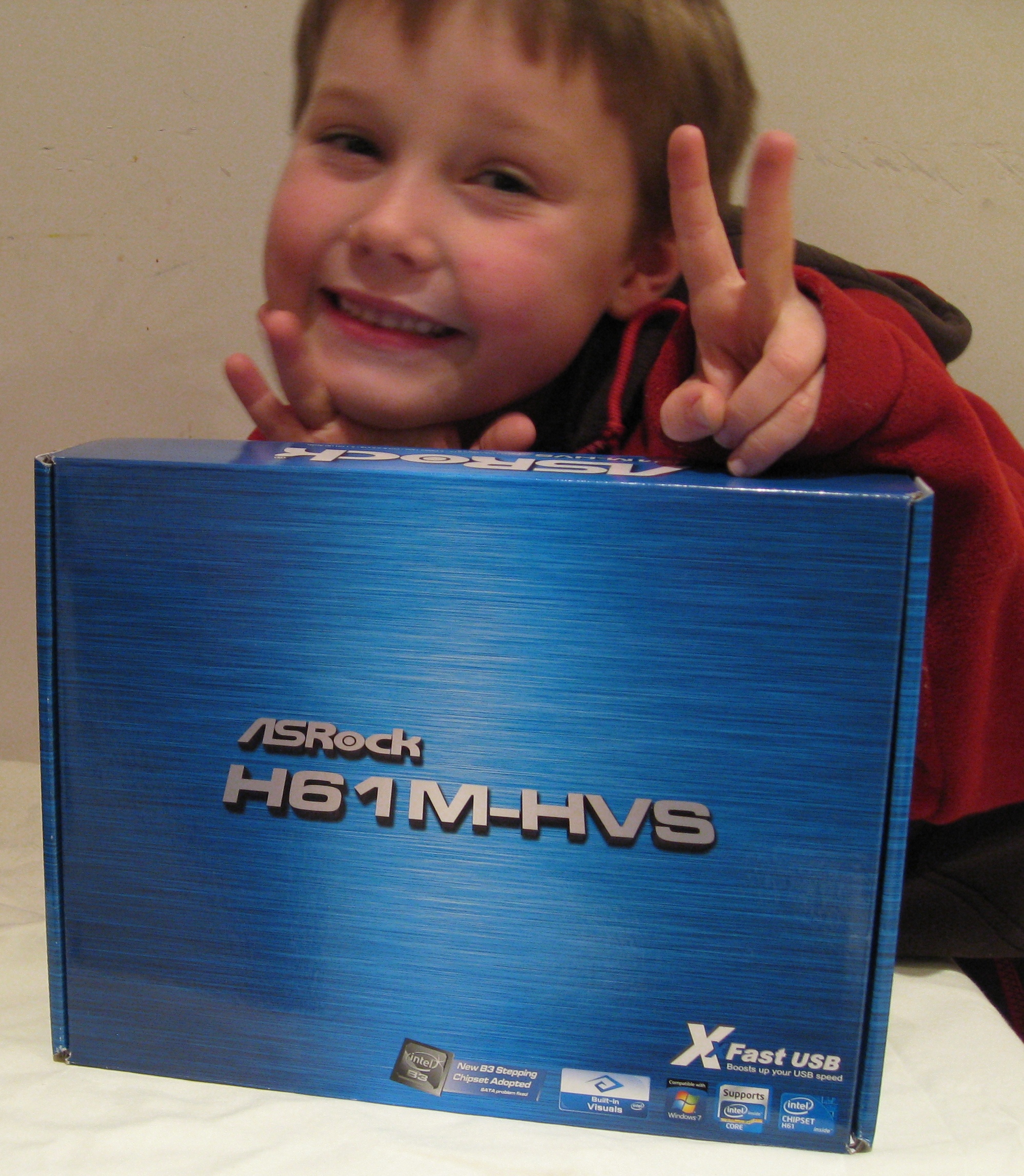
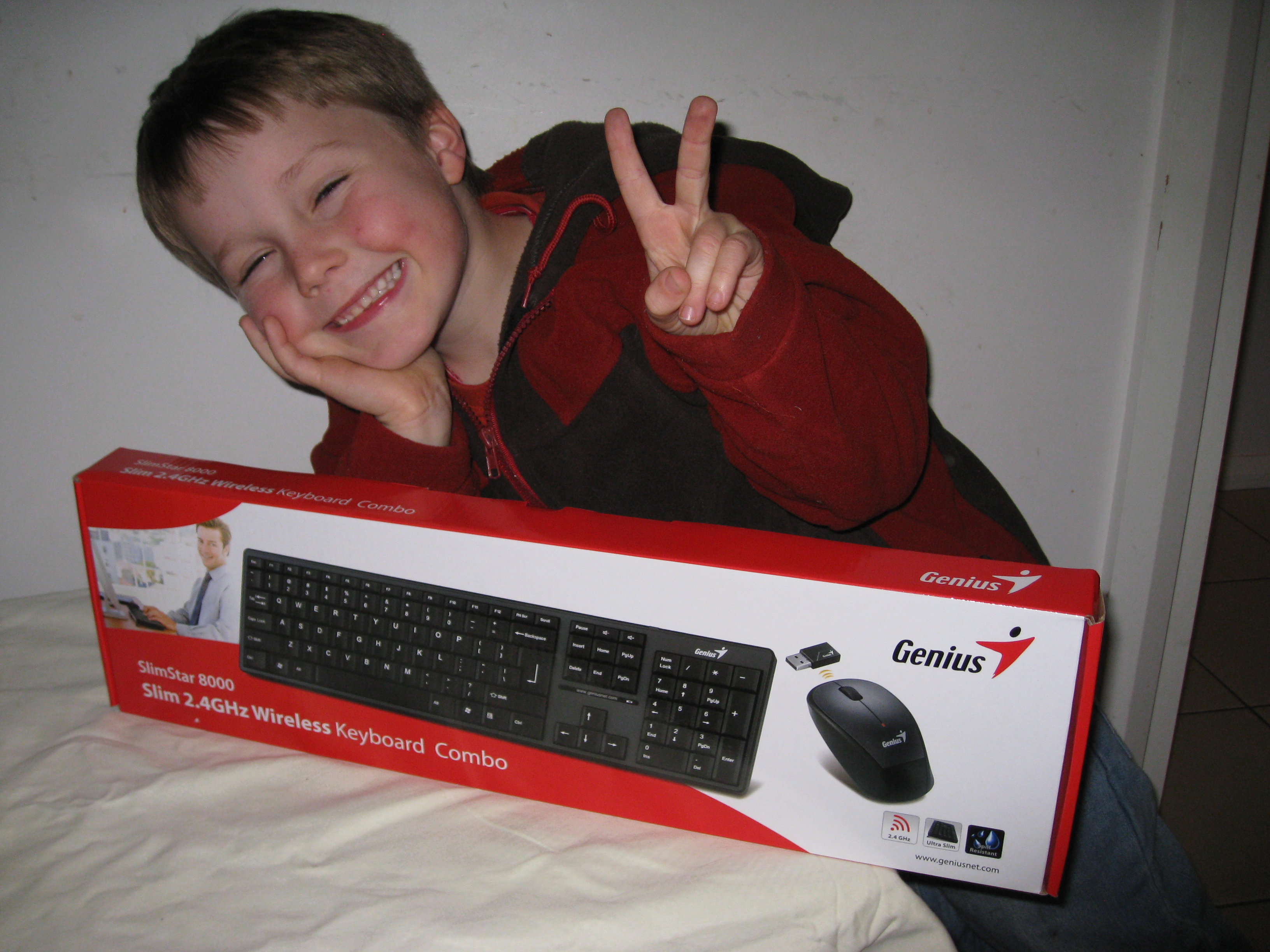
Just as I was about to contact MegaBuy to find out when to expect the order to arrive – and had resigned myself to not getting to build the PC this weekend – two boxes arrived by courier. The packing slip said “Drop Ship” and the actual supplier name (Altech Computers) was shown. The case was in a box by itself, and the motherboard, keyboard and low-profile tp-link bracket (not pictured) came in a second-hand optical drive box with recycled packaging. Nice to see the packing approach was green.

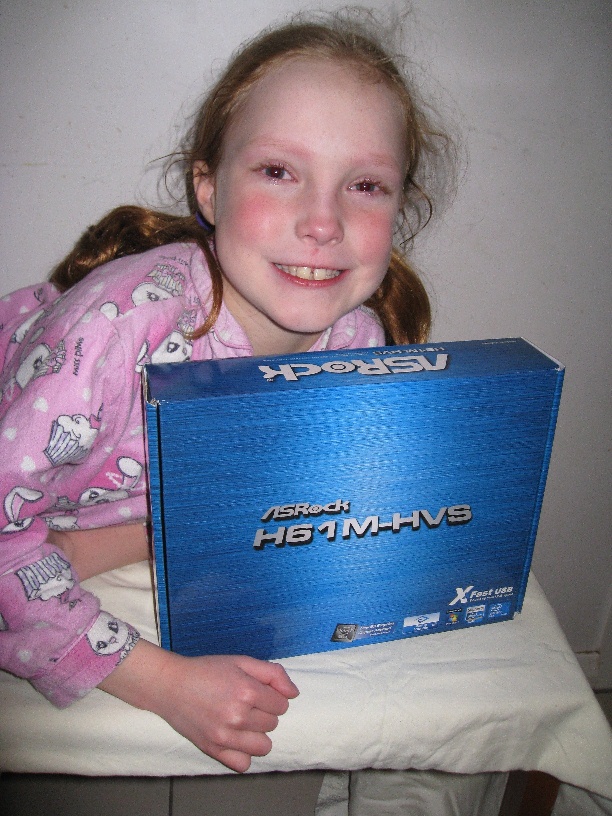
The motherboard was everyone’s favourite part name, so you get a bonus picture of that. His sister was a bit teary due to some sibling tension over posing rights.


PS: Where’d he get the whole bunny ears thing from?

PPS: The megabuy site still says “Processed”. No doubt it will change to “Shipped” at some point. 🙂

Next time: Let the Fun Begin

Building a decent mini desktop for my 6 year old son – for under $500 – software included – Part 2 – Research and Ordering

(Aside – I suspect there is a way to get WordPress to create a multi-part post, but I haven’t worked it out in the 20 seconds I spent looking at it – so I’m going to go with a new post manually linked to the previous one.)

A couple of weeks ago, I was lamenting the inability of my current Dell Studio 1747 laptop to drive Elder Scrolls V at more than about 3 frames per second at 2560 x 1440 resolution on my nice new 27″ monitor (purchased for working at home, of course) and so started researching what it would take to put together a new gaming rig for myself.

I spent a good few hours looking at CPUs, solid-state-drives, power supplies, motherboards etc. looking for the right sweetspot of price per performance, and quietness.  The reviews at anandtech are awesome, as is Tom’s Hardware when their ad-serving links aren’t causing the site to slow to a crawl.

As I was going through this process, I found the search engine at MegaBuy easy to use, and their prices seemed very competitive. So, once I had my list of bits, I priced everything on megabuy.com.au. But when I put it all together in my shopping cart, and went to check-out, I discovered that MegaBuy’s shipping model seems to be to drop-ship everything from suppliers, and charge an additional delivery fee every time a new supplier is added. By the time I had about $150 in shipping fees, and 4 separate shipments, I was feeling a little insulted.

After a bit of googling, I discovered mWave, and noticed that not only was it’s shipping pricing more reasonable, but that many components were actually cheaper, too. mWave strongly recommends shipping to a work address, and I had to head off on an overseas business trip, so I put the plans for the new gaming PC on hold. While away my plans morphed into building a computer for my son instead.

In the interests of full disclosure, I should probably point out at this point that I’ve never actually built a complete PC from scratch before. I’ve done plenty of cannibalizing, power supply replacements, graphics card and memory-stick insertions etc. but I’ve never actually got an empty case, motherboard, and all the other bits and pieces and put them all together. Not only that, but I hadn’t actually been too bothered with the internals of a PC since the mid-2000s, when I decided that laptops were the way to go for the foreseeable future – so was totally out of date with the latest CPUs etc until I started my latest research.

But undaunted, on my return I switched the focus of my research to a cheap and cheerful but somewhat future-proofed desktop machine, that wouldn’t be too complicated to put together.

The decisions I made were:

  • To use a micro-ATX motherboard and corresponding slimline case. I could just picture my wife’s reaction if a full-size ATX desktop tower showed up in my son’s room, but wasn’t confident in being able to fit everything necessary into anything smaller than micro-ATX at the target price-point.
  • An on-board graphics card would do just fine. I’d heard good things about Intel HD Graphics – good enough for my son’s educational and non-cutting-edge-game-playing purposes anyway.
  • Choose a decent CPU for under $60. cpubenchmark makes it so easy to compare CPUs by simplifying it  down to a couple of easy charts . I don’t know about you, but $60 seems insanely cheap to me for a CPU that has performance equivalent to a cutting edge processor from only a few short years ago – and definitely appeard to be around the sweetspot for price performance at the lower end of the price-range.
  • Go with a case that has power supply included. Let’s face it, this machine isn’t going to be sucking a lot of power – and it seems like you can save a few bucks by getting the case and power supply together.
  • 4GB RAM is plenty – but I decided to go with a single stick so I can add more if need be – it looks like it will be cheaper to get one stick than two anyway!
  • Be careful to get the right motherboard video outputs – I have an existing monitor with HDMI inputs but no DVI that I want to reuse for 1920 x 1080 viewing – so decided to get a motherboard with an HDMI connection
  • Wireless networking was more important than wired – My house isn’t cabled with CAT5, so figured I wouldn’t need Gigabit Ethernet – only a wireless card. I also didn’t want a USB dongle sticking out that could get knocked by my son or one of his friends when messing around in his room.
  • Might as well go wireless keyboard and mouse – less to get pulled yanked and potentially destroy the connectors on the PC

So, here are the parts I ordered today:

From MegaBuy

  • Aywun DM529 Micro-ATX Slim Desktop Case, Black, 300W TFX PSU with 1 x 5.25″ external and 2 x 3.5 drive bays (1 internal, 1 external), and four slimline expansion slots – $58.91
  • ASRock H61M-HVS B3 microATX motherboard, with Intel H61 Express chipset, 2 DDR3 memory slots at up to 1333 GHz max 16GB, HDMI and D-Sub video connectors, 1 PCI-e 16 and 1 PCI-e 2.0 slots, 4 x 3.0 GB/s SATA ports, 6 USB 2.0 ports, 5.1 channel Audio, and 100MB LAN – $51.38
  • Genius Slim 2.4GHz Wireless Keyboard Combo – $25.08
  • TP-Link Low profile bracket for WN781ND – $3.96 (so can fit the wireless card below into the low profile slot of the Aywun case – was not in stock at mWave)
  • Shipping (including insurance) and credit card handling fees – $32.16
  • Total: $171.49

From mWave

  • Intel Pentium G630 Dual Core Processor 2.7GHz Retail Box – $69
  • Corsair 4GB Single Module Memory DDR3 1333MHz – $26
  • Seagate Barracuda 7200rpm 500GB HDD – $72
  • TP-Link 150MBps Wirless Lite N PCI Express Adapter – $16
  • Samsung SH-222BB/BEBS Internal 22x DVD Burner – $19.99
  • Microsoft Windows 7 Home Premium SP1 64-Bit DVD – $99.99
  • Shipping (including insurance) and credit card handling fees – $12.89
  • Total: $315.87
The order from Megabuy was optimized to make sure everything was coming in a single shipment. The case and motherboard were about $15 cheaper than from mWave, and the wireless keyboard and TP-Link low profile bracket weren’t available from mWave.
Grand Total
  • Hardware Only: $342.32
  • Shipping Etc.: $45.05
  • Grand Total with OS: $487.36

So, in theory, if all these pieces fit together how I hope they will this is a pretty decent slimline Windows 7 PC (including keyboard and mouse) for under A$500.

Next time: Receiving the orders.

Building a decent mini desktop for my 6 year old son – for under $500 – software included – Part 1 – Getting Started

I love sites that give detailed walk-throughs of how to do something. Particularly when they assume you aren’t an expert in the topic. But I’ve never gotten around to creating anything like that myself, and figured that rather than continue to endlessly suck the blogosphere dry I should try to contribute something back.

I’m the father of a six-year-old son who is showing some interest in computers, where by “some interest” I mean:

  1. Is keen to play on the iPad that lives by my bed at any opportunity
  2. Seems to quite enjoy the dazzlingly primitive educational games on his sister’s 7-year-old laptop (which I converted to Qimo from a hotfix-paralyzed Windows XP install)
  3. Likes watching me play RPGs

Um, so he actually enjoys computer games, then, you say? Ah, I reply, but I too started down the path to IT industry success with just such a passion!  (Didn’t we all?) And in my defense, he only occasionally gets to watch RPGs that aren’t too blood-and-gore filled.

Like all parents, I’m keen to give my offspring every possible opportunity for future success, so partly at my wife’s suggestion, and partly because it would help justify the expense for such a young afficionado – I’ve launched into a joint father/son build-a-computer project.

Not surprisingly, given the recipe above, when approached with this idea and asked what he would do with such a device, my son replied “play games?”

Devil me: Awesome. My plan’s working so far. Joint hack-and-slash adventuring await!

Angel me: You mean enlightening educational experiences that will ensure he has a satisfying and financially rewarding career.

Devil Me: What, it’s not like he’s going to be the future creator of the Facebook of 2024.

Angel me: Stop being so cynical.

Anyway, here’s the plan:

  • Research the parts needed for a mini-ATX computer that won’t take up too much room on his desk, and which can be had for around the $300 Aussie dollar mark
  • Order parts from online Australian suppliers without getting gouged by outrageous shipping fees
  • Spend an enjoyable and frustration-free weekend afternoon putting the computer together
  • Install an OEM version of Windows 7 (so can upgrade to Windows 8 when available using the free $15 offer that Microsoft has announced)
  • Notch up one for excellent parenting!

Either that, or I’ll get him hooked on WoW and regret the day I ever embarked on this project.

In the next post, I’ll give details of the research and parts ordering process.